AFTER EFFECTS PLUGIN · TRANSITIONS
ASheng
FlowTransition
Apply it,
and it transitions by itself.
Text or a single layer dissolves or appears along a turbulent texture. No keyframes: “⏩ Auto Transition” starts at the layer’s in point or finishes exactly at its out point. 16 built-in presets — burn, water, erosion, energy, tech, soft, reveal — pick one and apply.
10 USD · 365-day license · 1 Mac
Output is watermarked until a license is activated; price, license length and seat count follow the live plan on the purchase page.
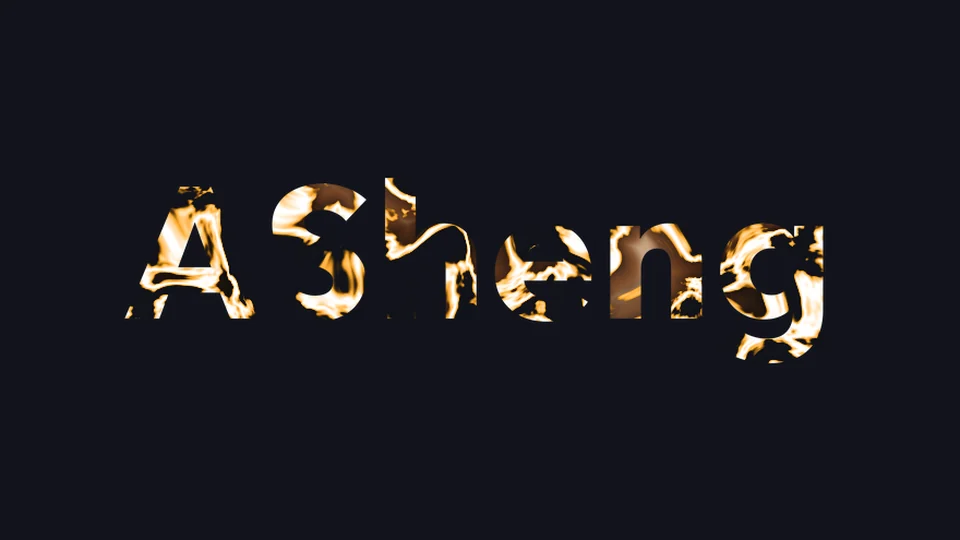
Point one · ⏩ Auto transition
No keyframes —
apply it and it transitions.
Add the effect to a layer, choose a mode under “⏩ Auto Transition”, set the seconds, done. The transition follows the layer’s own in and out points: move it, trim it or split it into pieces on the timeline and every piece transitions on its own, with no keyframes to revisit.
- Start at in pointTransitions as soon as the layer appears — good for exits.
- End at out pointFinishes exactly before the layer ends — easiest when subtitles change line by line.
- ReverseTick it to run backwards: from nothing to full, for entrances.
- StillTo control the timing yourself, keyframe “Transition Amount” instead.
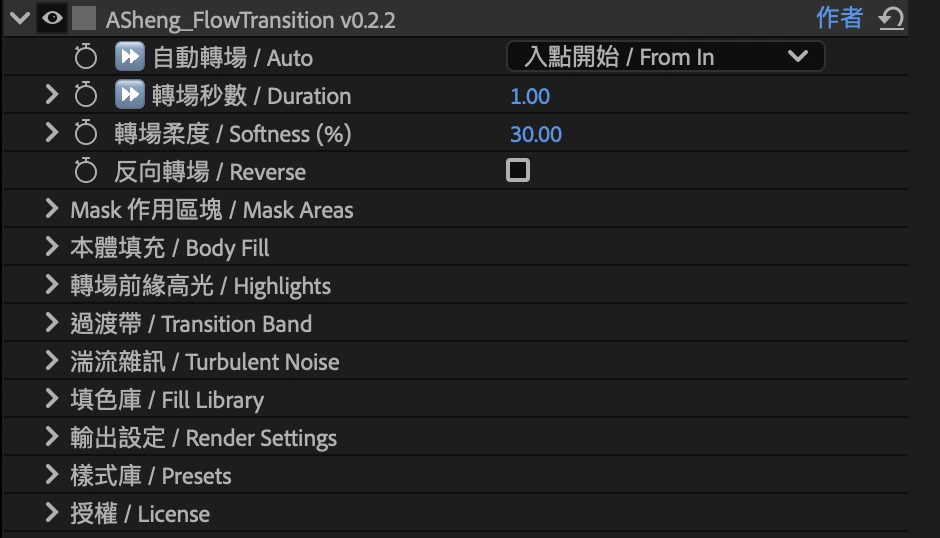
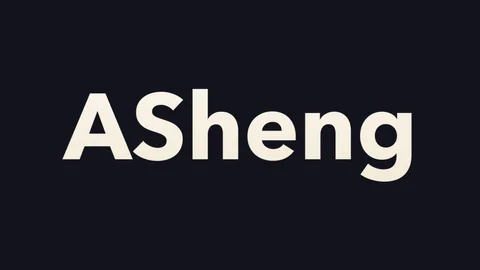
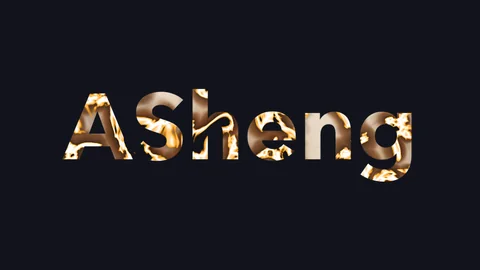
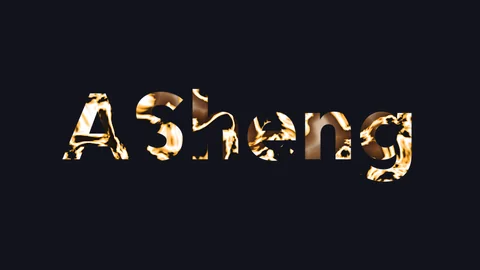
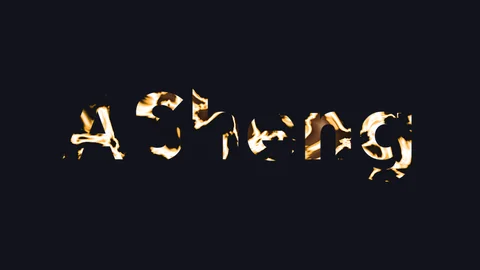
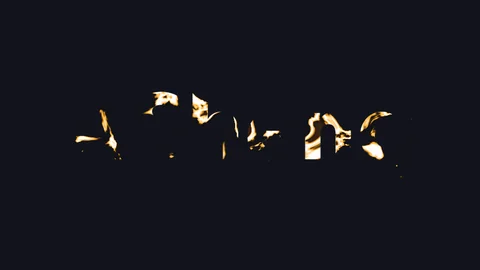


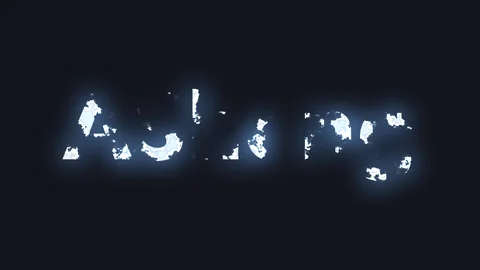
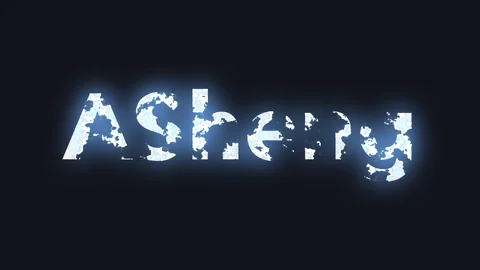
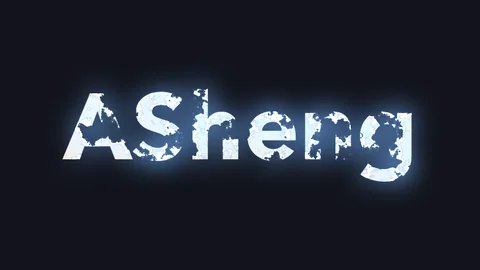
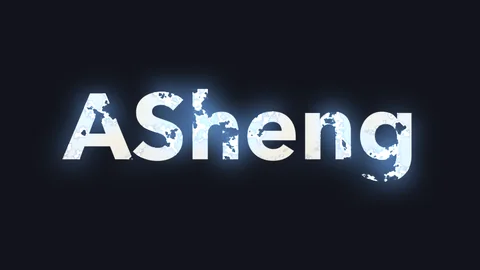
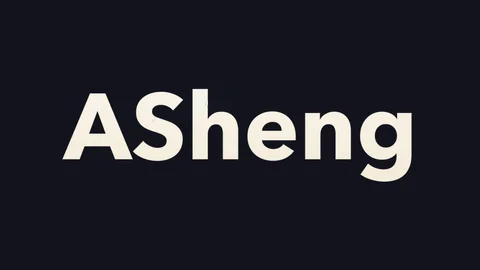
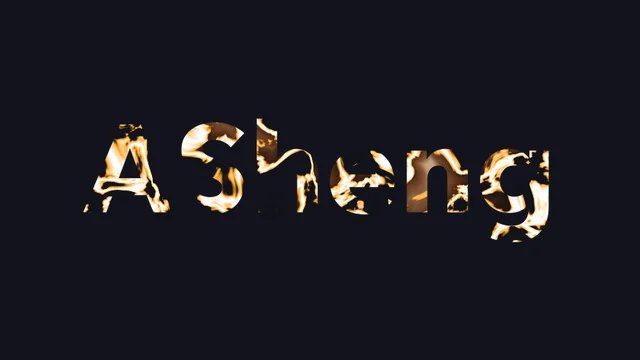
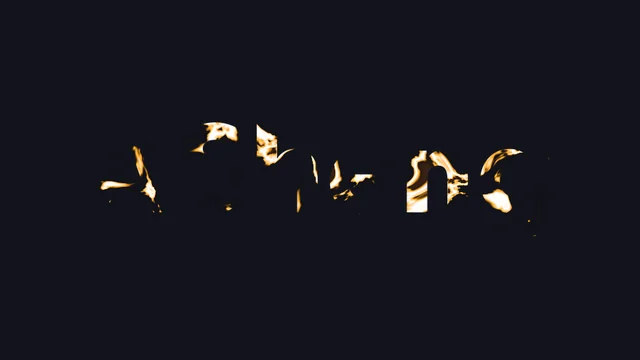
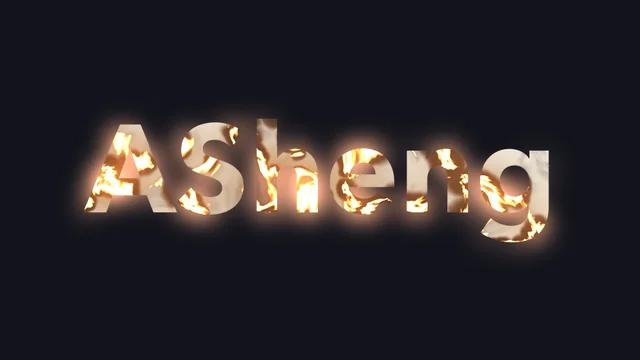
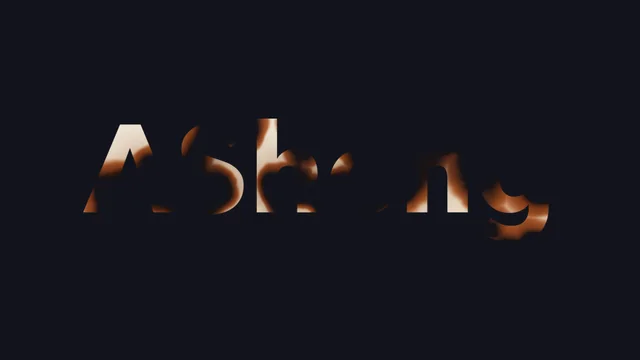
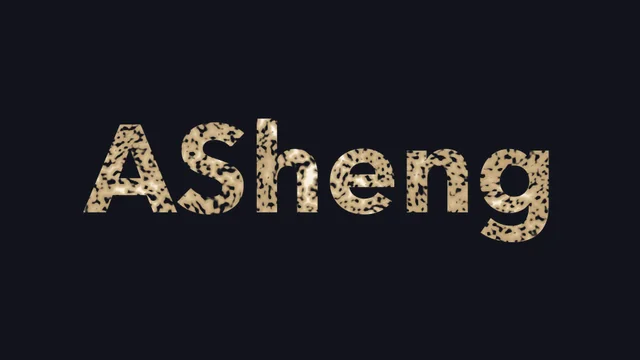
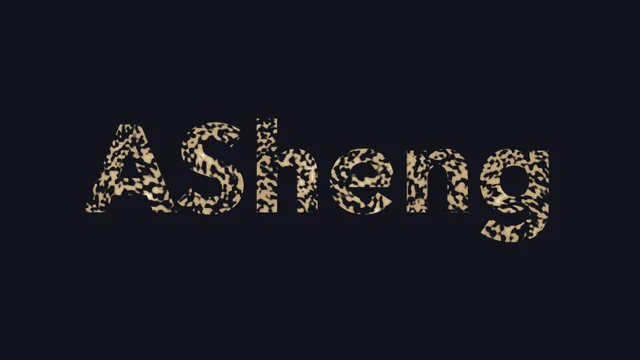
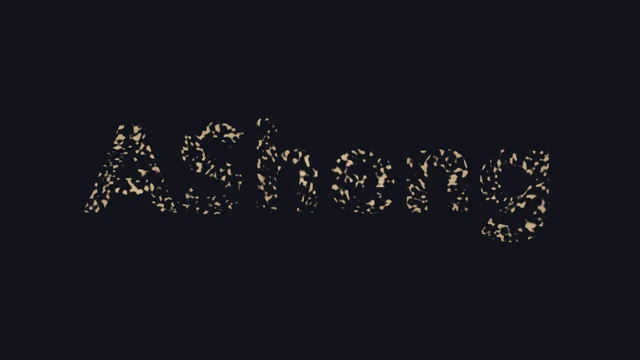
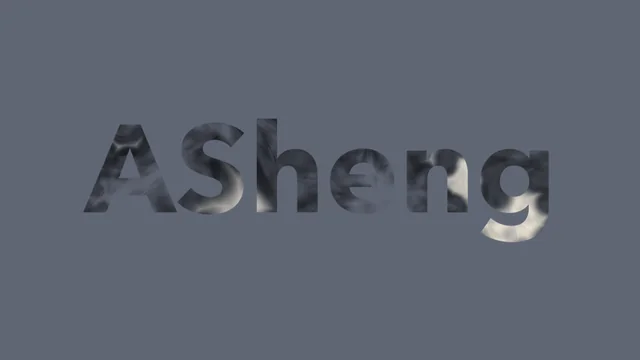
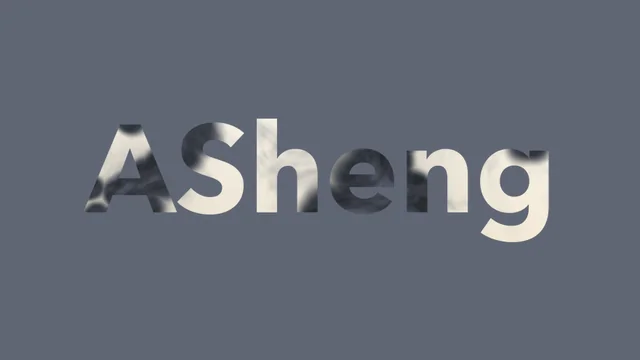
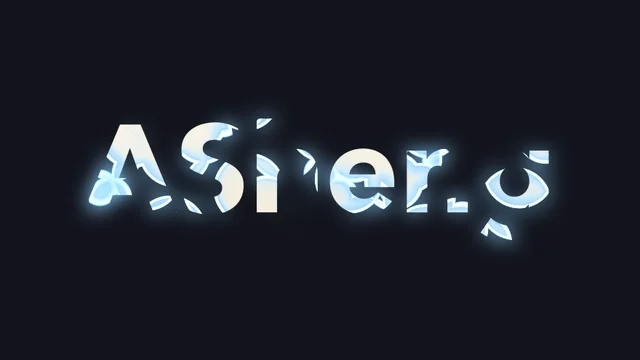
Every frame above was rendered by the plugin at that time, with no keyframes anywhere.
Point two · 16 built-in presets
Not just burn.
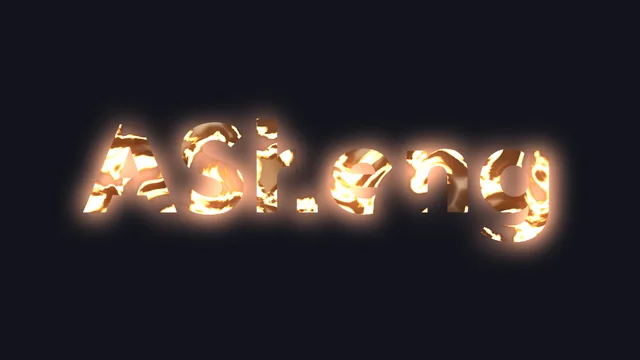
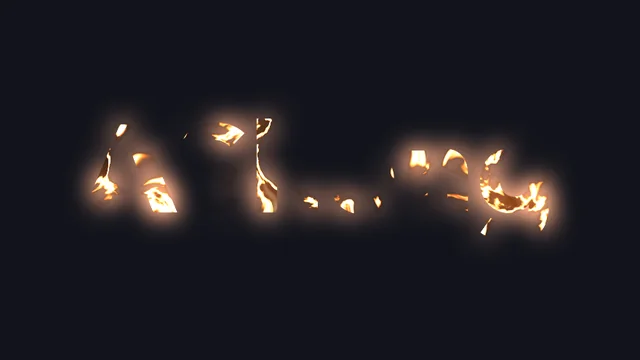
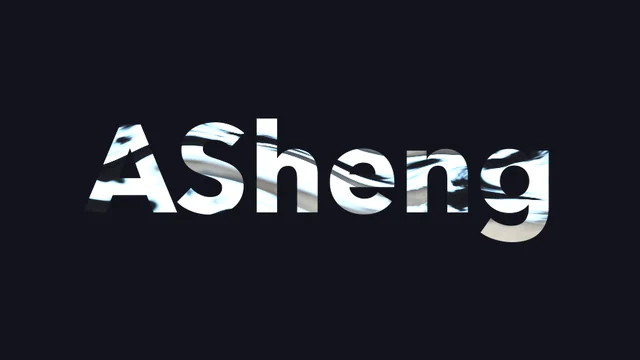
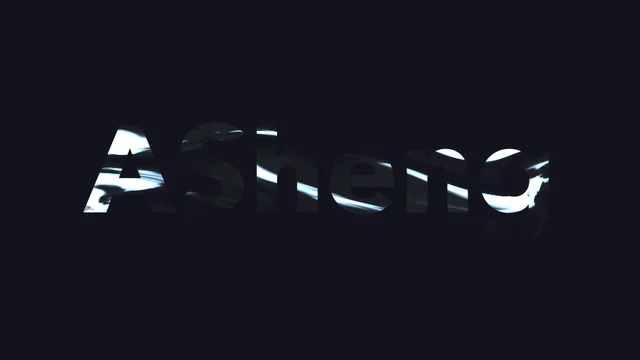
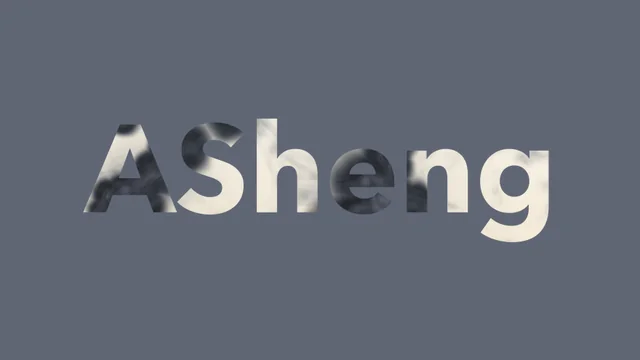
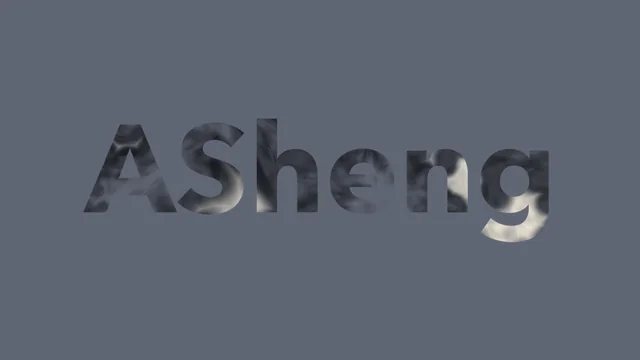
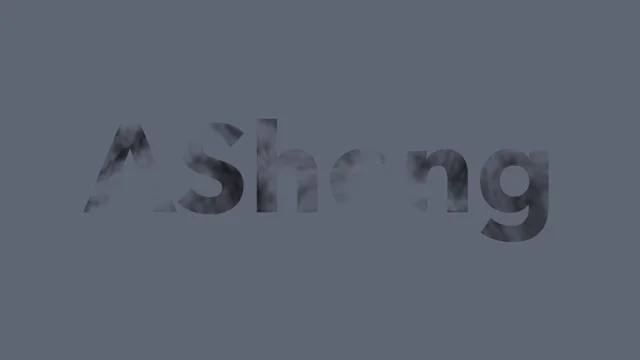
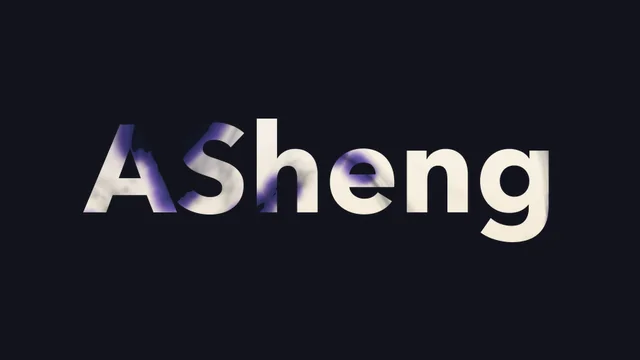
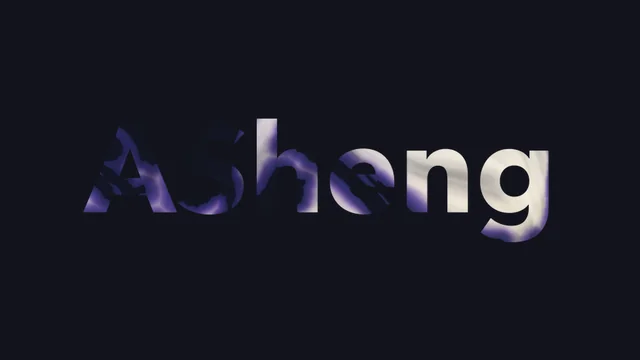
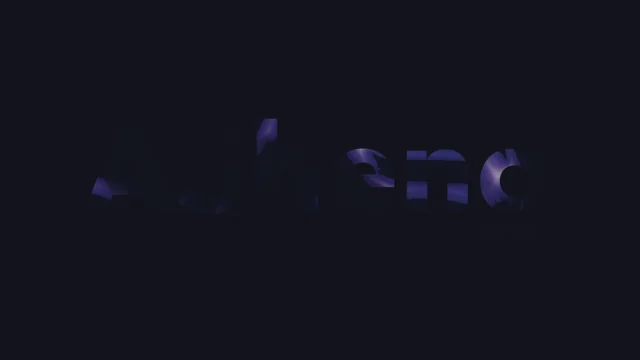
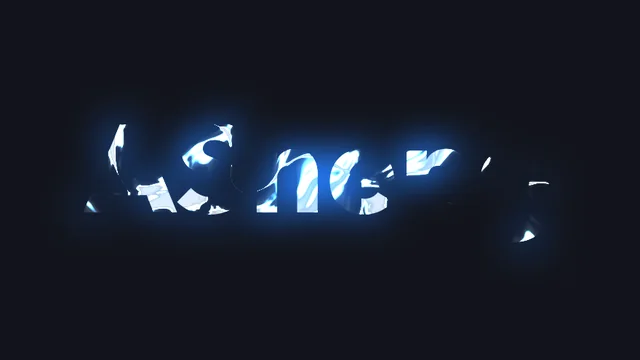
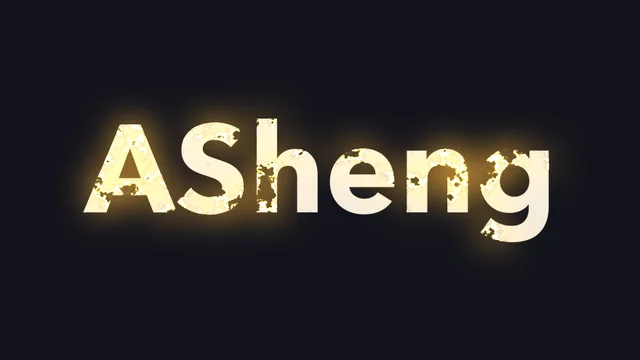
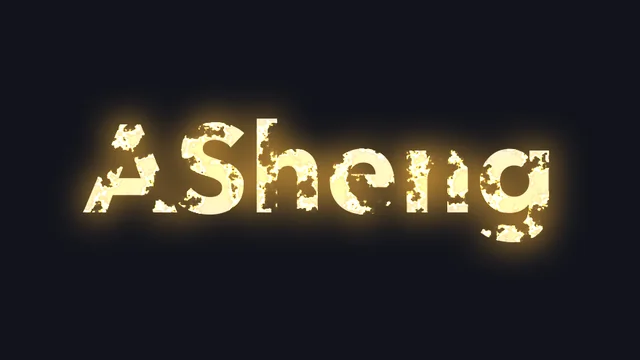
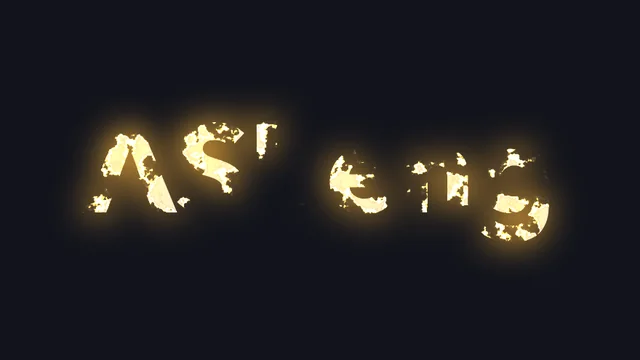
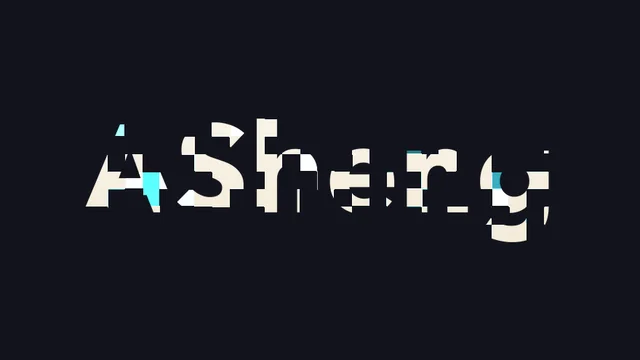
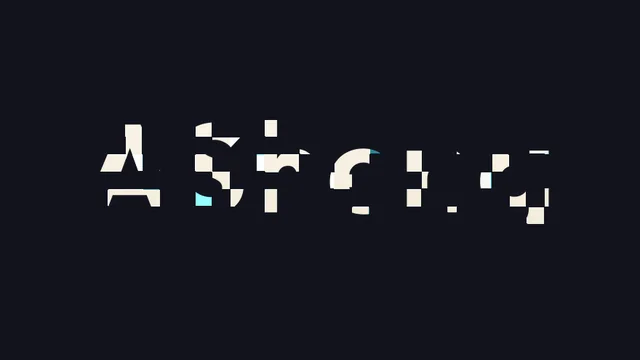
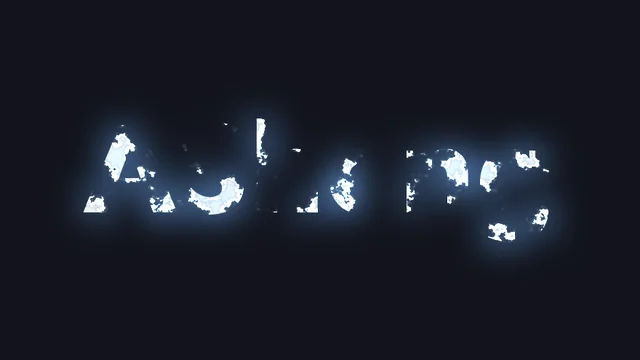
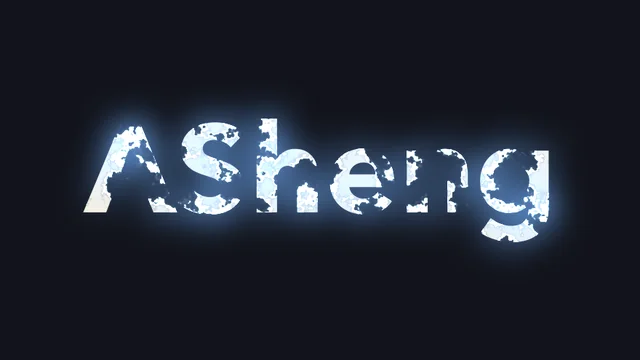
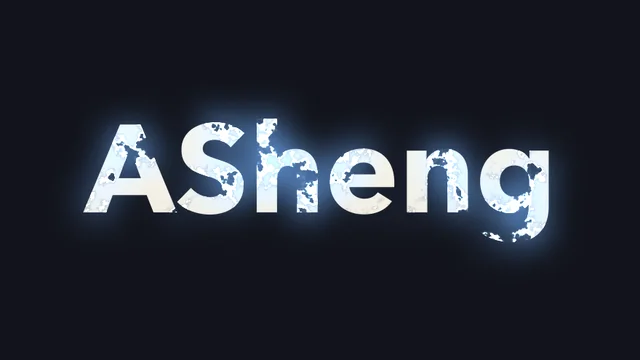
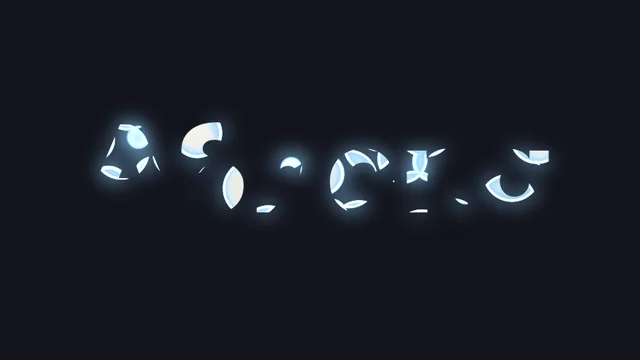
Seven types, 16 presets, added to the preset library at install, all with ⏩ Auto Transition preset so they move the moment you apply them. The three frames under each preset show the same word at 20%, 50% and 80% of the transition.
Burn
Charred paper edges, ember fire line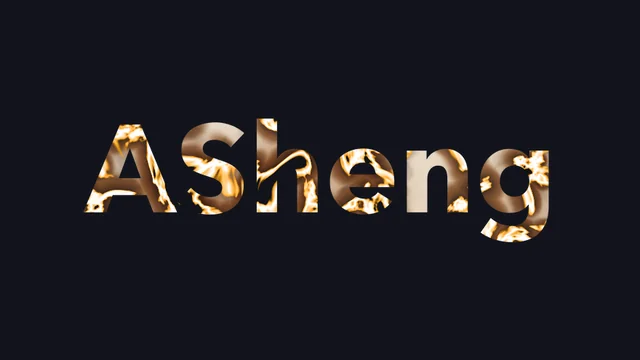
Water
Wash, ink bleed, watercolor soak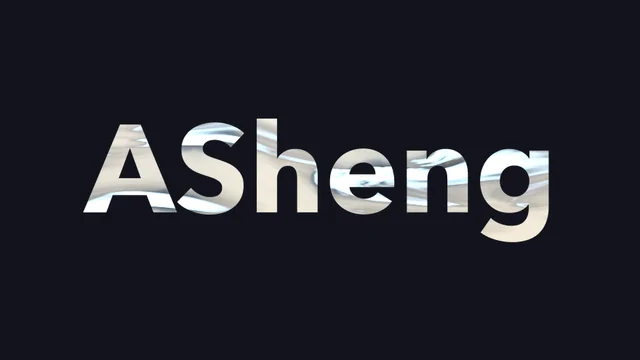
Erosion
Rust flake, sand weathering, cracked stone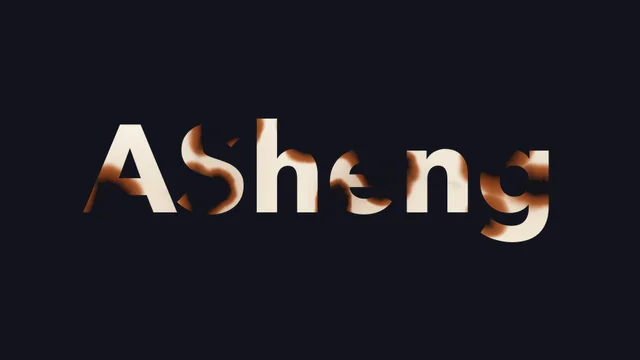

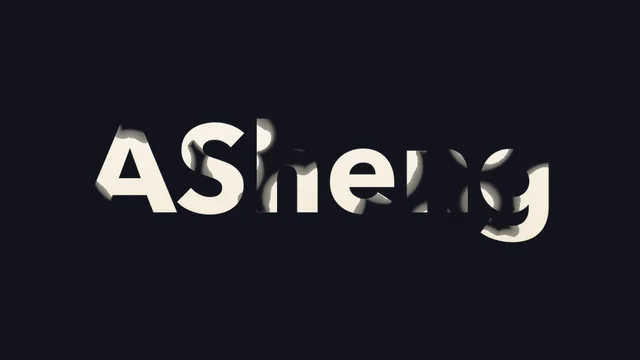
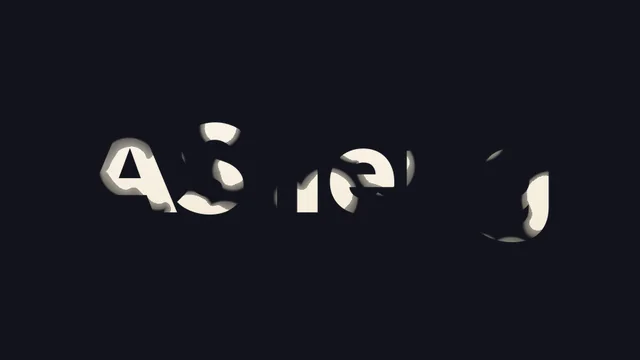
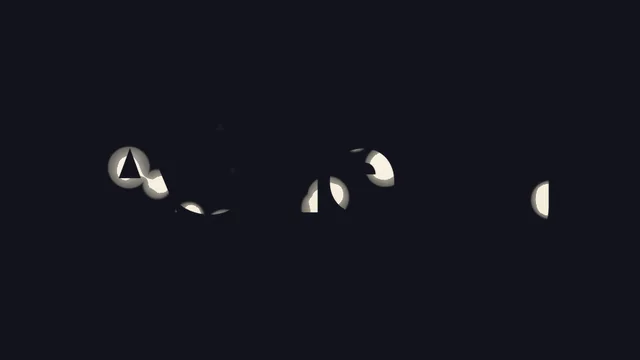
Energy
Electric and gold, dissolving with a glowing edge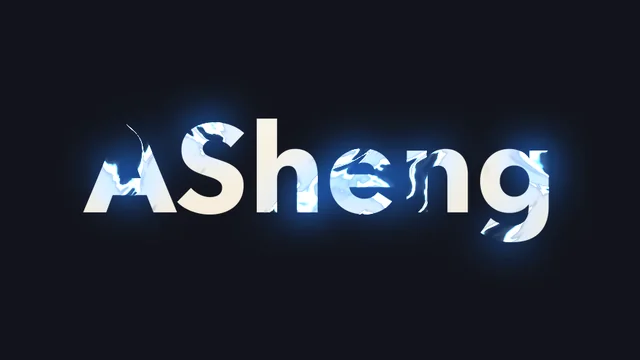

Tech
Digital blocks vanishing cell by cell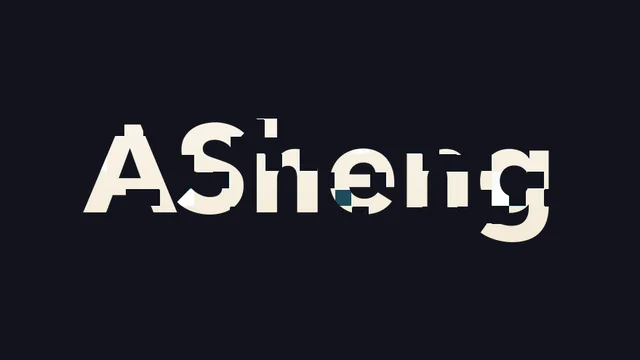
Soft
Mist and faded-photo looks for quiet passages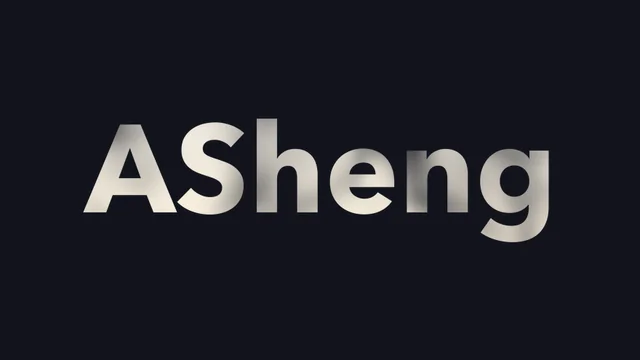
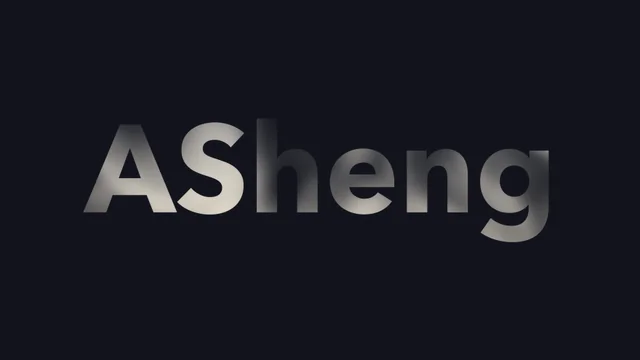
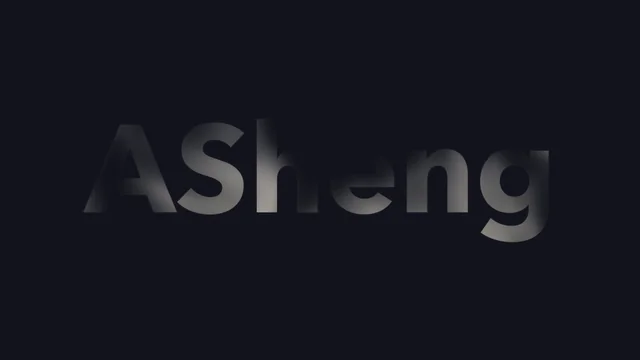
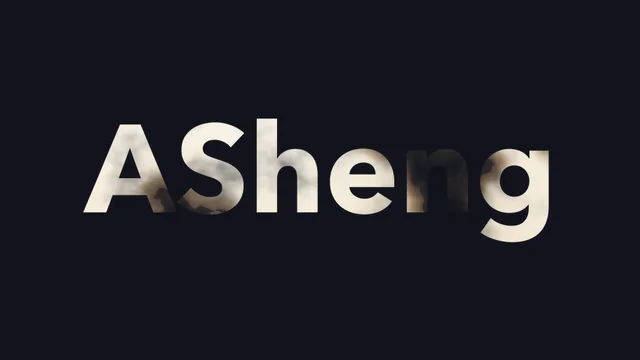
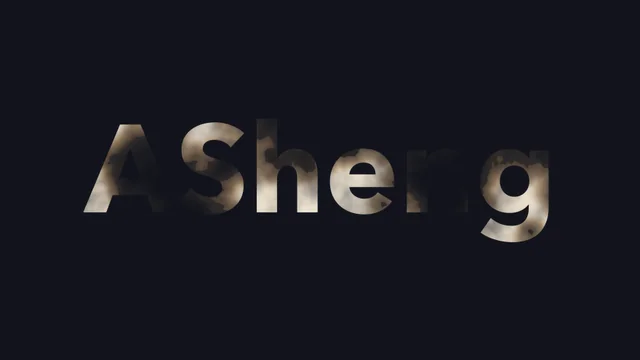
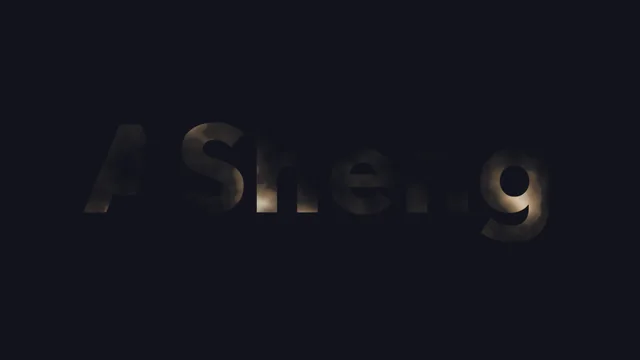
Reveal
Reverse transitions: from nothing to full, for entrances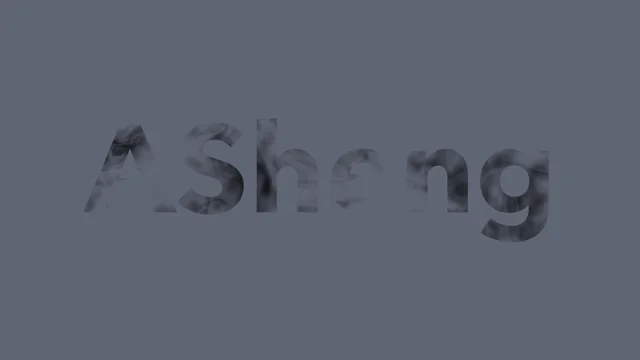

Getting started
Three steps
to get started.
Requires an Apple Silicon (M-series) Mac, macOS 14 or later and After Effects 2026. No Intel Mac or Windows version yet.
- Download the installer
Click “Download for Mac”, get the latest version from the download page and unzip it. The installer is Apple-notarized.
- Quit AE, then install
Save your project, quit After Effects fully with Cmd+Q, then run the installer. The 16 built-in presets are added to the preset library at the same time.
- Add it to a layer
Reopen AE, find ASheng_FlowTransition under “Effect → ASheng - Elements”, add it to text or a layer, pick a preset from the library or set up ⏩ Auto Transition directly.
Good to know
Can I try it without a license?
Yes. Once installed you can apply it and experiment; output is watermarked until a license is activated.
Which layers can I use it on?
A text layer, or the content of a single layer (a cut-out image, a shape, a precomp). The transition happens only where the layer has content and never eats the whole frame.
If the subtitle moves or scales, does the transition drift?
No. Since 0.2.2 the transition texture sticks to the text; when the text moves, scales or rotates, the texture travels with it instead of staying put.
Does it work with Chinese characters?
Yes. The transition is computed from the layer’s content shape, so Chinese, English and numerals all behave the same.
Can I adjust a preset after applying it?
Yes. Softness, turbulence noise (32 textures), transition band, leading-edge highlight, body fill and texture flow direction are all adjustable, and the result can be saved back to the library.
How do I update later?
Come back to this page and click “Download for Mac” for the latest version, or click “Check for Updates” in the plugin’s license helper.