AFTER EFFECTS PLUGIN · BLING
ASheng
Bling
Make the picture sparkle,
with one click.
Turn the brightest spots in text, photos or night scenes into twinkling star spikes; add slash lights, rings, bokeh and glitter, sweep a bright band across the picture, or reveal and dissolve images and text along a sparkling edge. Ready-made presets for gold titles, night scenes and portraits look right straight away, with sliders for everything if you want to fine-tune.
15 USD · 365-day license · 1 Mac
Output is watermarked until a license is activated. A license starts when the purchase completes and does not auto-renew; buy another when it expires. The Golden Pass already includes Bling. The live plan on the purchase page sets the price.
Star shapes
Six star shapes,
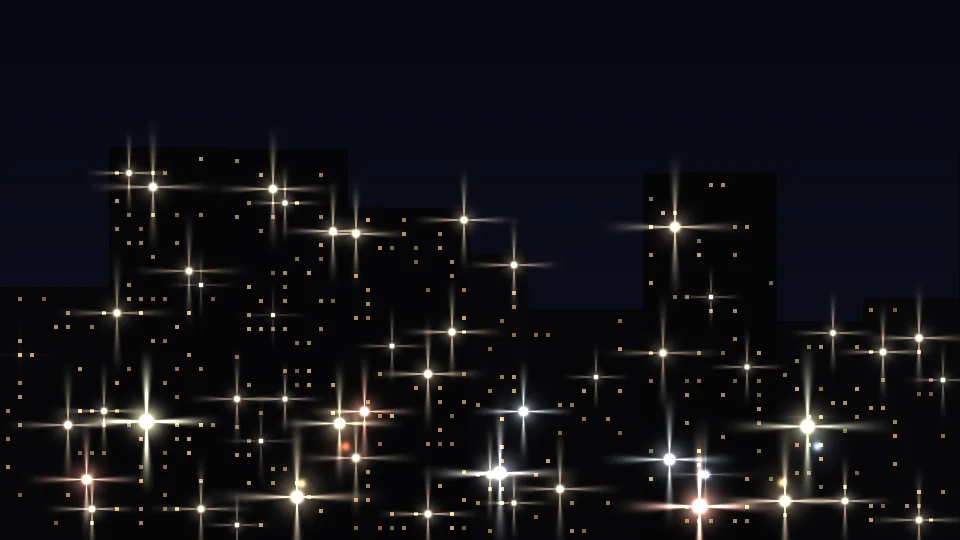
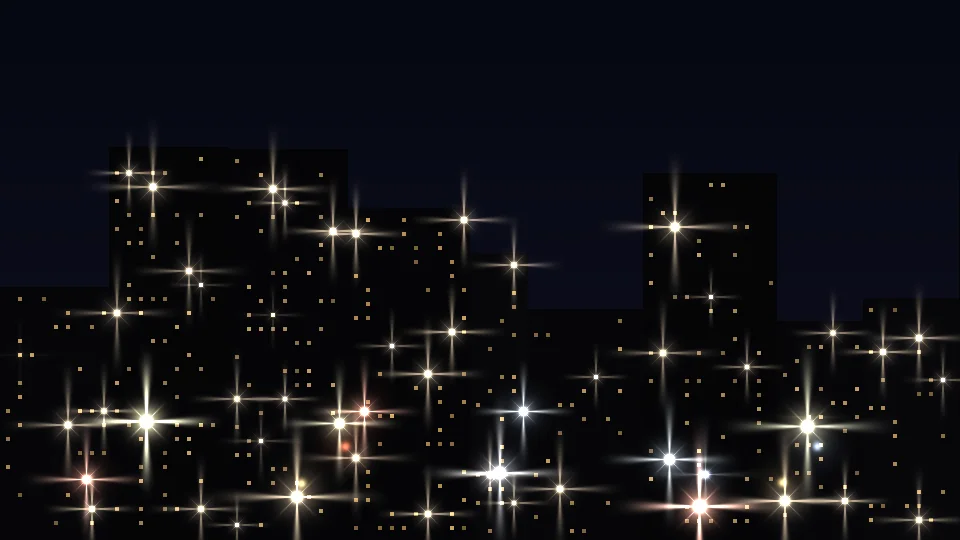
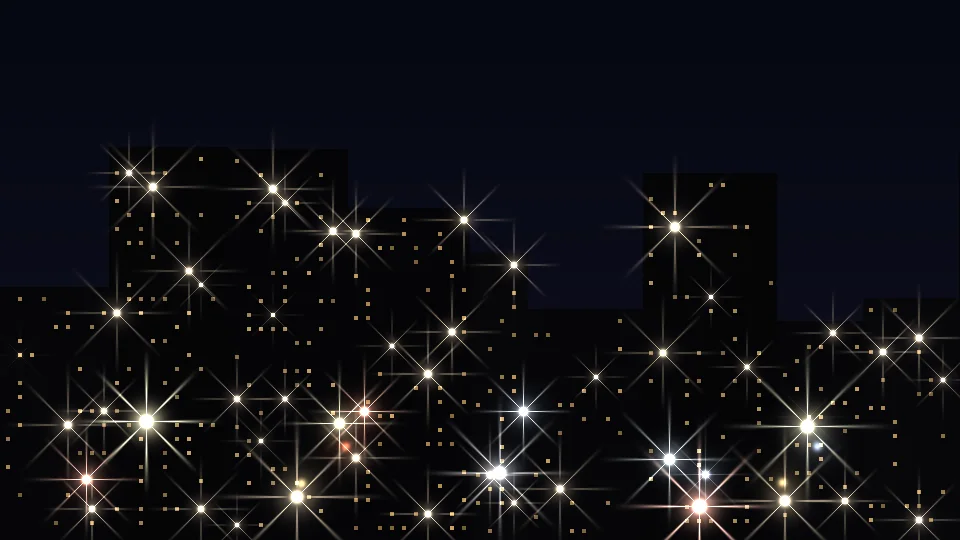
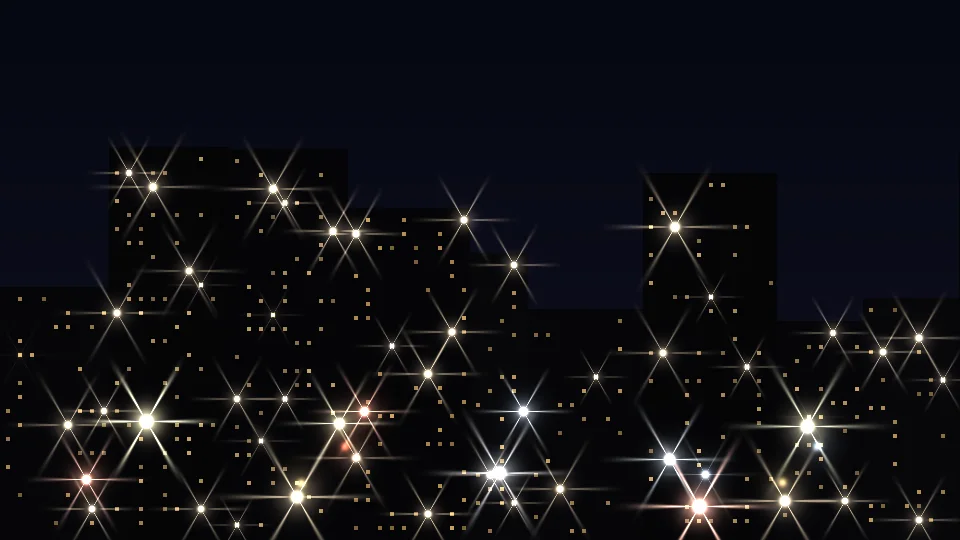
same night scene, only the shape changes.
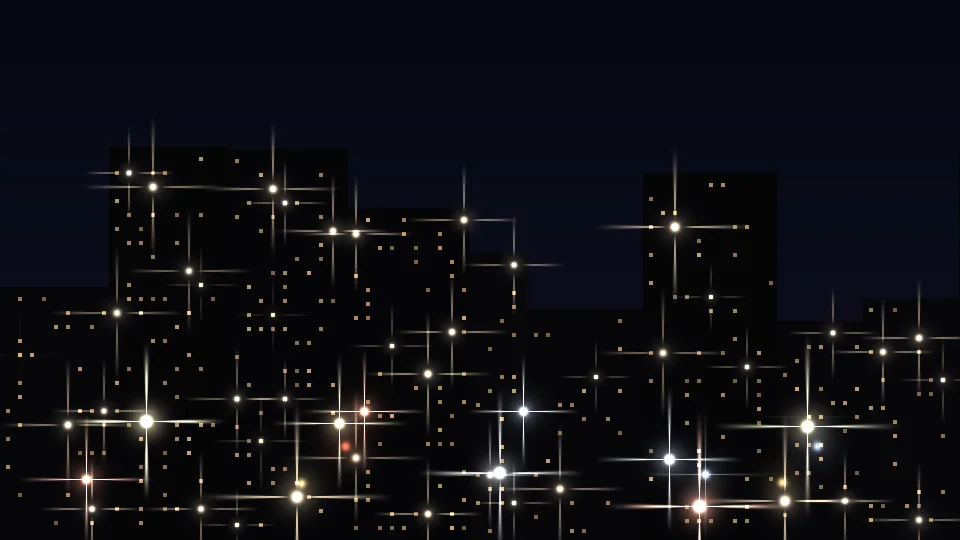
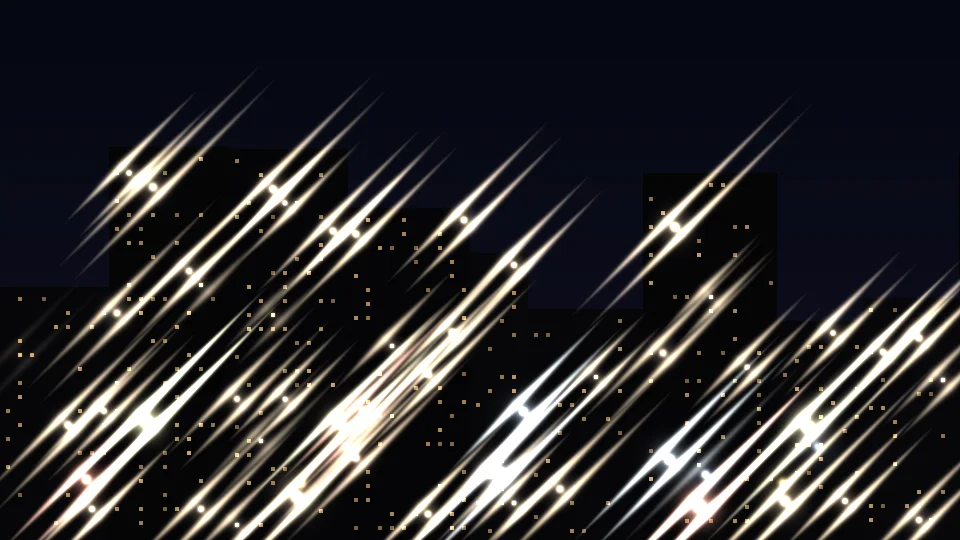
“Star Shape” offers cross, cross + fine, 8-point, 6-point, hairline glint and slash light. Size, size variation, count, spacing, brightness and randomness are all sliders; the halo around the spikes is adjusted separately. The six images below are the same night scene and settings, only the shape changes.
Placement
Follow the brightest spots,
or scatter across the whole layer.
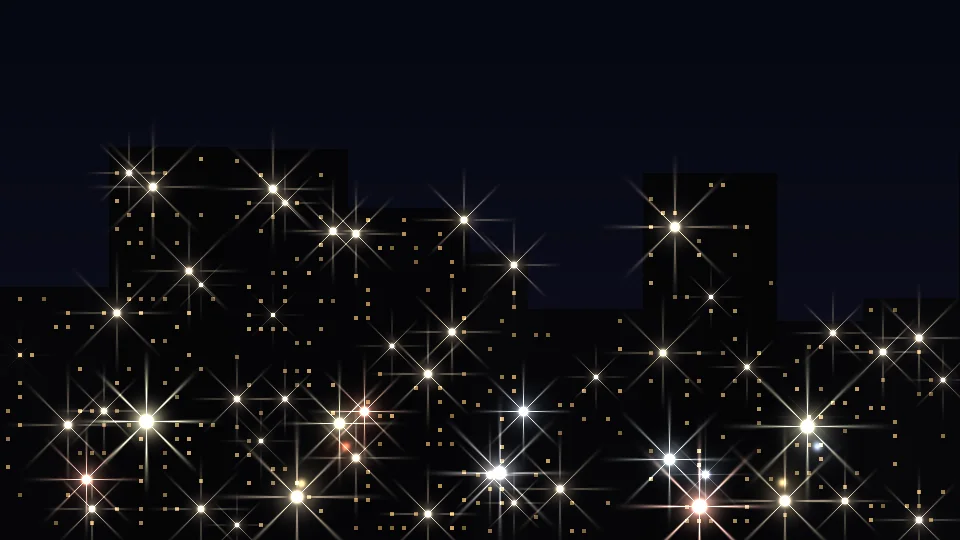
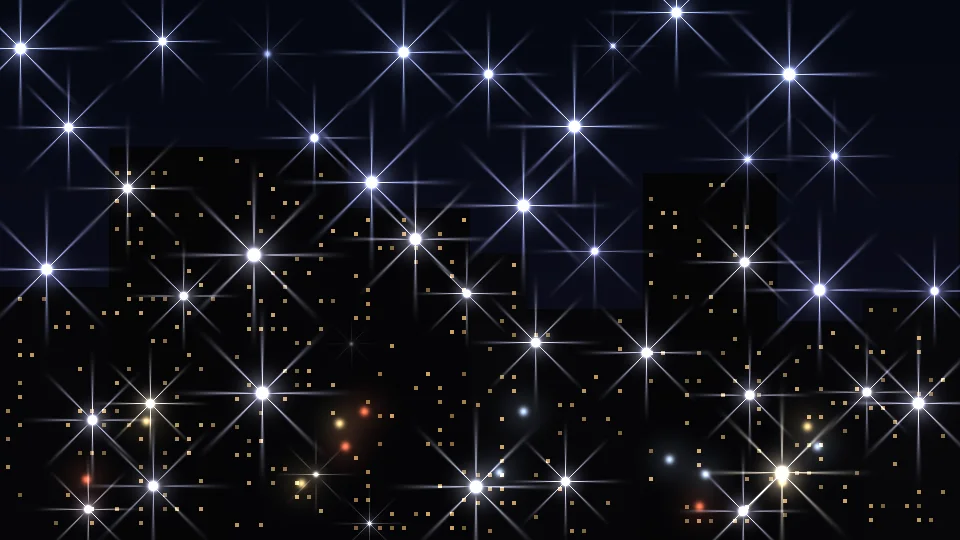
“Placement” has two modes: “Highlights” finds the brightest points and puts stars there, ideal for night scenes, metal and text with highlights; “Scatter in Layer” ignores brightness and sprinkles stars across the whole layer, for a sky full of stars. Both have spacing and count; “Based On” can be luminance or alpha.
Rings, bokeh, glitter
Beyond star spikes,
three more sparkling elements.
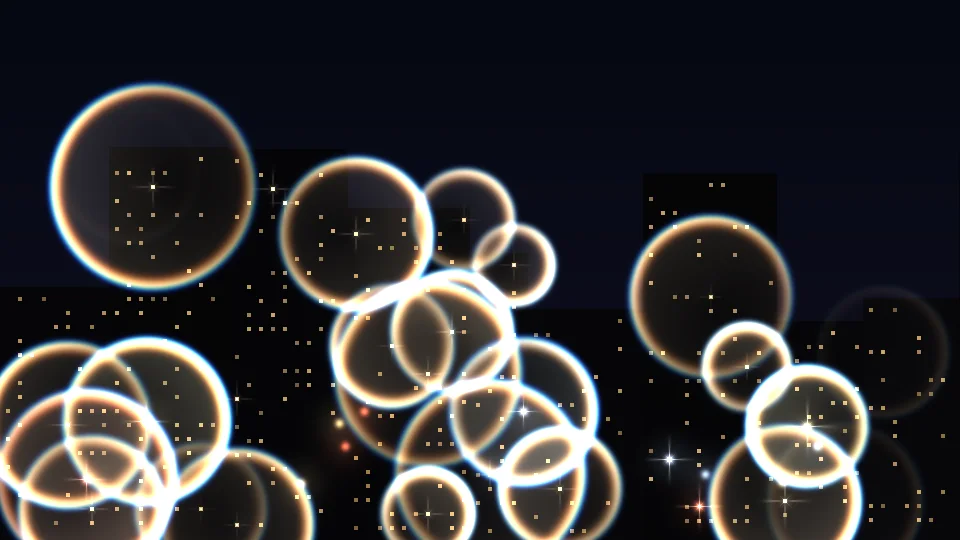
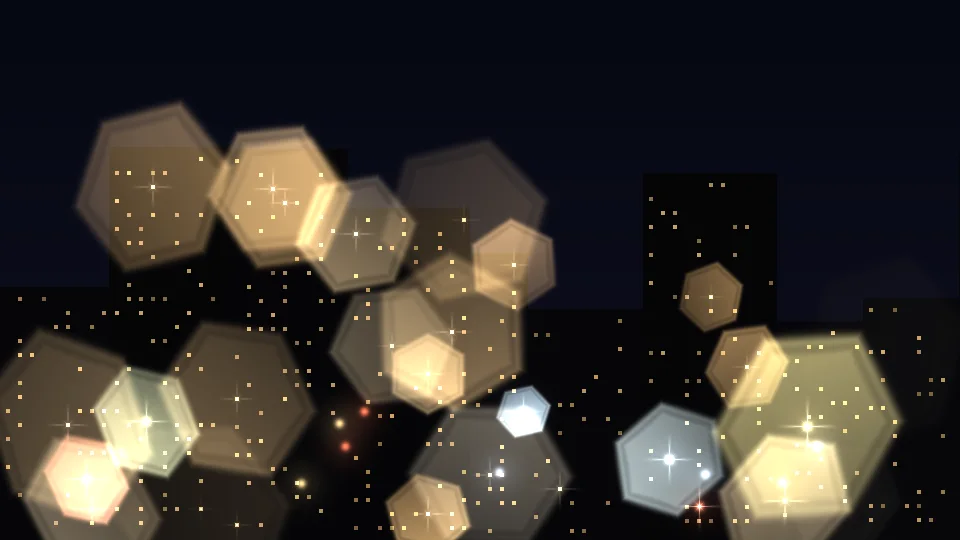
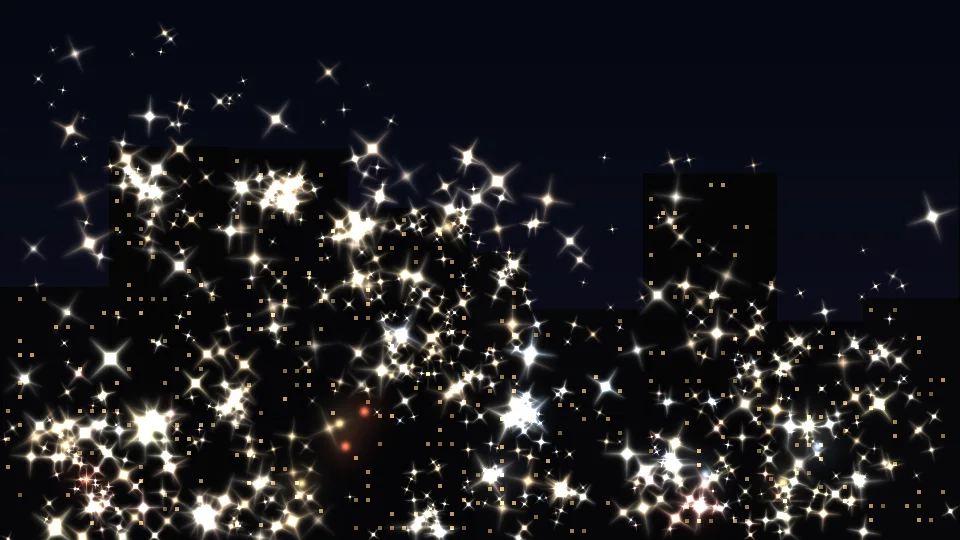
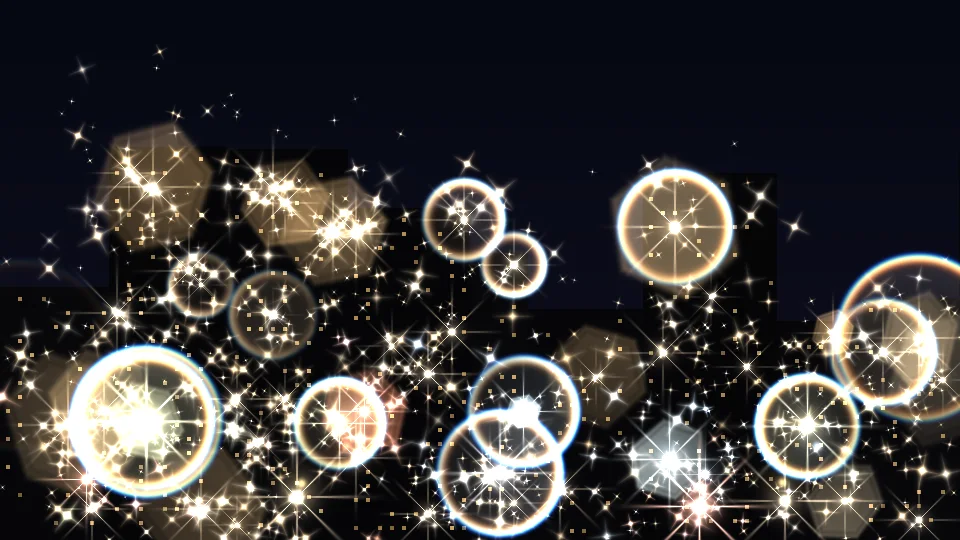
Each element has its own switch, so use them alone or stacked. Rings are concentric circles around each highlight, with radius, line width and rainbow tint; bokeh is out-of-focus discs with round, hexagonal, octagonal or pentagonal apertures; glitter is fine sparkling dust around each highlight, with count, spread, size spread and twinkle. All three follow the highlights, so they line up with the star spikes. In the first three images the stars are shrunk on purpose so you can see the elements themselves.
Color and fill style
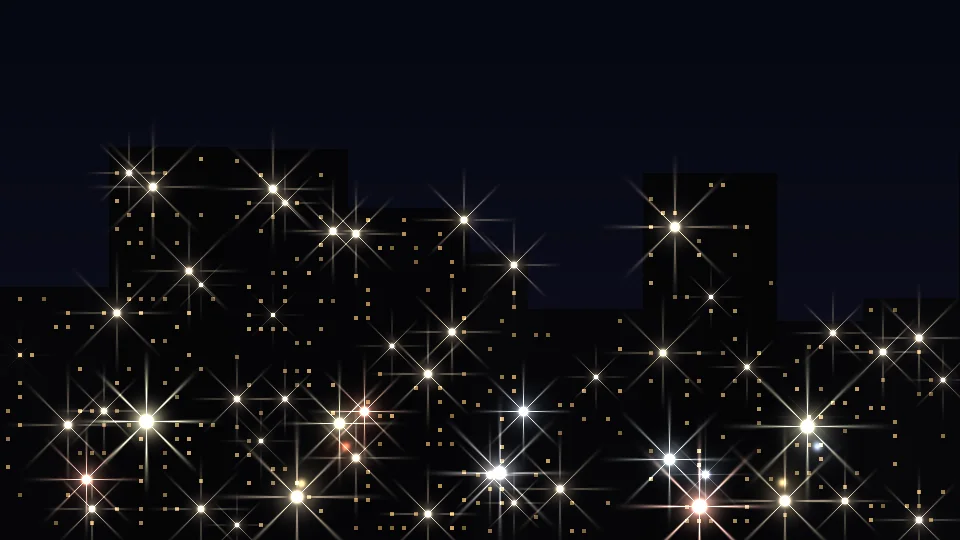
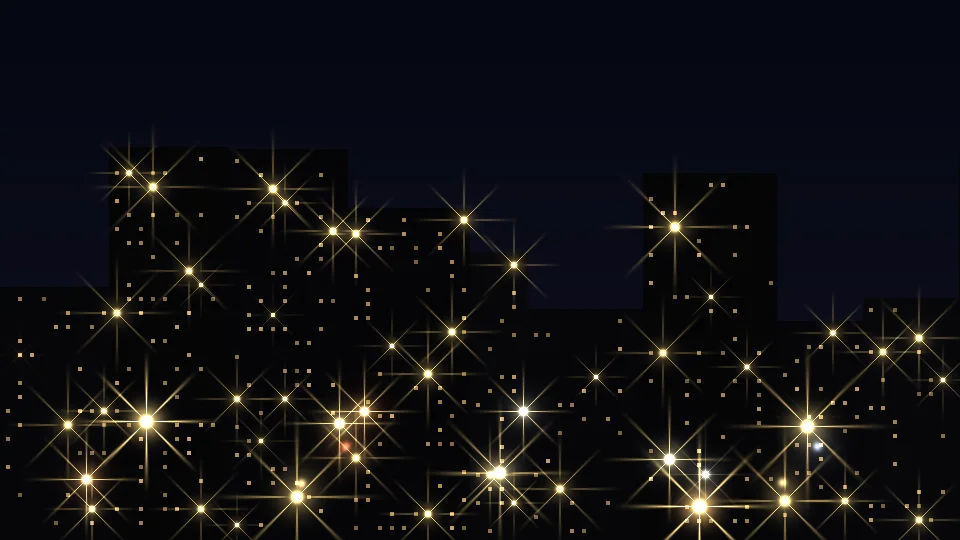
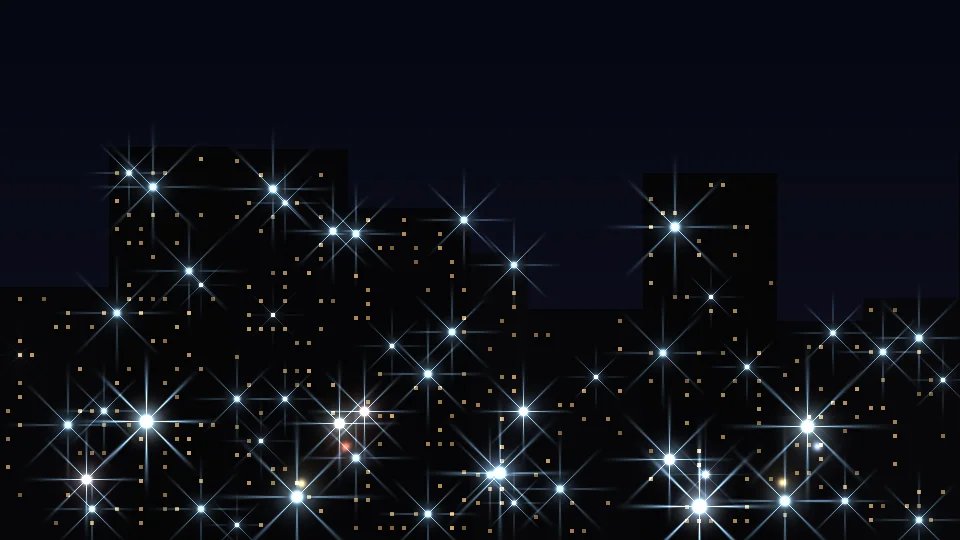
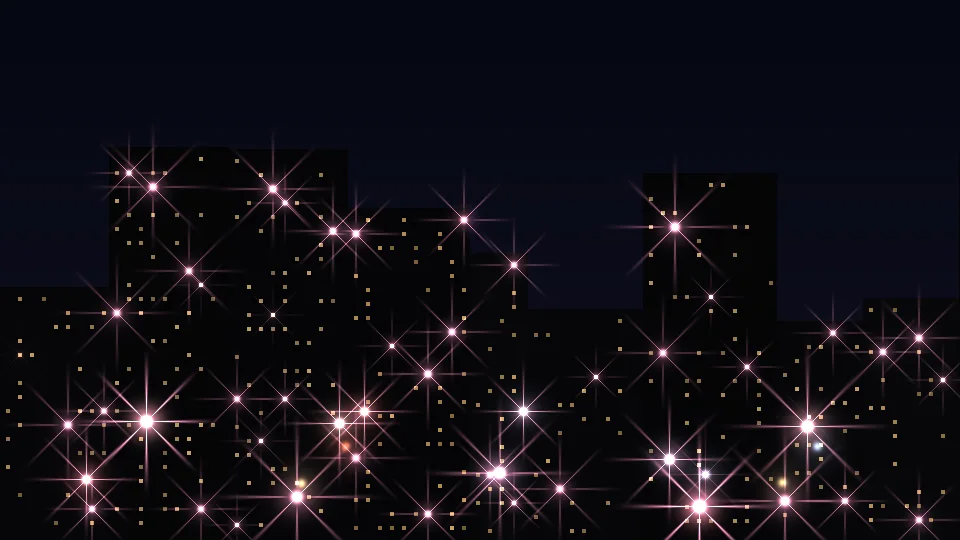
Gold, ice blue, rose pink,
even the texture of the light can change.
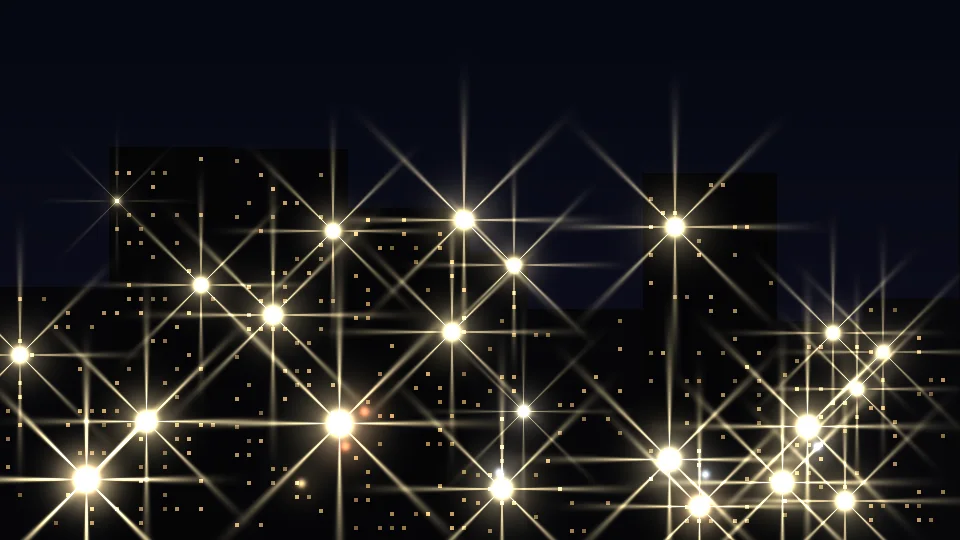
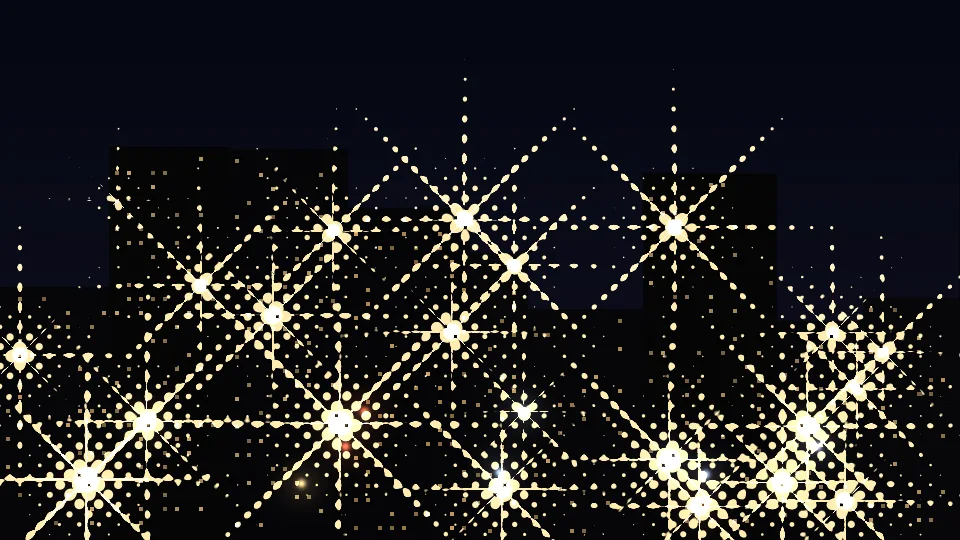
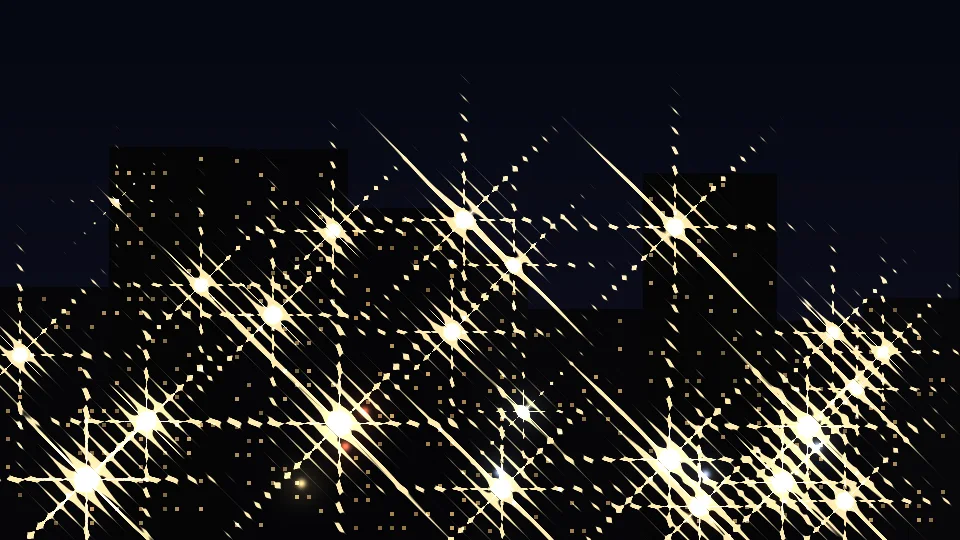
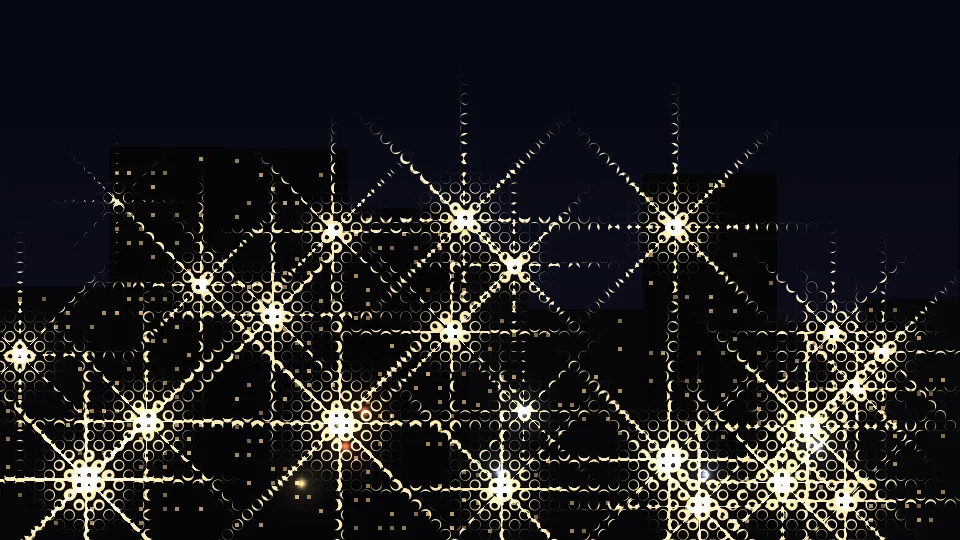
“Color” offers original (follows the picture), solid and gradient; a solid color can be anything, with a tint slider so you can keep some of the original. “Fill Style” swaps the solid light for halftone dots, lines, rings, crosshatch, pixels or CMY dots, and the pattern can stay still, pulse, flow or rotate.
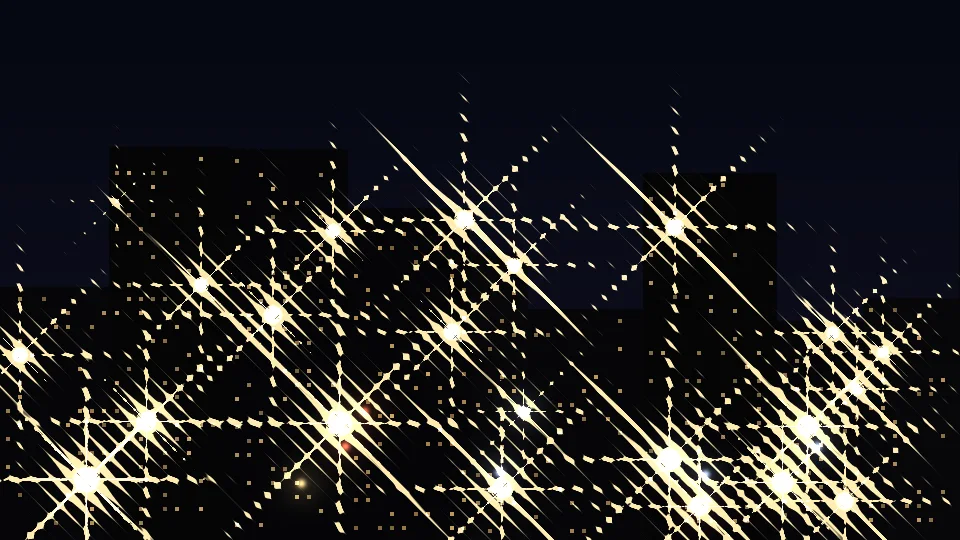
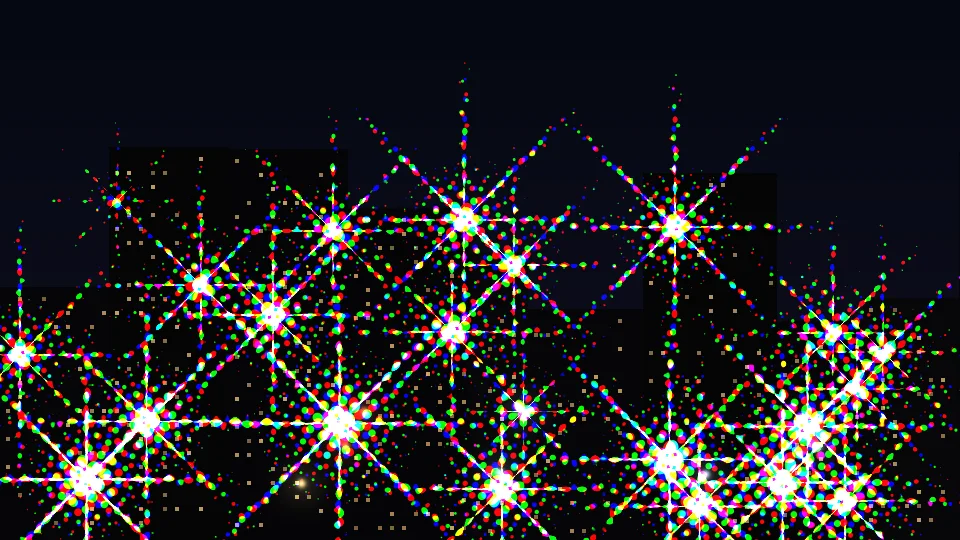
⏩ Sweeps and transitions
No keyframes,
the light moves by itself.
“⏩ Sweep” runs a bright band across the picture, looping or once, straight or circular, and stars can appear only where the band passes. “⏩ Transition Mode” reveals or dissolves images and text along a sparkling edge, or both: timing follows the layer’s in and out points, and each segment of a split layer runs its own; stars, rings, bokeh and glitter appear only near the edge and are gone once the transition ends. “⏩ Flicker” and “⏩ Drift” let the stars breathe and wander. All four clips below are built-in presets.
Lens RGB split
Give the light a touch of lens chromatic aberration.
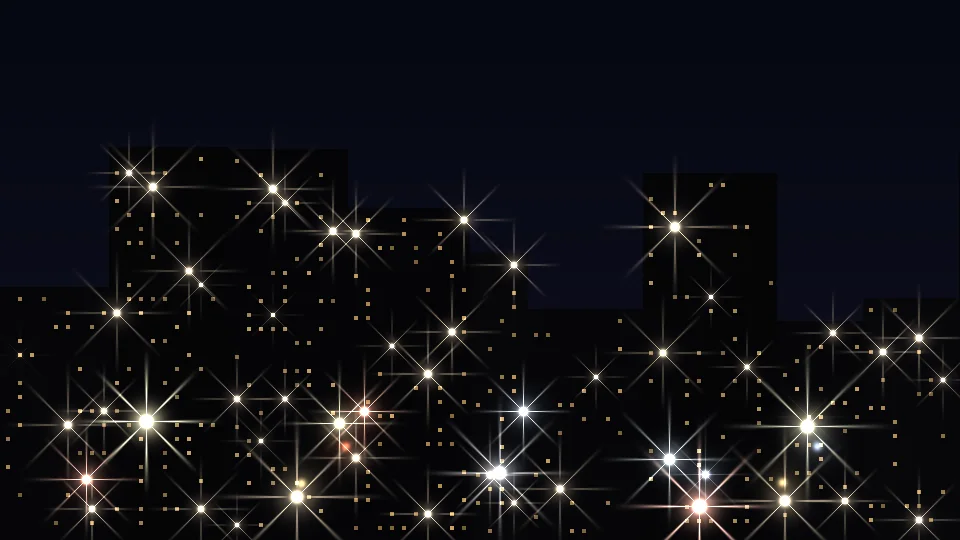
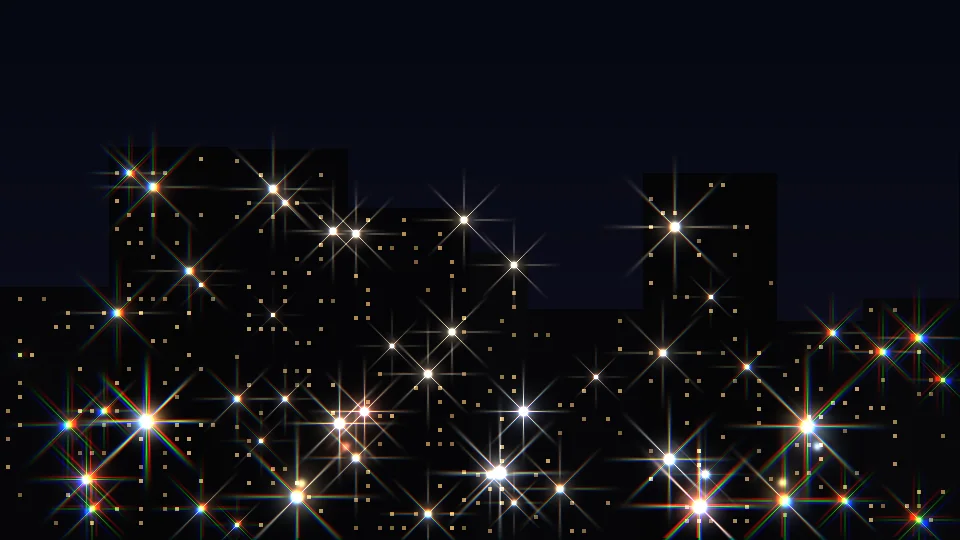
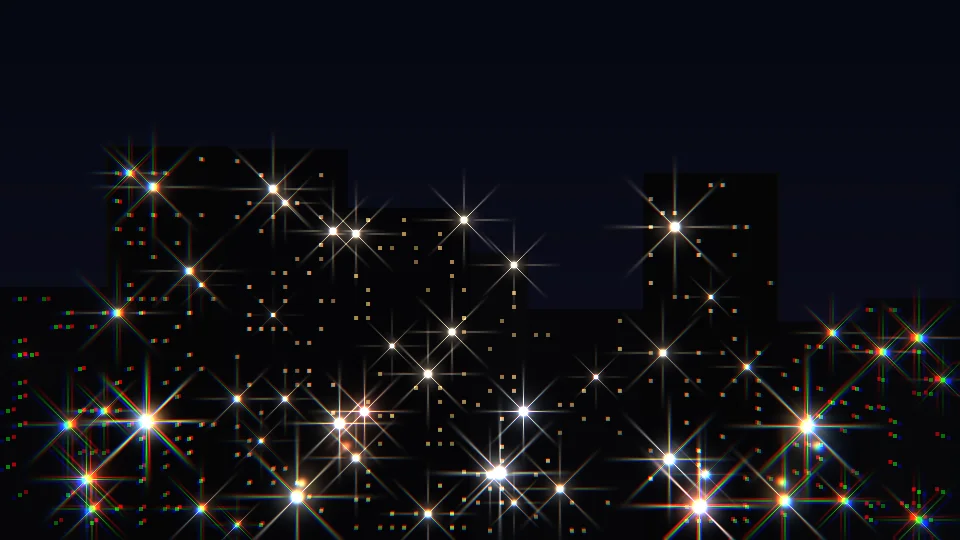
The “Lens” group is off by default. Switched on, the red, green and blue channels shift apart: “Lens” mode separates more toward the edges of the frame, “Direction” shifts a fixed way; apply it to the light only or to the whole picture. The three images below are the same night scene: no split, light only, whole picture.
15 built-in presets
Gold titles, night scenes, portraits, transitions,
one click to apply.
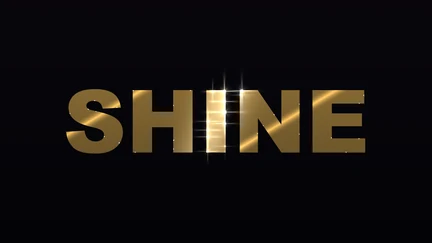
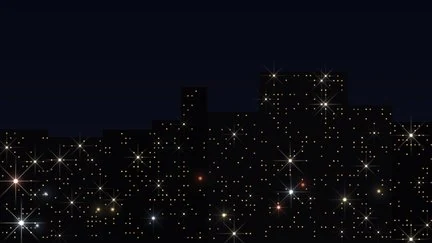
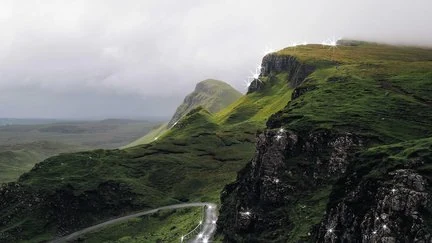
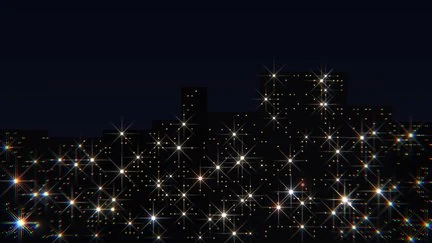
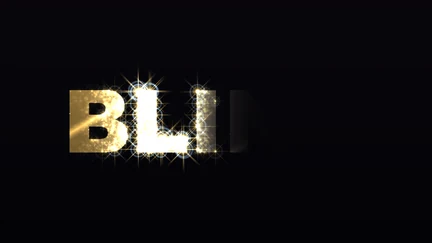
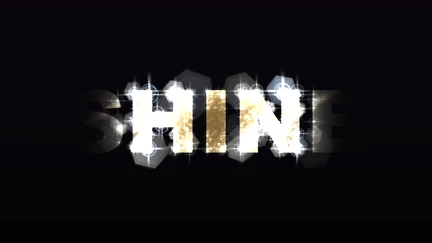
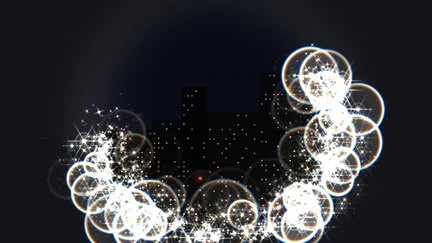
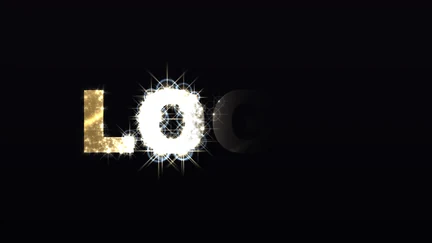
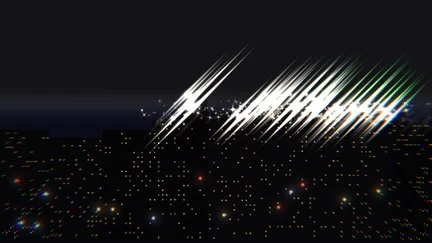
15 presets come built in: Golden Title, Jewelry Sweep, Logo Reveal Sweep, City Night Stars, Ember Sparks, Glitter Scatter, Anime Twinkle, Winter Frost, Slash Light, Lens RGB Split, and five transitions (Golden Surge, Stardust Iris, Ring Flash, Dust Out, Cyber Reveal). Each is a complete parameter snapshot: apply it, fine-tune, and save your own; the library is shared, so your saved presets live alongside. All thumbnails are rendered by the plugin.






More
Free Mix, areas, stacking,
and GPU acceleration.
“Free Mix” has a “Shuffle” button that randomly picks a star shape and a combination and strength of rings, bokeh, glitter, slash light and lens RGB split; when you like one, fine-tune and save it as a preset. “Area” keeps every element near 1 to 5 points you choose, fading with distance. “Stacking” puts the light on top, the source on top, or outputs light only (handy for compositing yourself). “Stay Inside” is on by default with “Centers Inside”: the centers of stars, rings, bokeh and glitter stay within the text while the spikes can reach out; “Clip Everything” clips the spikes at the text edge too, and off removes the limit. “GPU Acceleration” is on by default and uses the Apple Silicon GPU (Metal); if the GPU is unavailable it falls back to the CPU with the same picture. 8-, 16- and 32-bit color are all supported.
Getting started
Three steps to get going.
Requires an Apple Silicon (M-series) Mac, macOS 14 or later and After Effects 2026. No Intel Mac or Windows version yet.
- Download the installer
Click “Download for Mac” on this page and unzip. The installer is notarized by Apple.
- Quit AE, then install
Save your project, quit After Effects completely with Cmd+Q, then open the installer; the 15 built-in presets are added to the library at the same time.
- Add it to the layer that should sparkle
Reopen AE, find ASheng_Bling in the “ASheng - Light” category, add it to a text, photo or video layer, then pick a preset or set the star shape, spacing and count yourself.
Good to know
Where is it in AE?
In the Effect menu under “ASheng - Light”, named ASheng_Bling.
Does the Golden Pass cover it?
Yes. The Golden Pass includes every ASheng AE plugin, including future ones, so Bling activates right away.
What kind of footage suits it?
Anything with highlights: gold or metallic text, city lights at night, products and photos with specular highlights. For footage without highlights, set “Placement” to “Scatter in Layer” to sprinkle stars over the whole layer.
Can I output only the light and composite it myself?
Yes. Set “Stacking” to “Light Only” and the output contains only the light on transparency.
Which bit depths are supported?
8-, 16- and 32-bit are all supported.
Does it use the GPU?
Yes. “GPU Acceleration” is on by default and renders on the Apple Silicon GPU (Metal); if the GPU is unavailable it falls back to the CPU with the same picture, just slower.
Does it support Premiere Pro?
After Effects only for now.
Can I use it without a license?
You can try it with a watermark on the output. With a valid Bling license or a Golden Pass, click “Activate / Manage” in the “License” group of the effect panel to activate.