AFTER EFFECTS PLUGIN · DRIP
ASheng
Drip
Let text
grow dripping liquid.
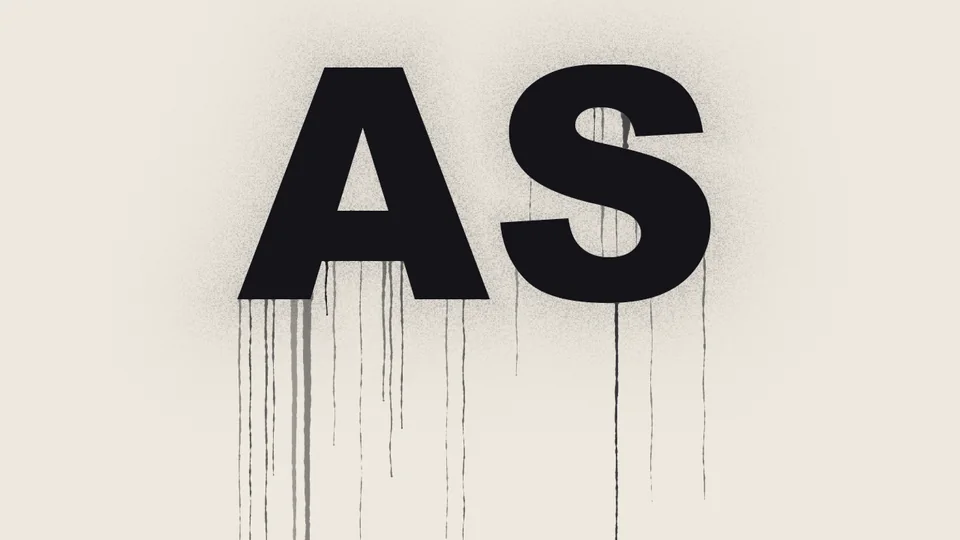
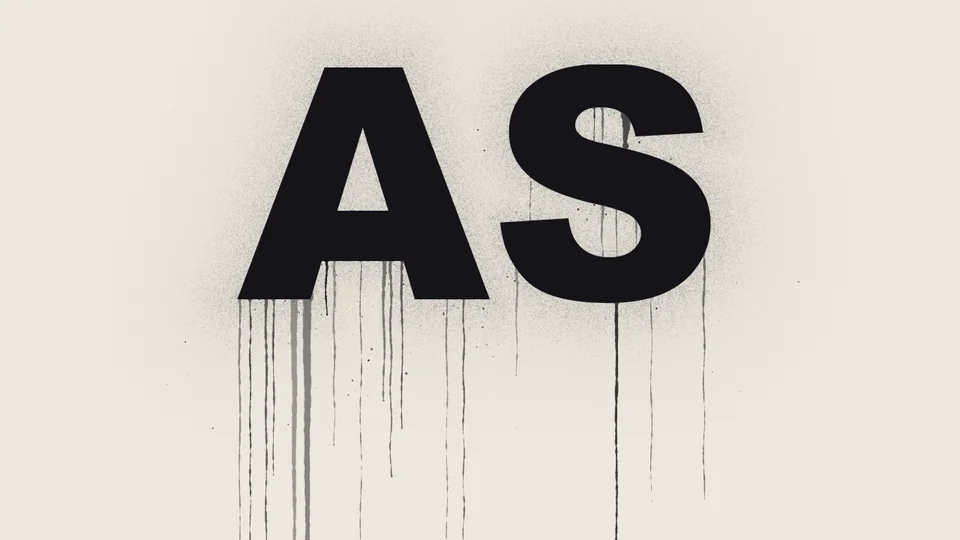
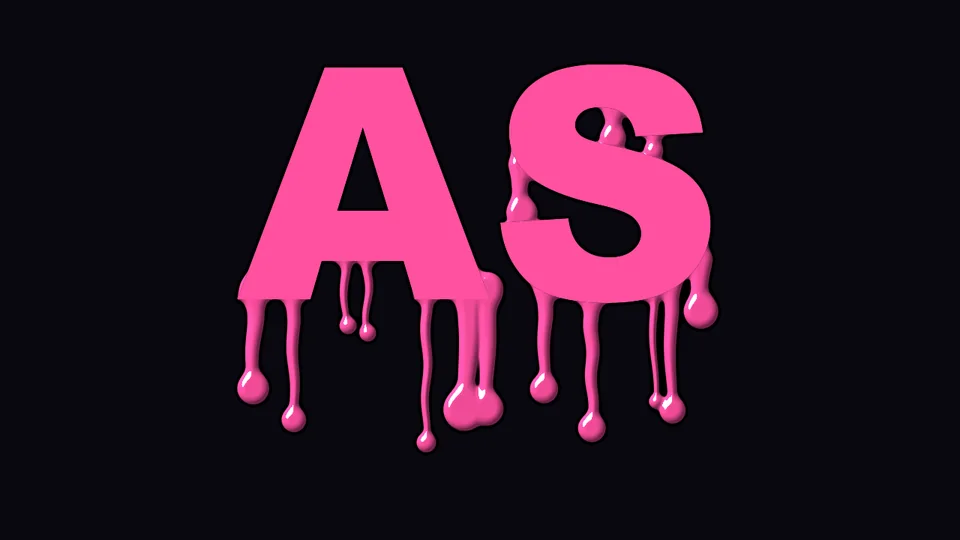
Apply it to text, a shape or an image and liquid grows drop by drop from the bottom edge and slowly runs down. Thick Drip, Spray Streak, Pour, Dry Brush, Tear Trail and Melt — six flow types, each with its own thickness, speed and tail. 27 built-in presets apply with one click; where it drips, when it starts and how far it runs are up to you.
10 USD · 365-day license · 1 Mac
Output is watermarked until a license is activated. The license runs from the time of purchase and does not auto-renew; buy another to keep using it after it expires. The Golden Pass already includes Drip. Prices follow the live plan on the purchase page.
Six flow types
Not just a color change —
each one really flows differently.
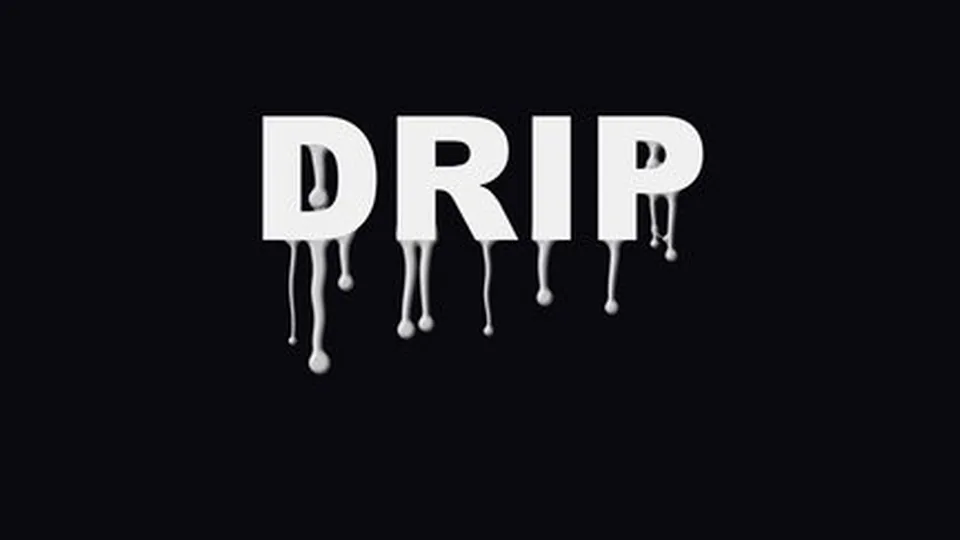
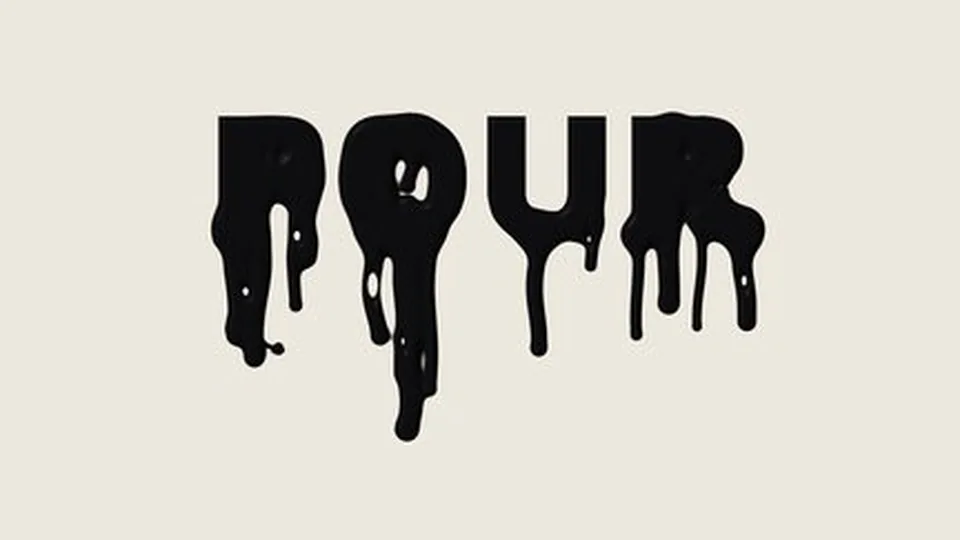
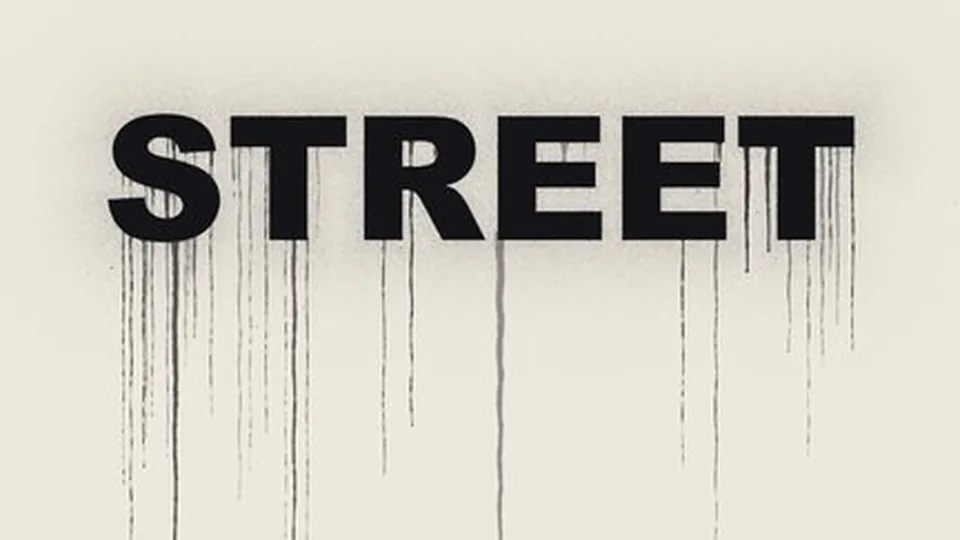
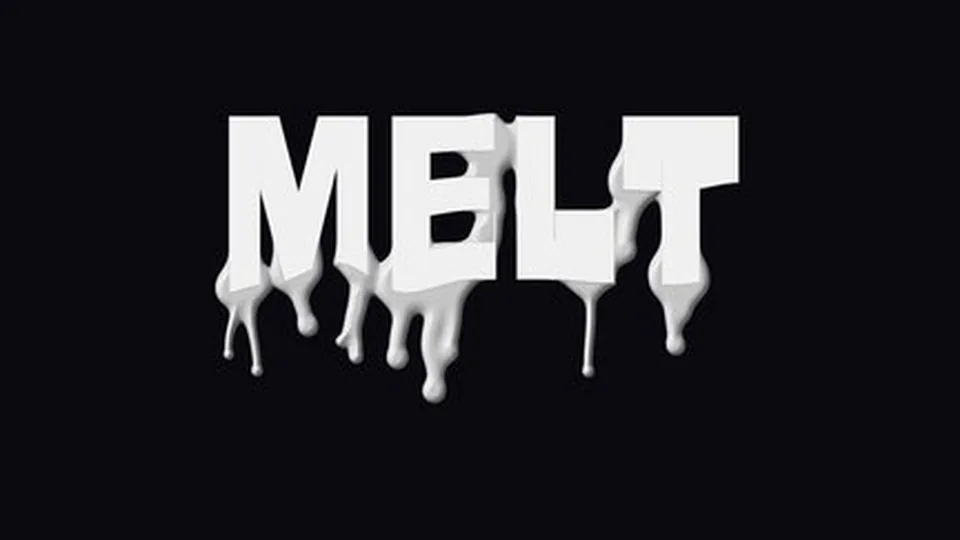
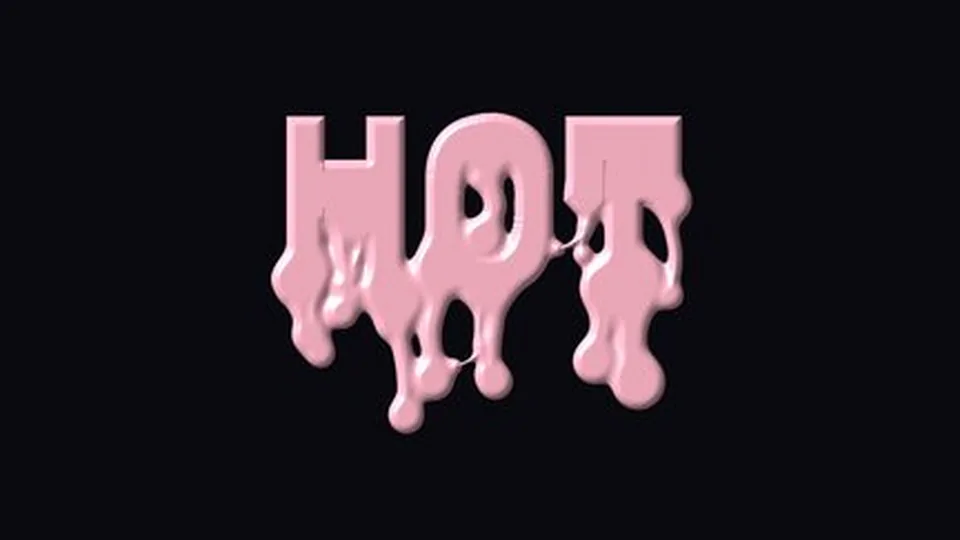
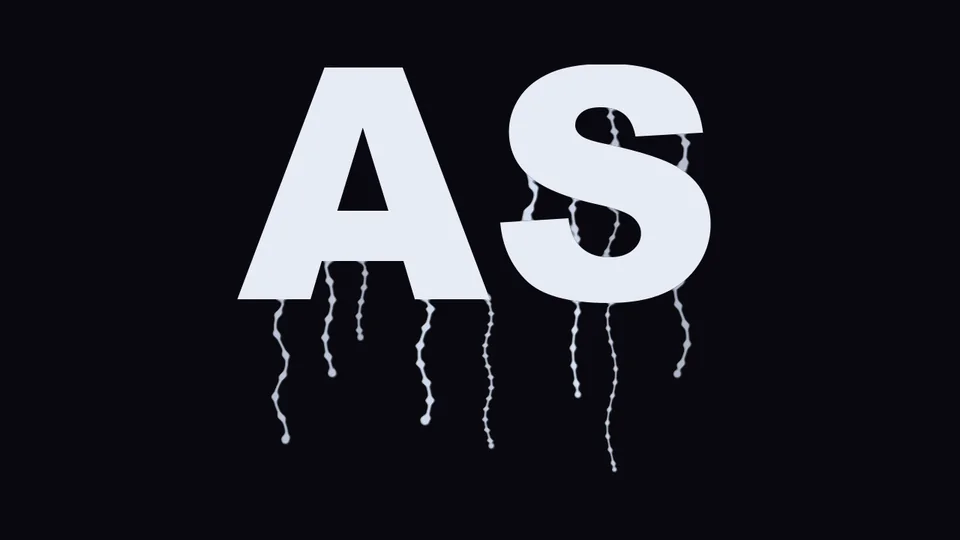
The “Flow Type” menu sets the liquid’s character. Thick Drip is fat and slow with a bead at the tip; Spray Streak is thin and long with mist; Pour tips a whole sheet downward; Dry Brush has brush texture and forks; Tear Trail stops and starts, stringing small beads; Melt softens the whole bottom edge of the letters. Choosing a flow type loads fitting starting values for count, length, speed and thickness, and each slider stays adjustable afterwards.
27 built-in presets
Five groups by material,
one click to apply.
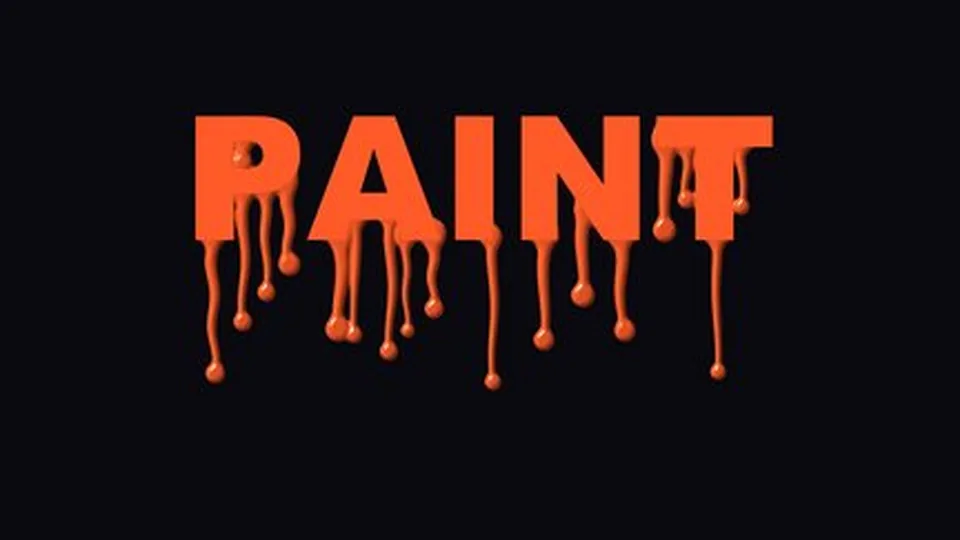
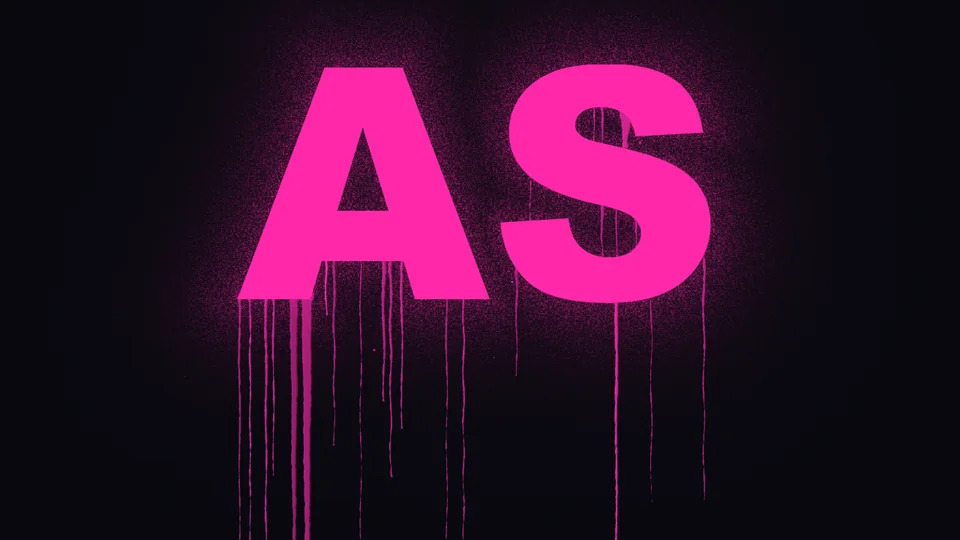
The preset library ships 27 presets in five material groups — Blood & Horror, Paint & Ink, Food & Goo, Metal & Molten, Light & Clear — searchable by group name. Each is a full parameter snapshot: flow type, color, gloss, translucency and speed load together, so it looks right the moment you apply it; every slider is still yours to tweak. The library is shared, so the presets you save live alongside them.
Blood & Horror Blood lettering, wounds, grunge streaks and tears for horror and sorrow.
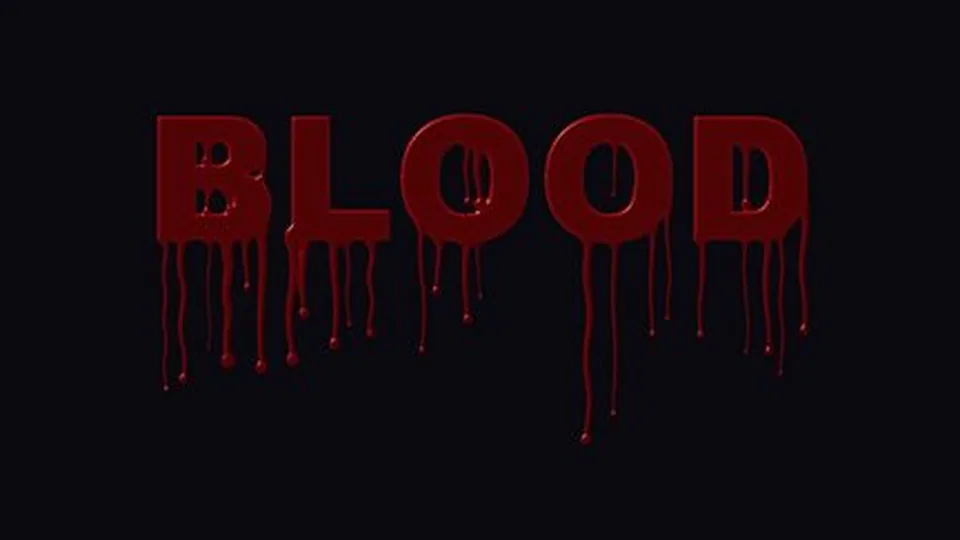

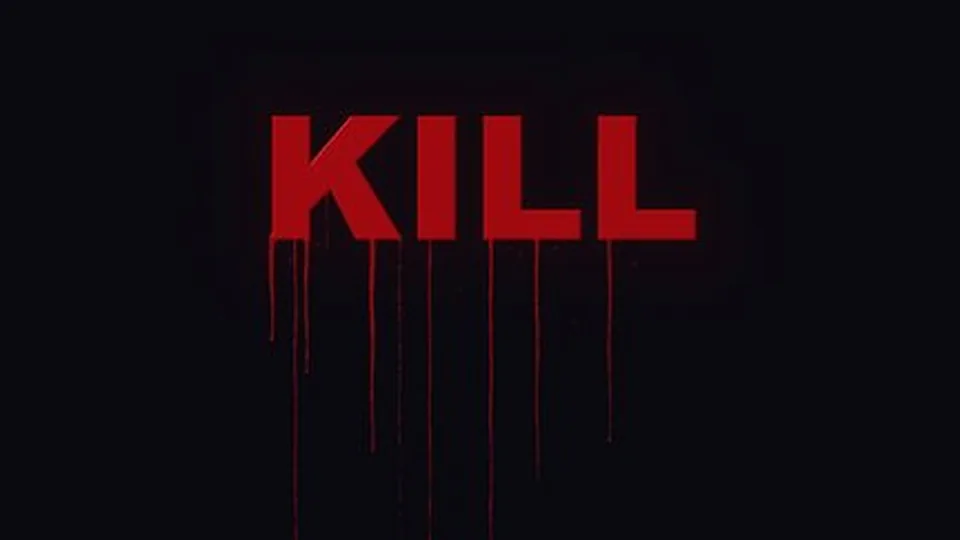
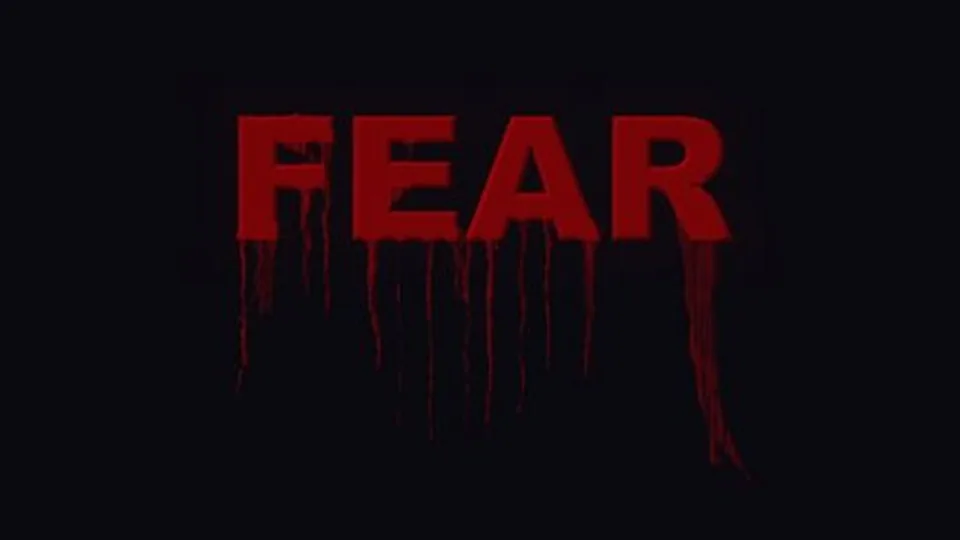
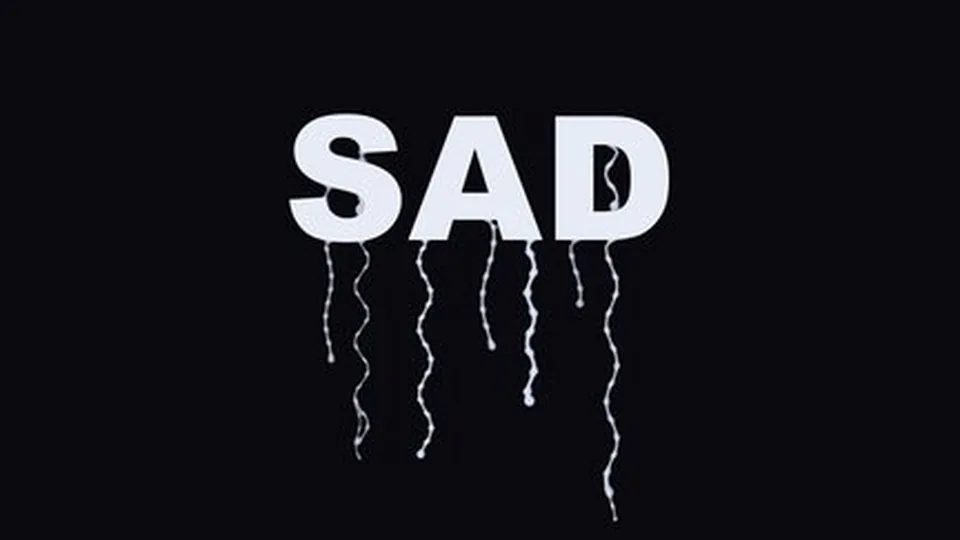
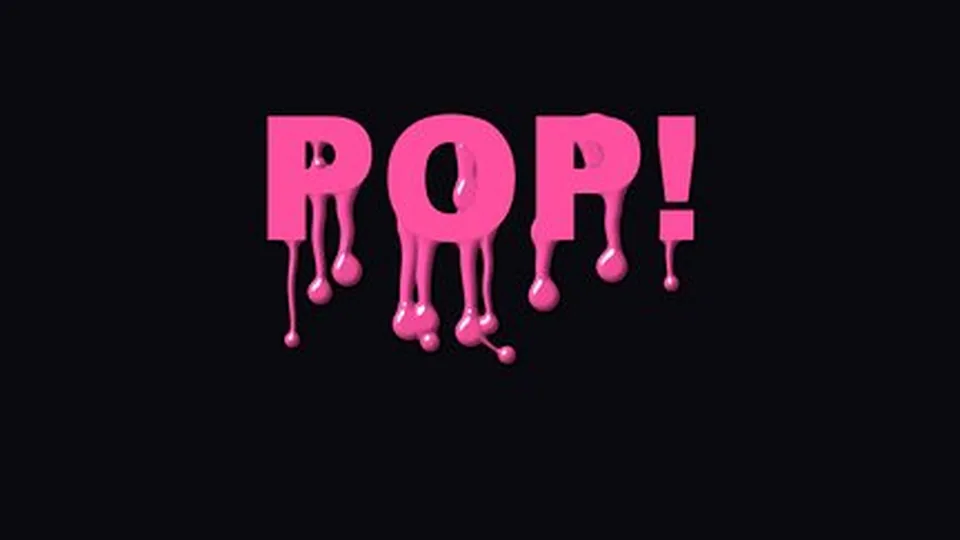
Paint & Ink Paint, spray paint, ink and black oil for graphic design and street style.
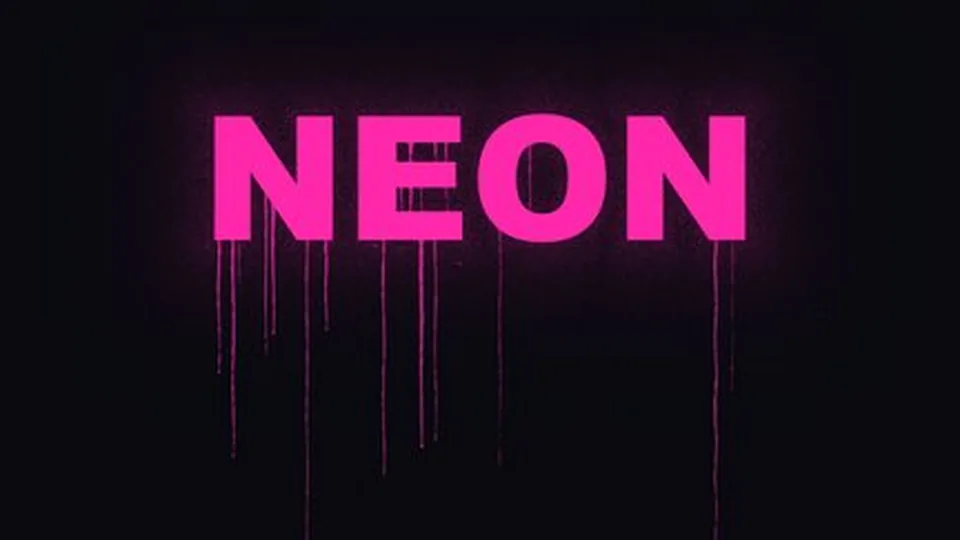
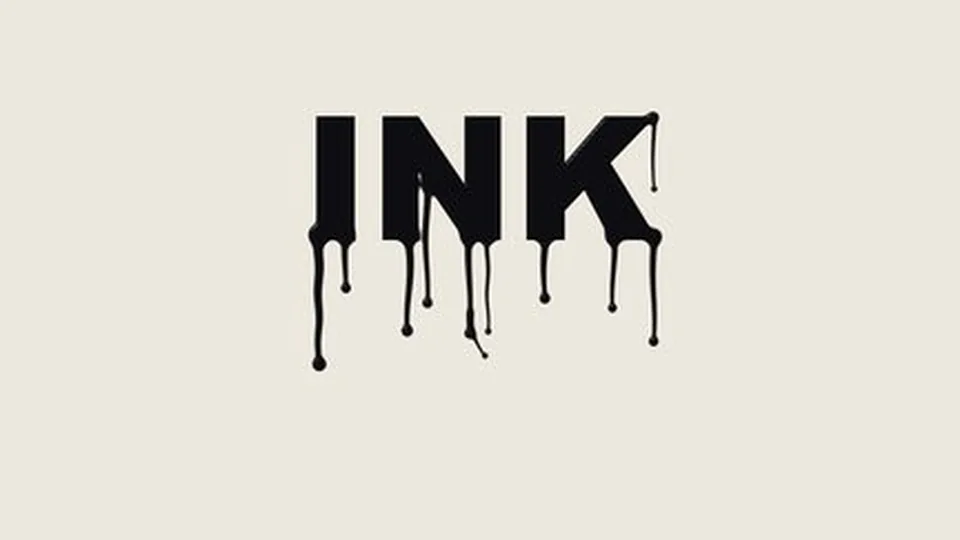
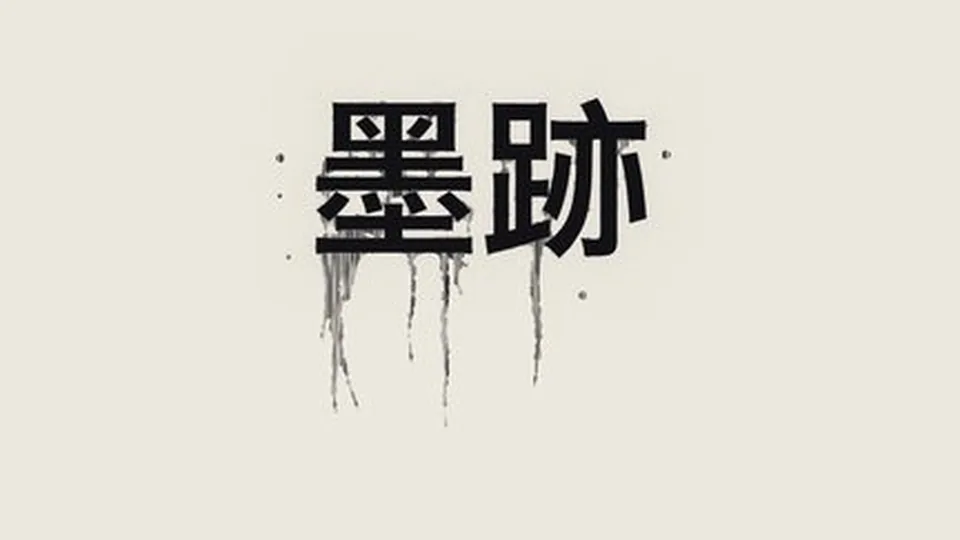
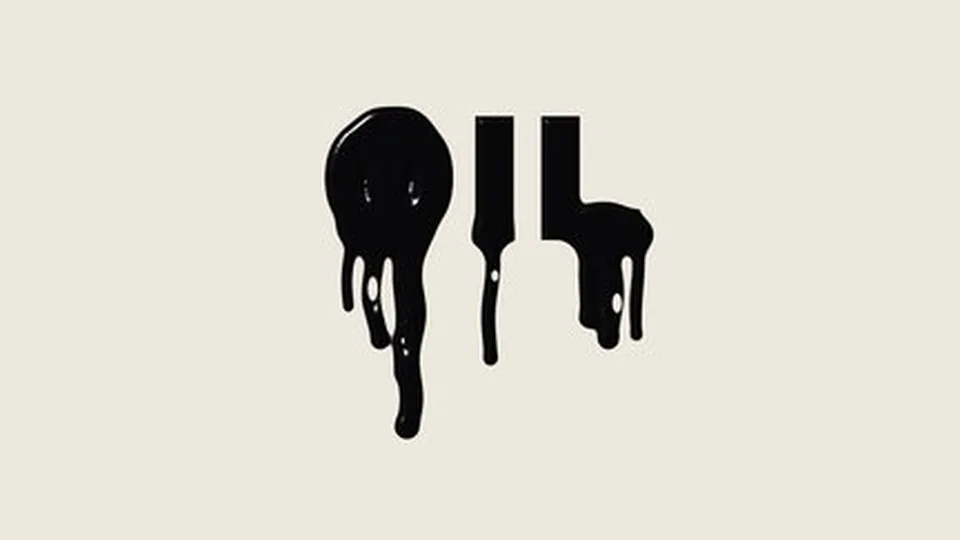
Food & Goo Honey, chocolate, ice cream and slime for food and game textures.
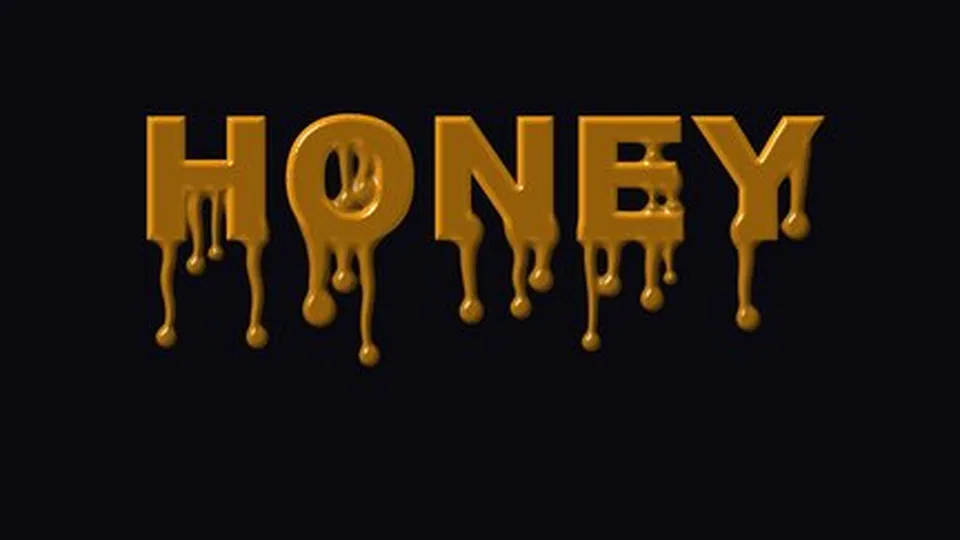
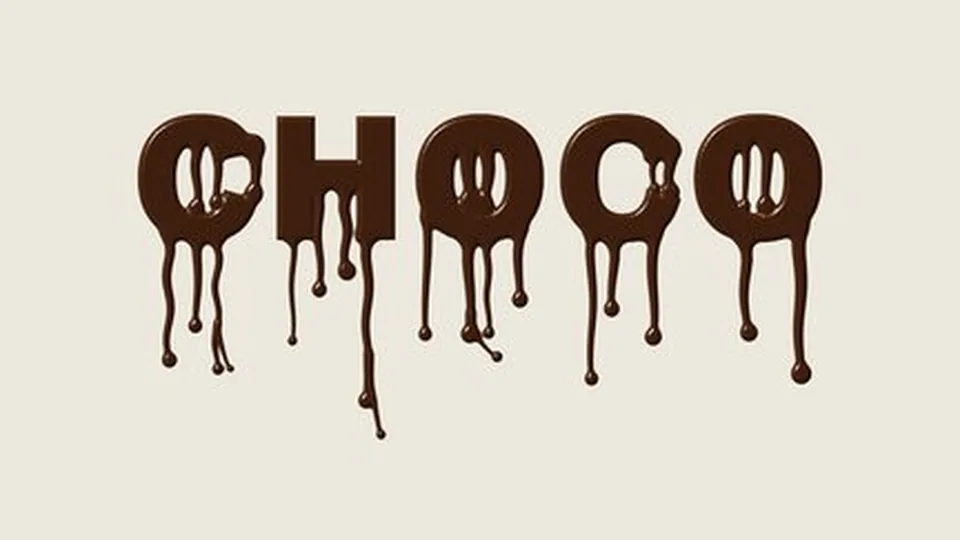
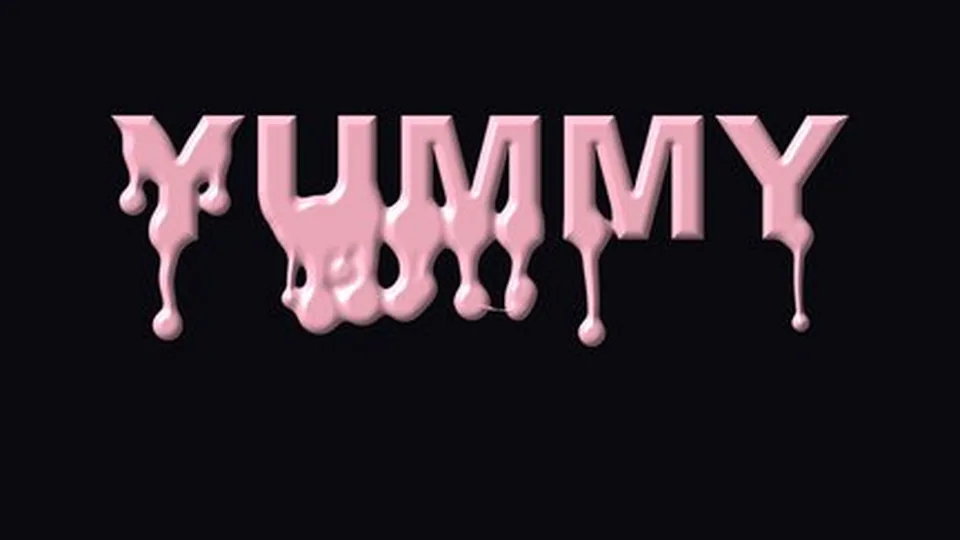
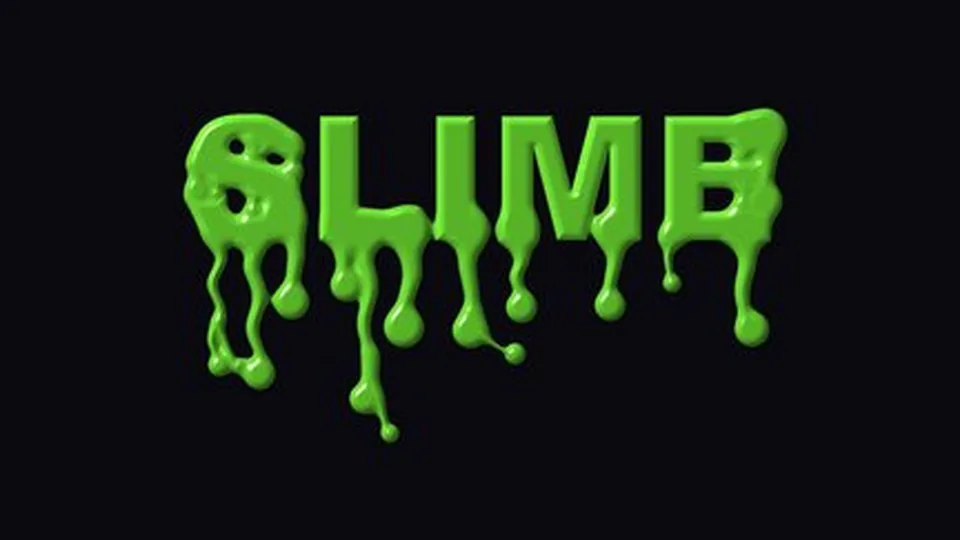
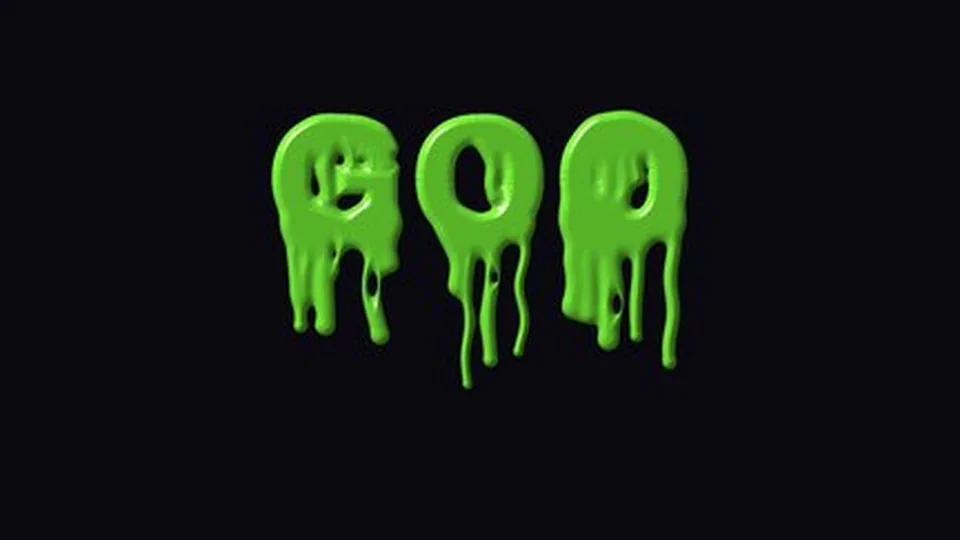
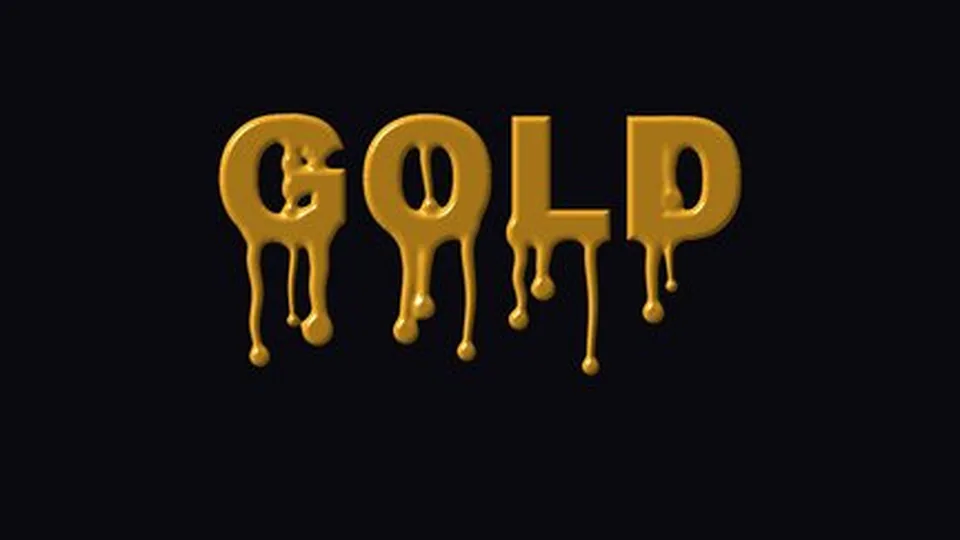
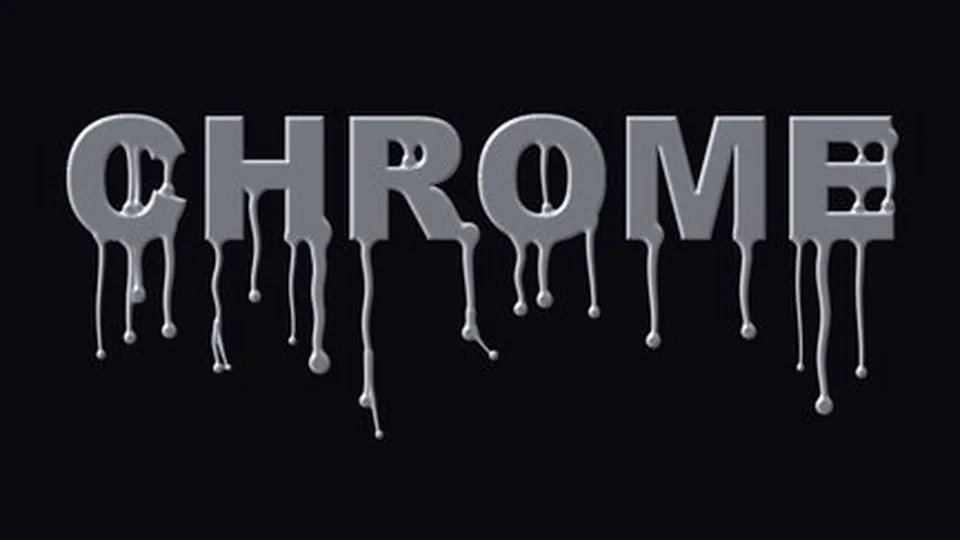
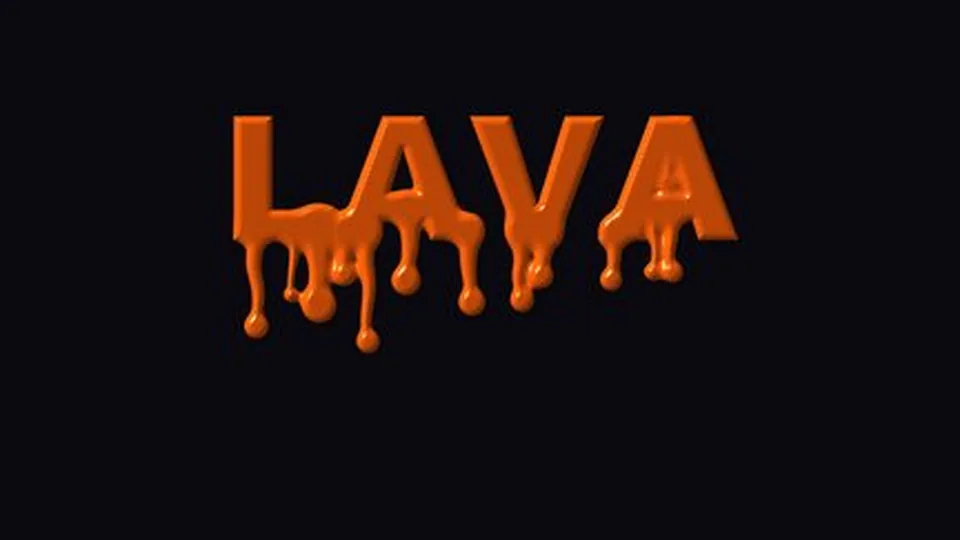
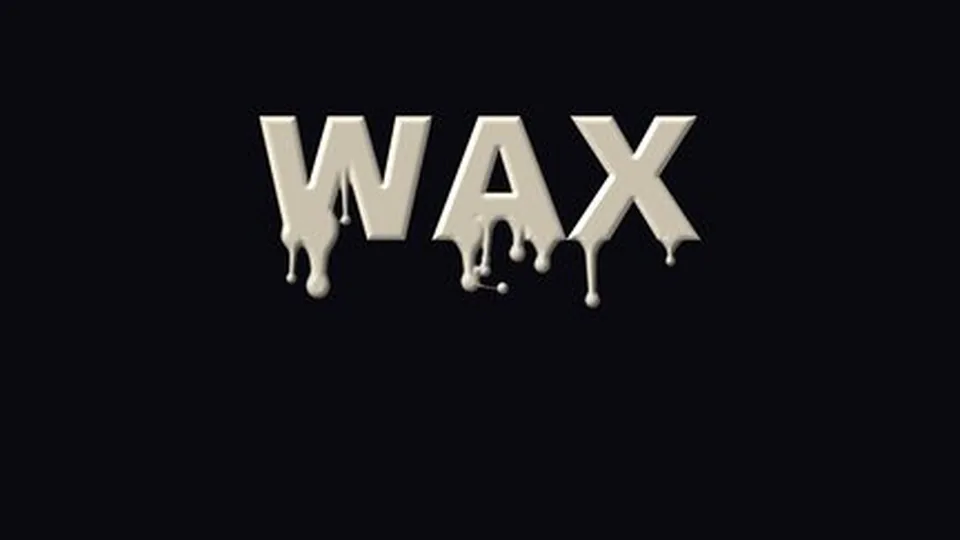
Metal & Molten Gold, chrome, lava and wax — glossy molten materials.
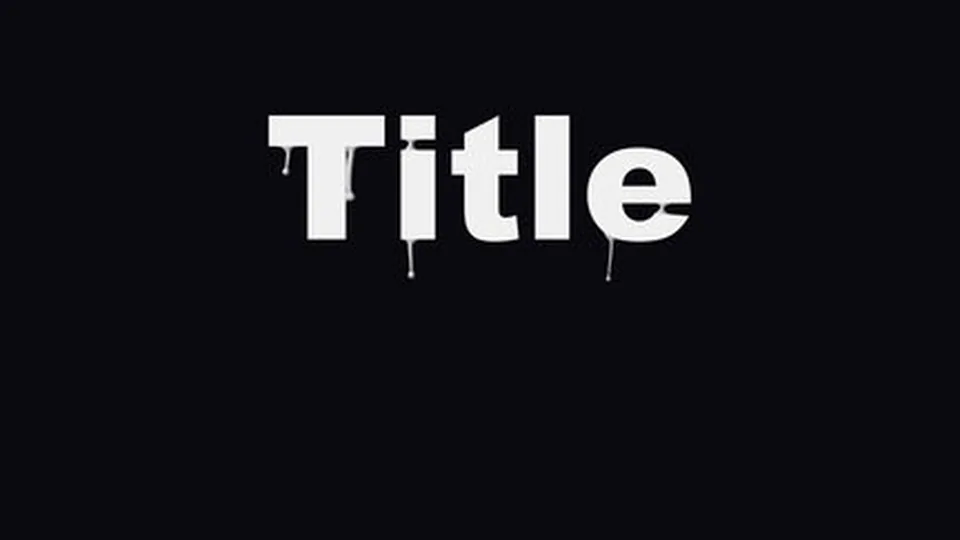
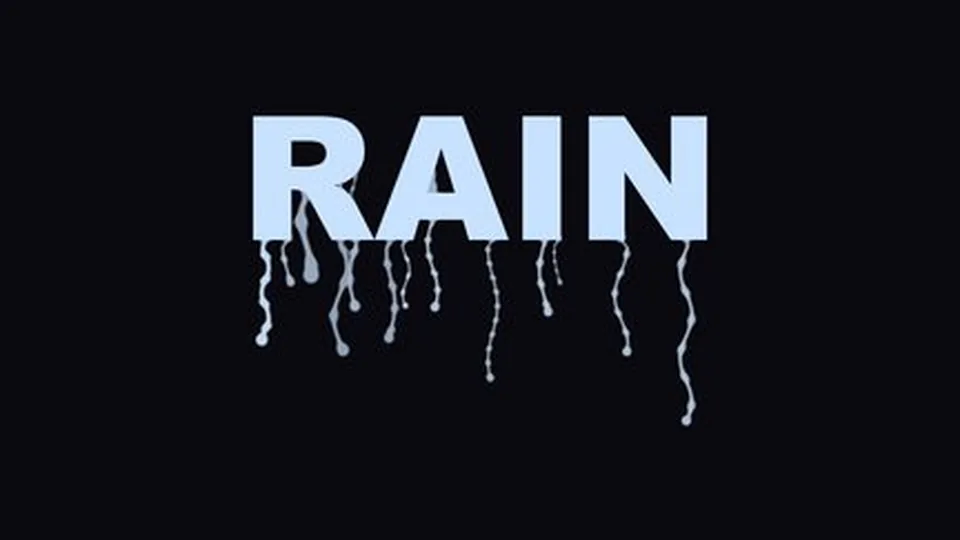
Light & Clear Subtle drips, rain on glass, cartoon and melt for light, translucent titles.
Where it drips
The whole word flows,
or only the part you point at.
“Drip Range” defaults to All; switch it to “Near Point”, place a “Point” in the comp viewer and set the “Radius”: only edges near the point grow liquid, and everything outside stays clean. The point is a regular AE point parameter — drag it, keyframe it so the drip moves, or bind it to another layer with an expression.
Details
Brush texture, spatter, mist, beads —
each has its own slider.
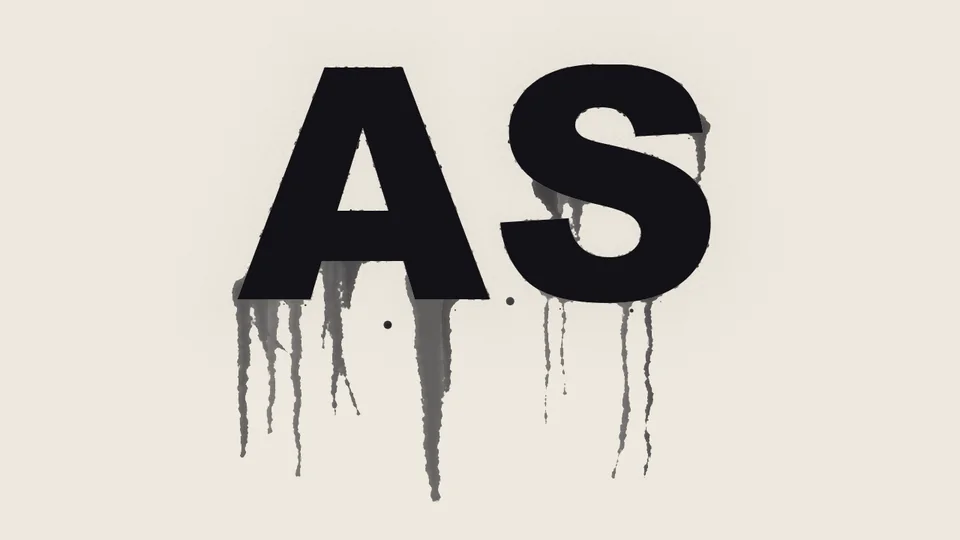
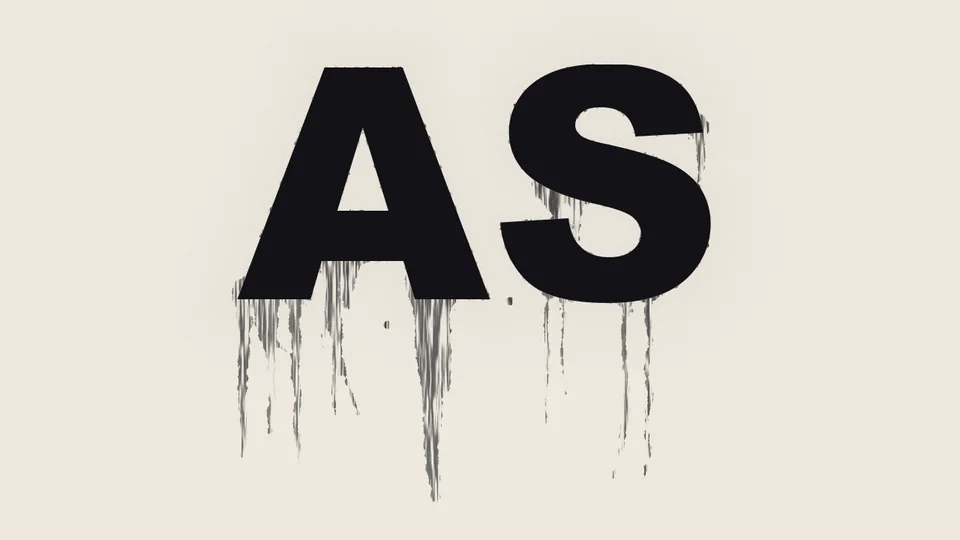
The “Extras” group: “Brush Texture” splits streaks into threads; “Spatter” flings tiny dots beside them; “Mist” sprays a halo of fine particles around the letters. The “Shape” group adds thickness, thickness variation, taper, tip bead, beads, curl, fork/merge, edge bulge and viscosity, and “Melt” softens the whole bottom edge. The “Liquid” group controls color (source colors or your own), wrap source, translucency, darker where thick, wet sheen and highlights — realistic or cartoon — plus an outline.
⏩ Auto drip
No keyframes —
the liquid flows from start to finish on its own.
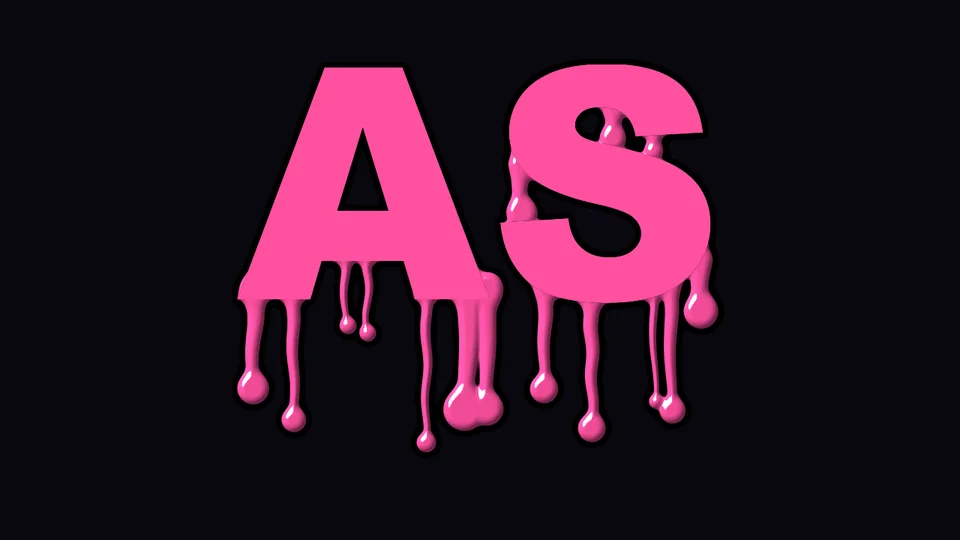
Liquid starts growing at layer time 0 s; “Start Time” delays it, “Start Stagger” lets each streak begin at a different moment, and “Speed”, “Length” and “Stop & Go” decide how it flows. Any frame is correct: the same time always renders the same picture, so scrubbing, jumping around and multi-frame rendering never drift.

More
Text, shapes and images all drip,
and the output bounds grow automatically.
“Shape Source” uses alpha or luminance to decide what counts as the “letters”; text, shapes and images with transparency all work. “Composite” offers “Liquid + Source” or “Liquid Only”, the latter handy for layering your own footage behind. Liquid grows past the layer bounds and the plugin enlarges the output area so nothing is clipped. “GPU Acceleration” is on by default, using the Apple Silicon GPU (Metal); it falls back to the CPU with identical results when the GPU is unavailable. 8-, 16- and 32-bit color are supported, and settings can be saved as presets.
What’s different
Making a drip effect —
Drip wants to cost you less time.
| What you want | The usual way | ASheng Drip |
|---|---|---|
| Liquid flowing from text | Find stock drip footage, overlay it, align it by hand and mask it | Liquid grows from the text’s bottom edge; change the word or font and it realigns automatically |
| Changing the material | Swap in different footage, then regrade and relight | Six flow types in one menu, 27 presets one click away |
| Dripping from one spot only | Draw a mask and adjust it frame by frame | Place a point, set a radius; the point can be keyframed |
| How fast and how far | Footage is fixed; changing it means finding new footage | Speed, length, stop & go and start time are all sliders |
| Scrubbing and rendering | Particles or simulations must be computed frame by frame from the start | Any frame renders directly; jumping around and multi-frame rendering stay consistent |
Getting started
Three steps to get going.
Requires an Apple Silicon (M-series) Mac, macOS 14 or later and After Effects 2026. No Intel Mac or Windows version yet.
- Download the installer
Click “Download for Mac” on this page and unzip. The installer is notarized by Apple.
- Quit AE, then install
Save your project, quit After Effects fully with Cmd+Q, then run the installer; the 27 built-in presets are added to the preset library at the same time.
- Add it to the layer that should drip
Reopen AE, find ASheng_Drip under “ASheng - Elements”, add it to a text or shape layer, pick a flow type or click a preset in the library.
Good to know
Where is it in AE?
Under “ASheng - Elements” in the Effect menu; the name is ASheng_Drip.
Does the Golden Pass cover it?
Yes. The Golden Pass covers every ASheng AE plugin, including future releases, so Drip activates directly.
Does it work on images or video?
Yes. With “Shape Source” set to Alpha, the opaque parts of a transparent image form the shape; with Luminance, the bright areas do. Set the liquid color to “Source Colors” and it picks up the colors at the image’s edge.
Does the liquid get clipped at the layer bounds?
No. The liquid grows past the layer and the plugin enlarges the output area automatically.
Is the picture consistent when scrubbing or rendering multiple frames at once?
Yes. Every drip is computed directly from its point, seed and time, with no dependence on the previous frame, so any frame gives the same result; to get a different arrangement, change the “Random Seed”.
Which bit depths are supported?
8-, 16- and 32-bit are all supported.
Does it use the GPU?
Yes. “GPU Acceleration” under “Output” is on by default and renders on the Apple Silicon GPU (Metal); when the GPU is unavailable it falls back to the CPU with the same picture, only slower. This option is a per-machine preference and is not saved into presets.
Does it support Premiere Pro?
After Effects only for now.
Can I use it without a license?
Yes, you can try it with a watermark on the output. With a valid Drip license NFT or Golden Pass, click “Activate / Manage License” in the “License” group of the effect panel to activate.