AFTER EFFECTS PLUGIN · FLARE
ASheng
Flare
A lens flare
that can be a color gradient.
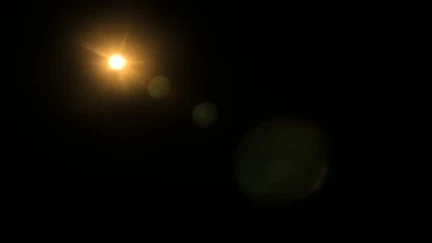
Freely combine light source, starbursts, rays, lens ghosts, anamorphic streaks and rainbow rings for flares that look like real cinema glass; move the light and the ghosts follow lens parallax. The special part is “Color Gradient”: 48 built-in gradients apply with one click, custom gradients take up to 7 stops, and rays, starbursts, ghosts and glows can all carry one — with adjustable repeat count and spacing for rainbow rings, diffraction spectra and CD-disc looks a single-color flare can’t make.
20 USD · 365-day license · 1 Mac
Output is watermarked until a license is activated. The license runs from the time of purchase and does not auto-renew; buy another to keep using it after it expires. The Golden Pass already includes Flare. Prices follow the live plan on the purchase page.
Color gradients
A flare isn’t limited to one color —
it can be a whole gradient.
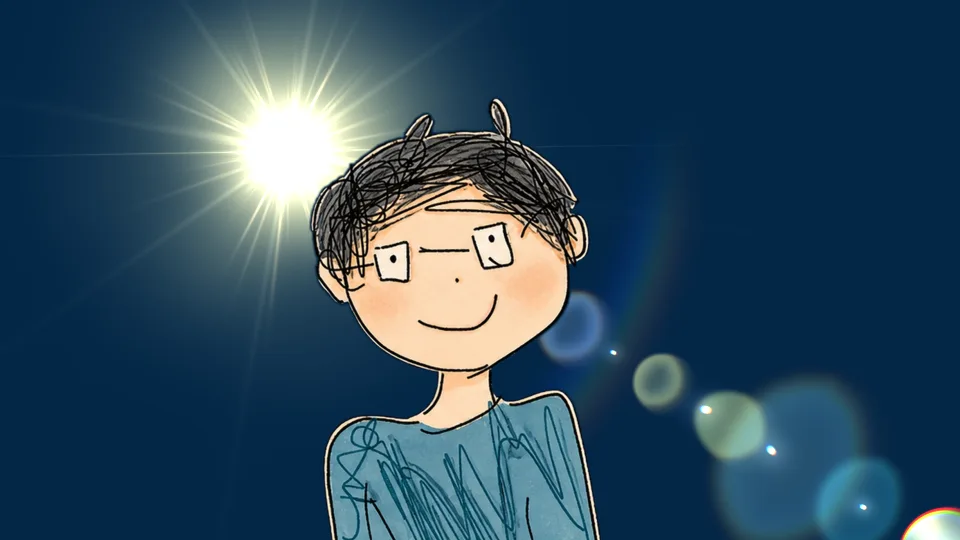
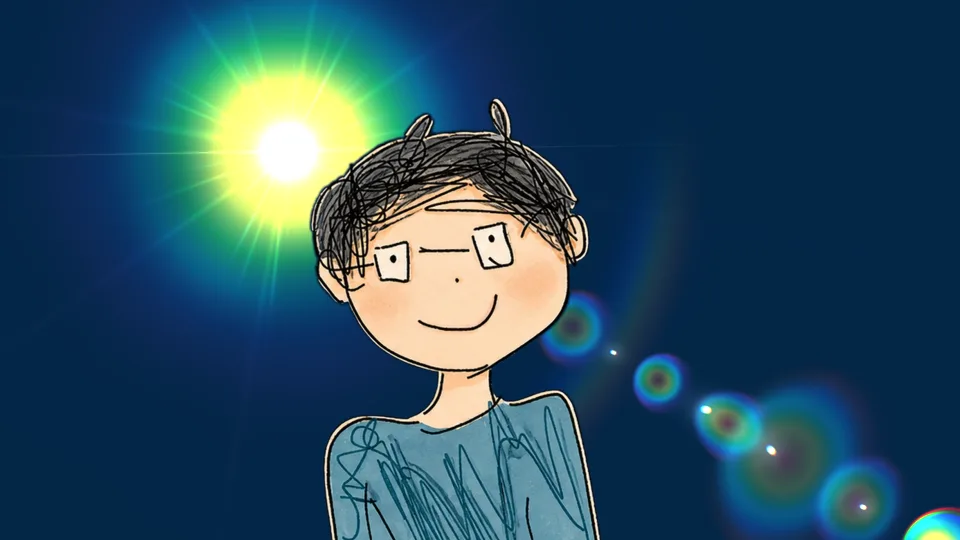
Under each element’s “Color” there is a “Color Gradient” menu. “Solid” behaves like an ordinary flare; pick any built-in gradient and it runs along the element: rays from root to tip, ghosts from center to edge, glows and the light source from center outward. The stops load with it and each one remains editable, so the built-in gradients are a starting point, not the end.
48 built-in gradients
Rainbow, diffraction, sunrise, aurora —
one click to apply.
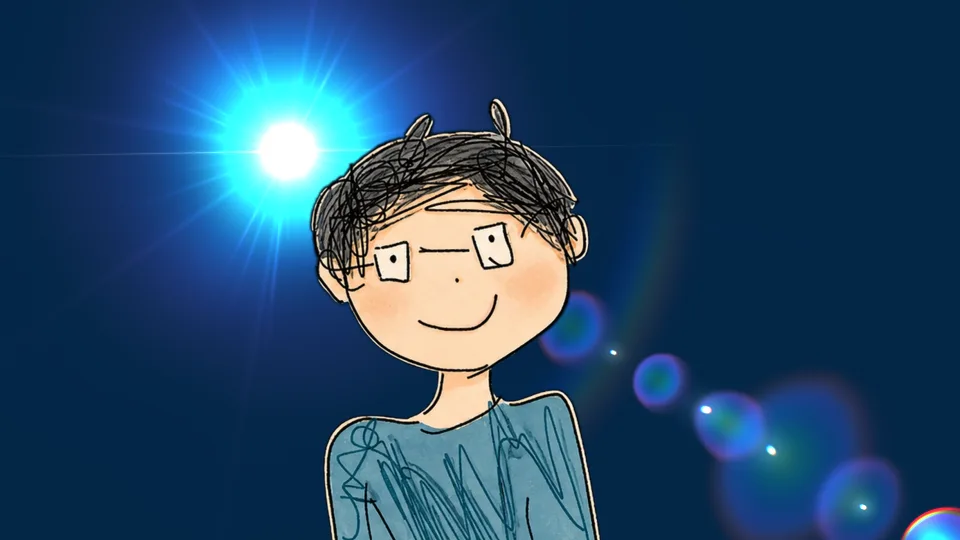
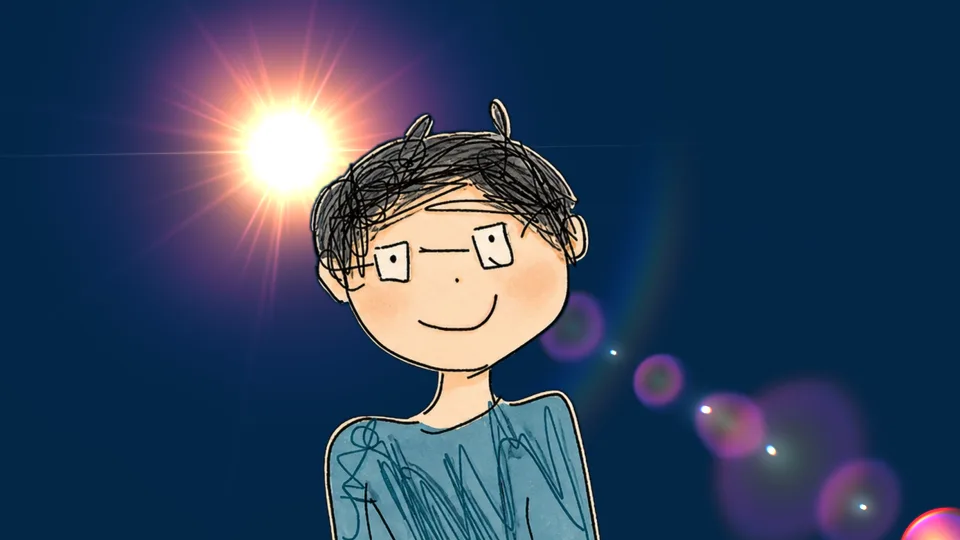
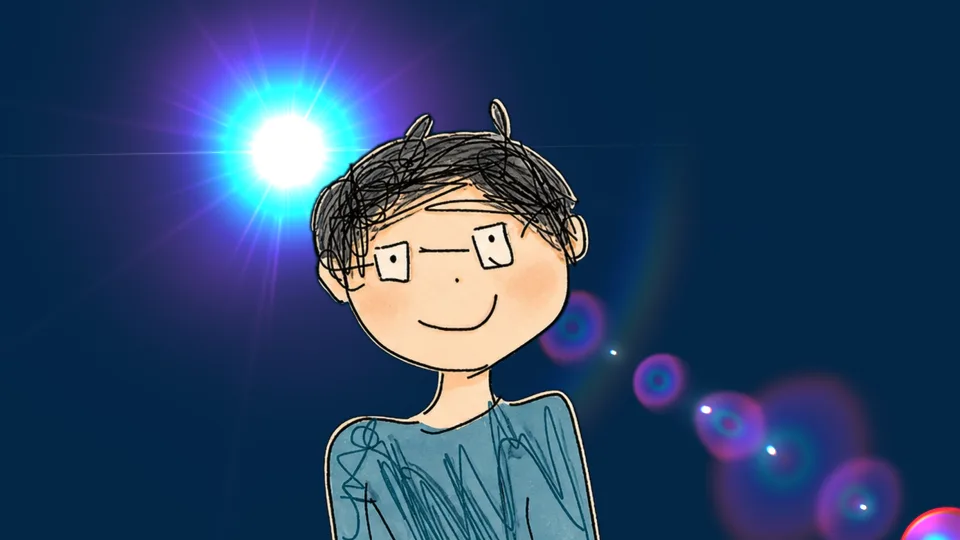
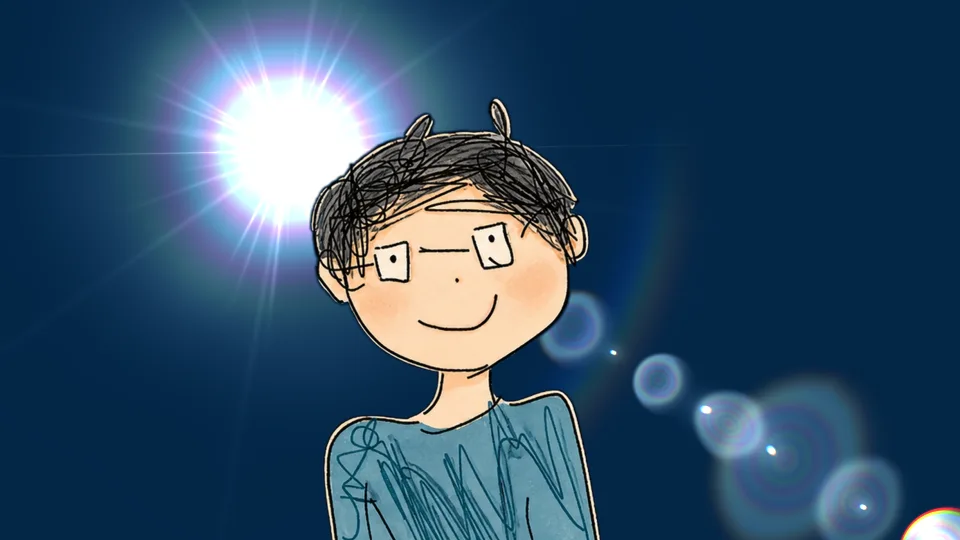
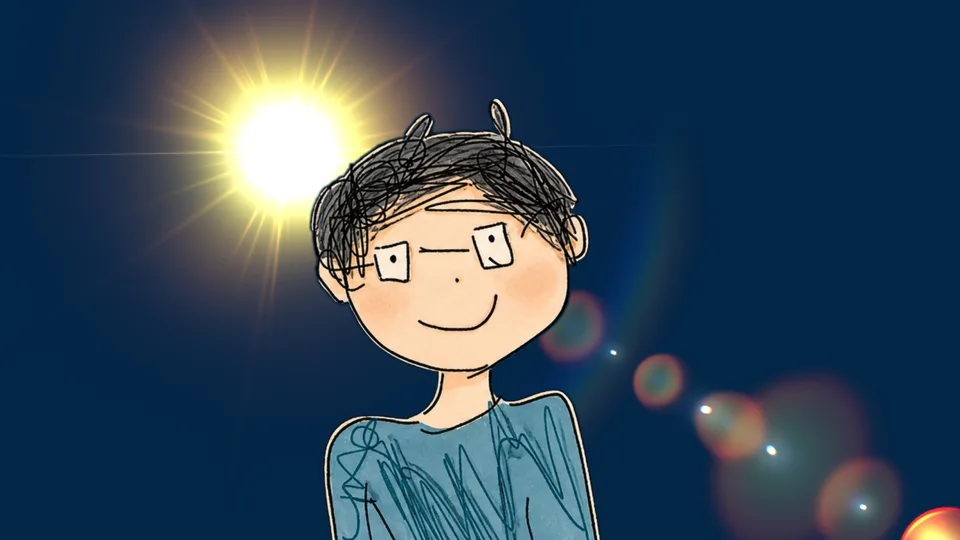
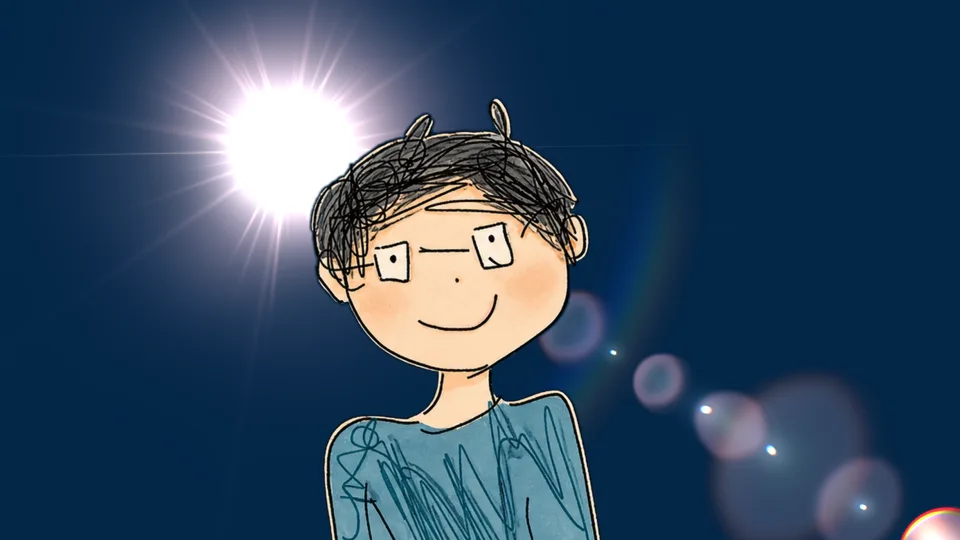
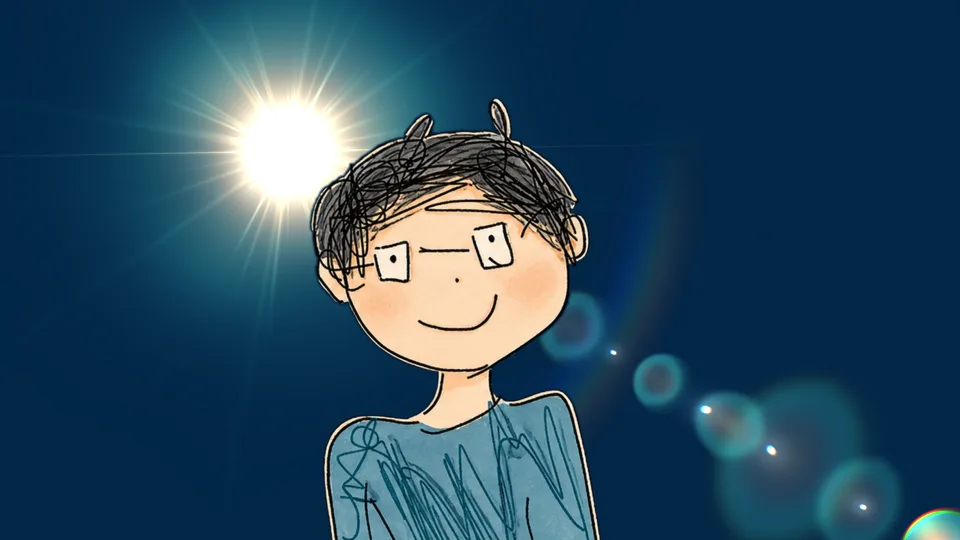
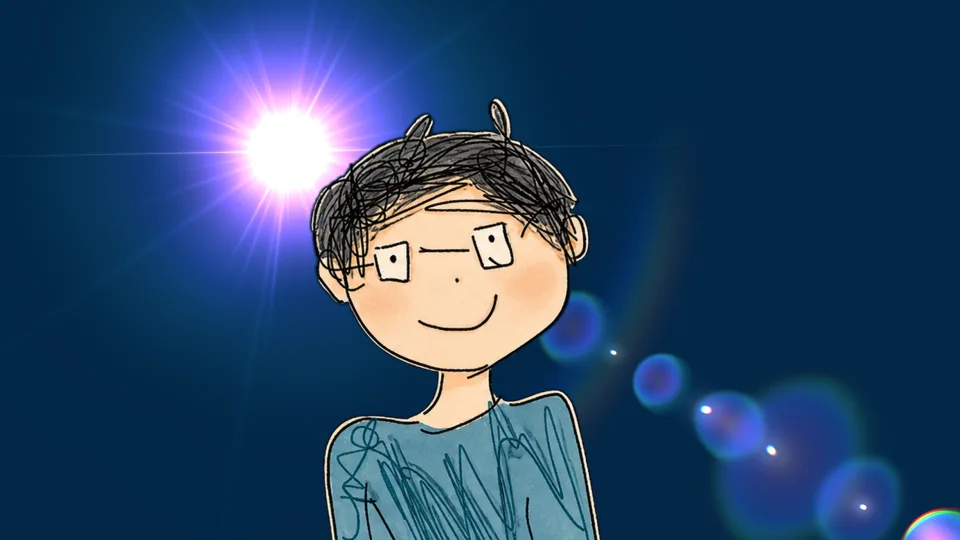
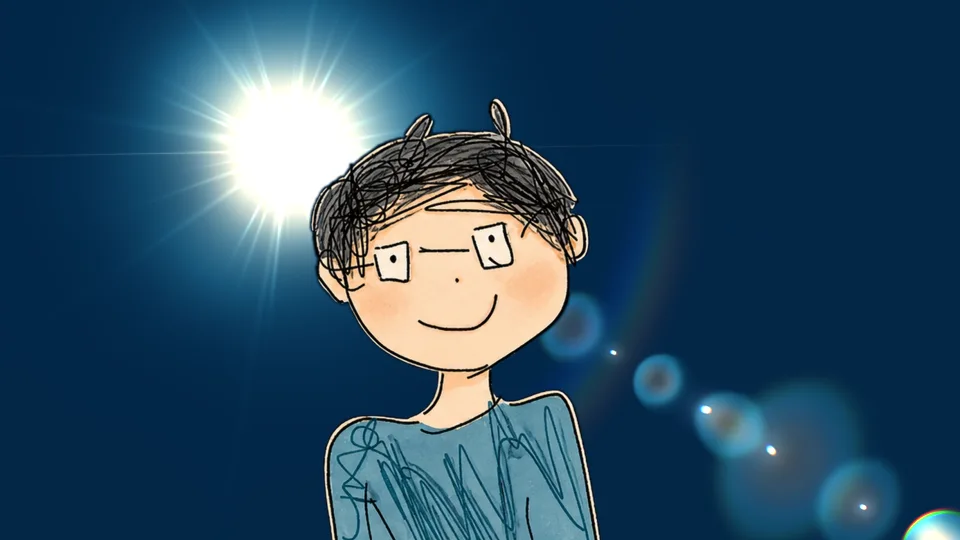
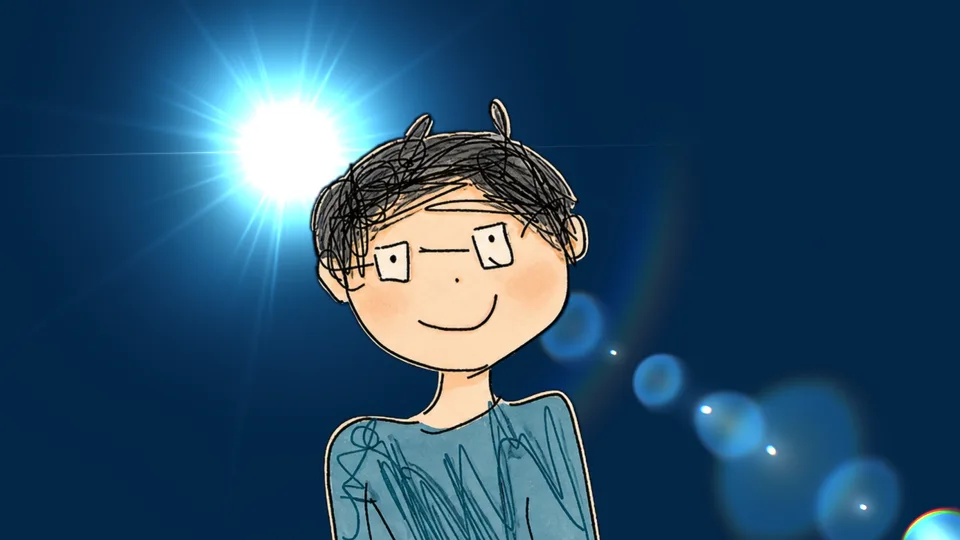
The 48 built-in gradients fall into rainbow (Rainbow, Soft Rainbow, Dense Rainbow, Ultra-dense Rainbow), diffraction (Blue-Orange, Bluish, Orangish, Green-Violet), optical textures (CD Disc, Soap Bubble, Dragonfly Wing, Oil Film, Aurora), warm (Warm Gold Rays, Amber, Sunrise, Dusk, Rose Gold, Embers, Flame, Champagne Gold), cool (Ice Blue, Deep Sea, Glacier, Nebula, Blue Hour), cinematic (Teal-Orange, Vintage Film) and soft ghosts. The 12 images below are one flare with only the gradient changed, all rendered by the plugin.
Repeats and spacing
A gradient can repeat several times,
tight at the start and loose at the end.
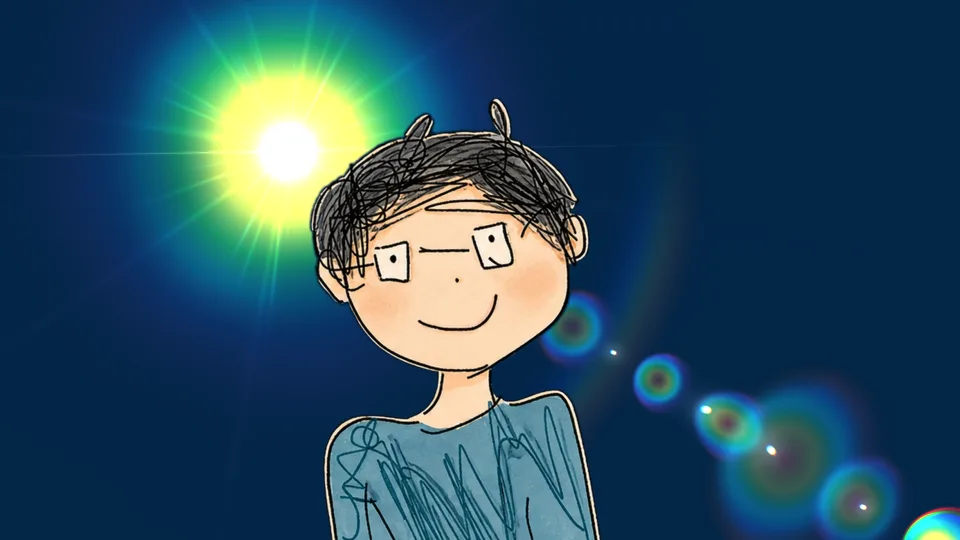
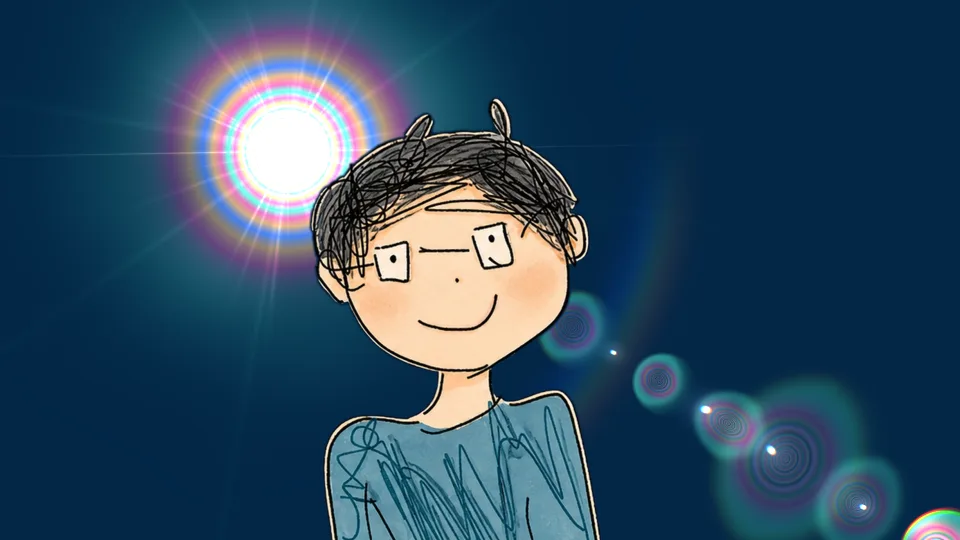
“Gradient Repeats” sets how many times the gradient repeats across the element (1 to 20); more repeats give ring after ring of rainbow or diffraction fringes. “Spacing Falloff” makes the first bands narrower and the outer ones wider, like real diffraction — dense in the center, loose outside. Both sliders work on every element and appear once a gradient is chosen.
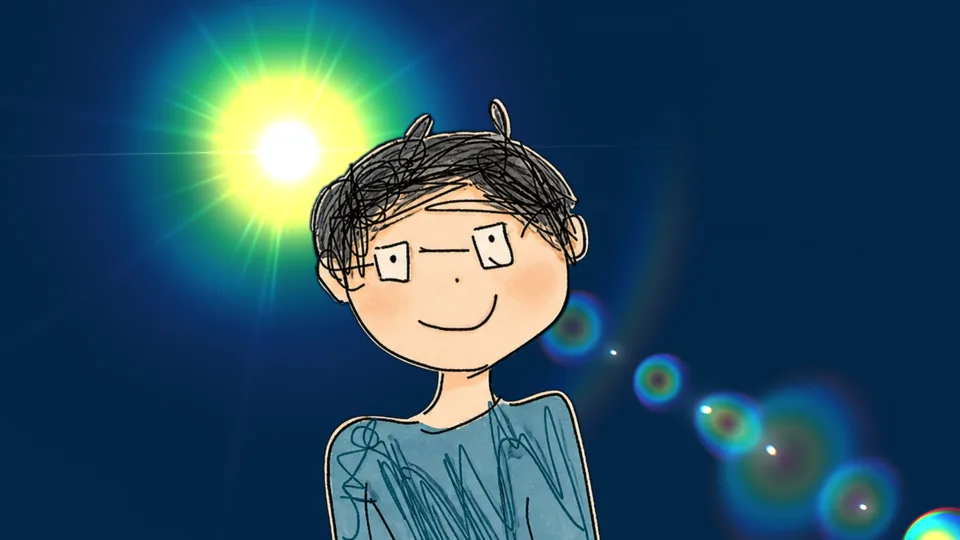
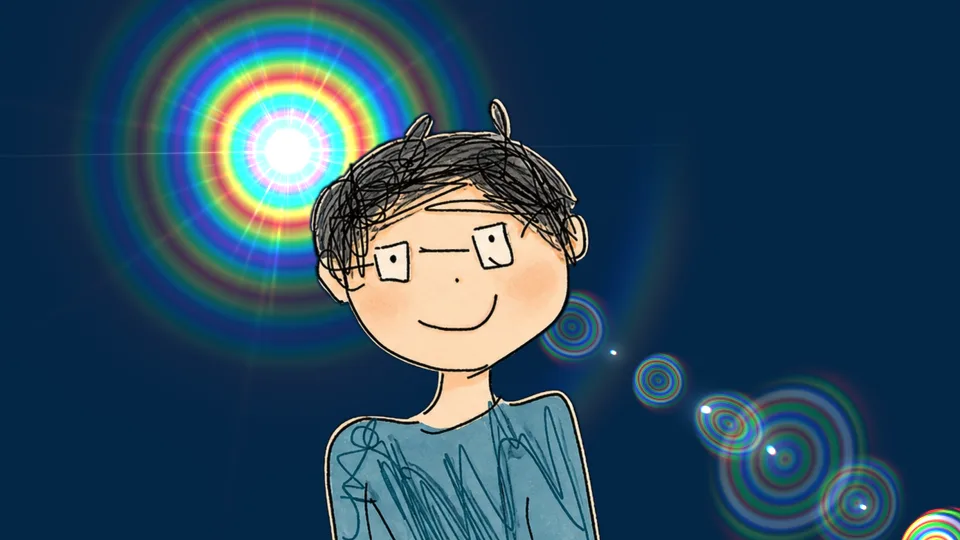
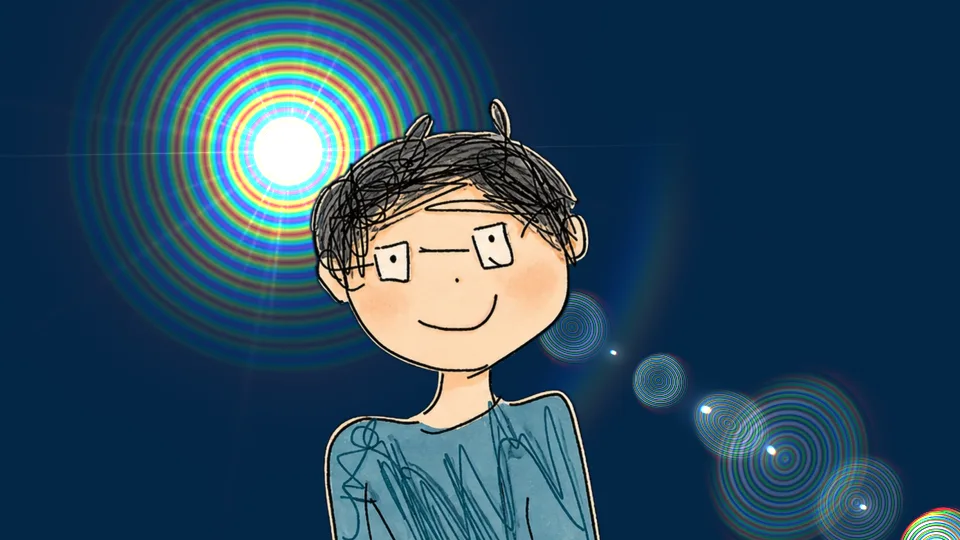
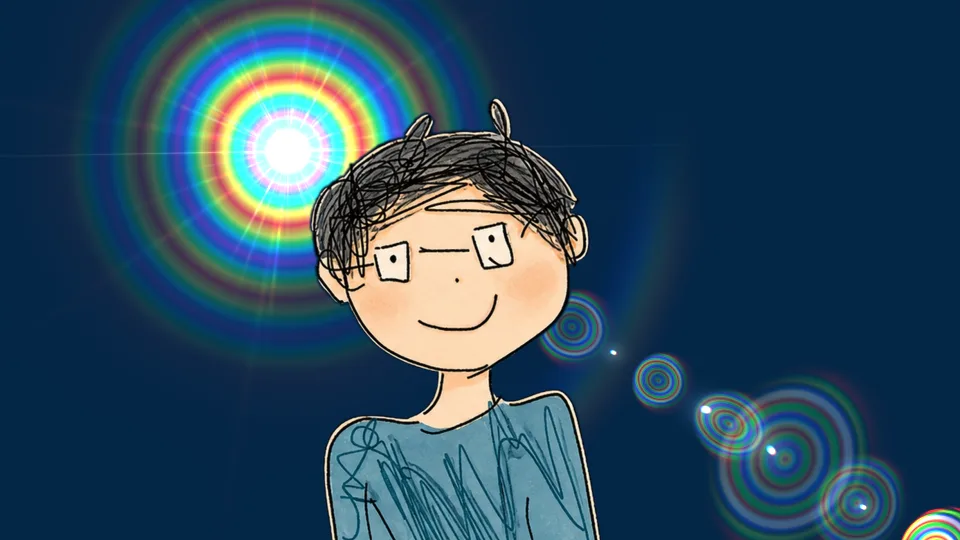
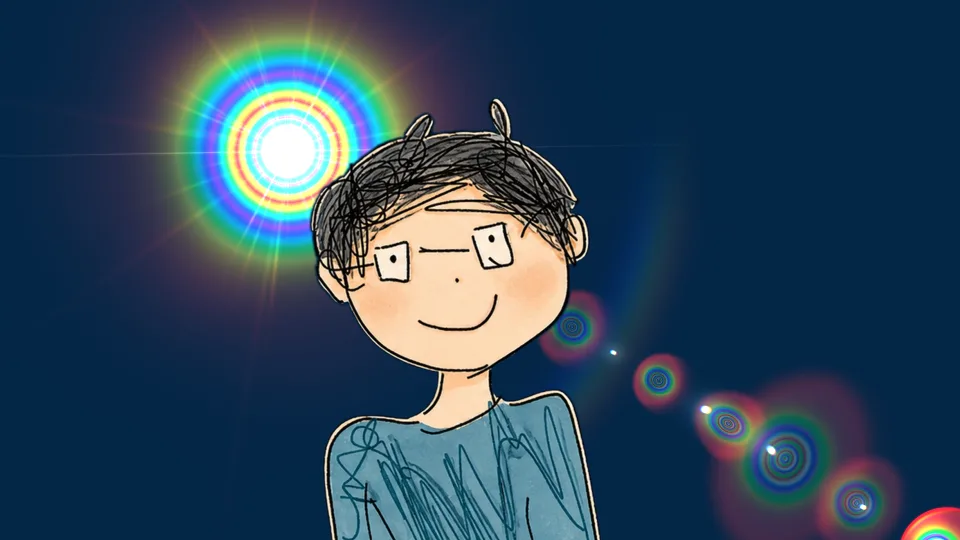
With “Custom” or any built-in gradient, “Stop Count” goes from 2 to 7 and each stop has its own color. “Gradient Strength” defaults to 100%; lowering it blends back toward the original solid color — keep a hint of it by pulling down only a little.
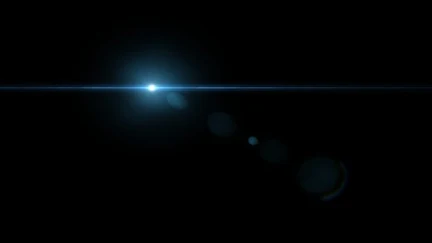
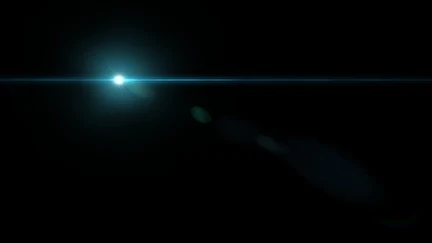
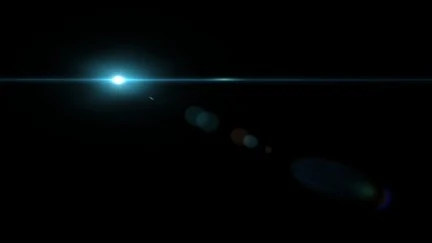
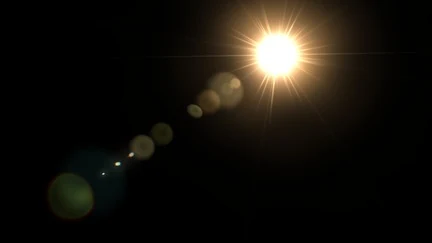
14 built-in presets
From golden sun to anamorphic,
one click to apply.
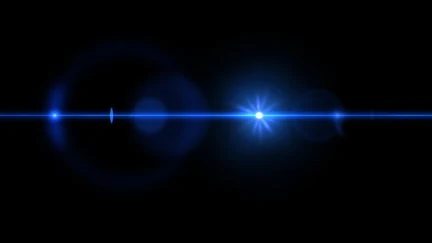
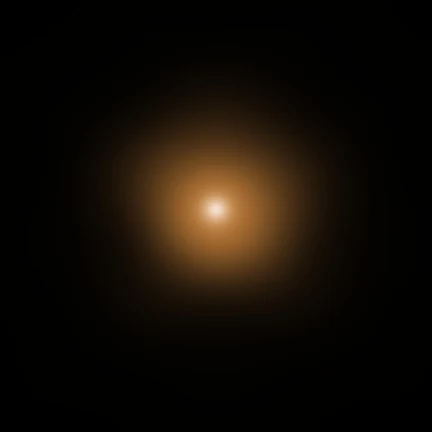
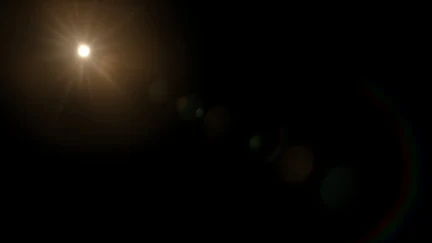
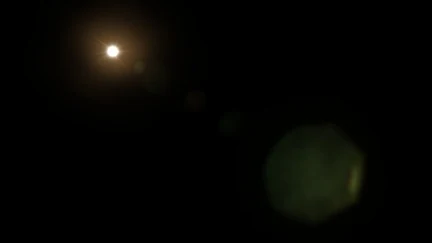
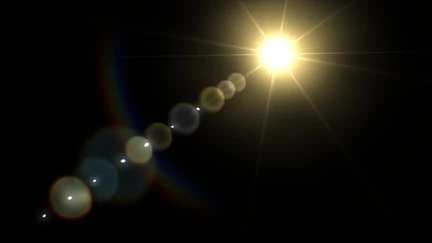
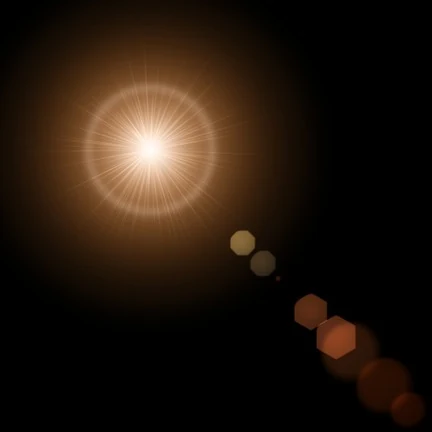
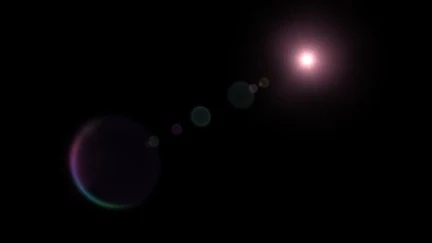
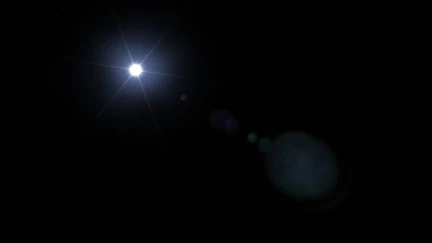
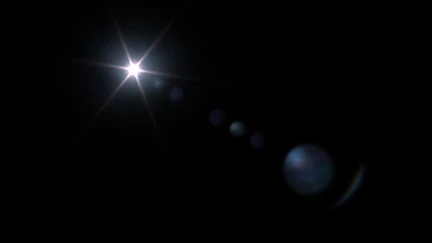
The library ships 14 presets: Golden Sun, Rainbow Sun, cyan and blue anamorphics, warm starburst, rose bloom, silver diffraction and more. Each is a full parameter snapshot that looks right the moment you apply it; to switch to a color gradient, just pick one in the element’s “Color Gradient” and nothing else changes. The library is shared, so your own saved presets sit alongside. All thumbnails were rendered by the plugin on black.
15 element slots
A flare is built from elements —
you decide what goes in.
The plugin has 15 element slots; each can hold a light source, core, glow, starburst, rays, flash streak, anamorphic streak, lens ghost, ghost chain, rainbow ring, arc, chromatic fringe, lens dirt or dust, with its own position, size, brightness, color and gradient. A different combination is a different lens. Light, ray and ghost types can all take a color gradient.
| Type | What it does |
|---|---|
| Light source, core, glow | The flare’s center and the soft light around it; can be elliptical, and can take a gradient. |
| Starburst, rays, flash streak | Fine radial spikes; length, width, count and outer spread are adjustable, with a gradient from root to tip. |
| Anamorphic streak | The widescreen streak that crosses the frame; rotate, shorten or bend it. |
| Lens ghost, ghost chain | Circular and polygonal ghosts along the line from light to frame center, moving with parallax as the light moves. |
| Rainbow ring, arc | Rings and arcs with dispersion, stronger toward the frame corners. |
| Chromatic fringe, lens dirt and dust | Color separation at the edges and dirt and dust on the glass, so the flare looks photographed. |
⏩ Auto animation and optics
No keyframes,
and nothing placed at random.
“⏩ Flicker” and “⏩ Shimmer” give the flare a gentle breath and twinkle with no keyframes. Position is a single “Light Source” point: drag it, keyframe it or bind it to another layer with an expression, and the ghosts follow by optical rule; rainbows and dispersion always lie along the line from light to frame center, stronger toward the corners. The “Flare Designer” is a large window whose preview uses the same renderer as the plugin, where you can save your own presets and elements.
More
GPU accelerated,
8-, 16- and 32-bit color.
“GPU Acceleration” is on by default, using the Apple Silicon GPU (Metal); it falls back to the CPU with identical results when the GPU is unavailable. 8-, 16- and 32-bit color are supported, you can output the flare alone (handy for your own compositing), and settings can be saved as presets.
Getting started
Three steps to get going.
Requires an Apple Silicon (M-series) Mac, macOS 14 or later and After Effects 2026. No Intel Mac or Windows version yet.
- Download the installer
Click “Download for Mac” on this page and unzip. The installer is notarized by Apple.
- Quit AE, then install
Save your project, quit After Effects fully with Cmd+Q, then run the installer; the 14 built-in presets are added to the preset library at the same time.
- Add it to the layer that should carry the flare
Reopen AE, find ASheng_Flare under “ASheng - Light”, add it to an adjustment layer or footage, drag the “Light Source” point, then pick a preset or choose a gradient in an element’s “Color Gradient”.
Good to know
Where is it in AE?
Under “ASheng - Light” in the Effect menu; the name is ASheng_Flare.
Does the Golden Pass cover it?
Yes. The Golden Pass covers every ASheng AE plugin, including future releases, so Flare activates directly.
Do I have to use color gradients?
No. The gradient menu defaults to “Solid”, exactly like an ordinary flare; when you want one, pick a gradient under the element’s “Color”.
Can built-in gradients be edited?
Yes. Choosing a built-in gradient loads its stops into “Color” and stops 2 to 7, each editable, and stop count, repeats, spacing falloff and gradient strength are all sliders.
Which bit depths are supported?
8-, 16- and 32-bit are all supported.
Does it use the GPU?
Yes. “GPU Acceleration” is on by default and renders on the Apple Silicon GPU (Metal); if the GPU is unavailable it falls back to the CPU with the same picture, just slower.
Does it support Premiere Pro?
After Effects only for now.
Can I use it without a license?
Yes, you can try it with a watermark on the output. With a valid Flare license NFT or Golden Pass, click “Activate / Manage License” in the “License” group of the effect panel to activate.