AFTER EFFECTS PLUGIN · FREEZE
ASheng
Frost
Let the picture
ice over bit by bit.
Apply it to a layer, text or shape; ice grows from where you say, covers the picture bit by bit, and can thaw back to normal. Frost, matte and clear ice, icicles hanging from the bottom edge, cracks, sparkle and a ring of cold mist on the surface; where the freeze starts, how far and in which direction are up to you.
10 USD · 365-day license · 1 Mac
Output is watermarked until a license is activated. The license runs from the time of purchase and does not auto-renew; buy another to keep using it after it expires. The Golden Pass already includes Frost. Prices follow the live plan on the purchase page.
Where the freeze starts
Where the ice starts
is up to you.
“Freeze Direction” can be edges inward, bottom, top, left, right, random, or “Freeze Points”: place up to 3 draggable points, each with a “Freeze Radius” that ices over all at once before spreading outward. Ice-blue circles are drawn in the comp viewer; drag them to resize. “Reverse” flips the order (the points freeze last), “Pattern Size” sets how coarse the freezing edge is, and a new “Seed” gives a new pattern.
Keyframe it to move the freeze point, or bind it to another layer with an expression.
Ice style
Three ice types,
not just a color change.
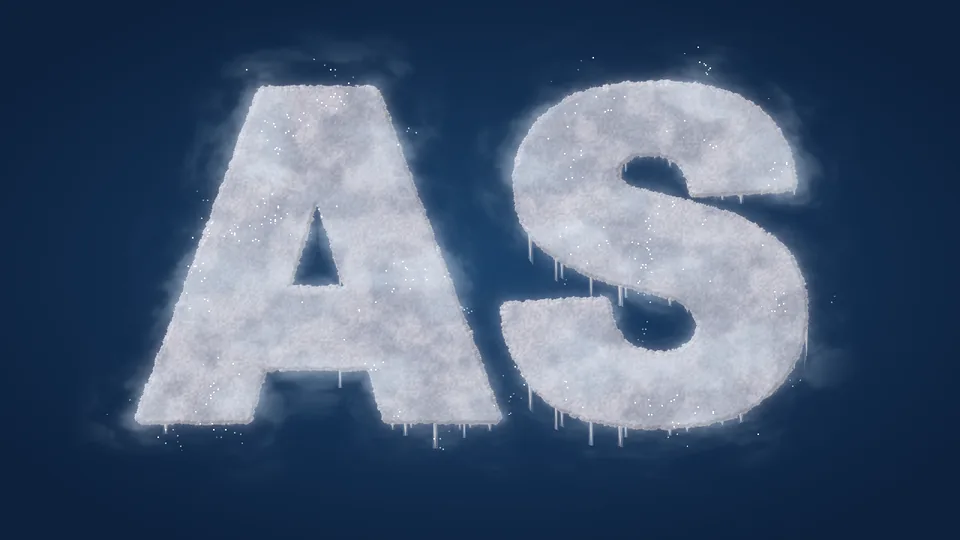
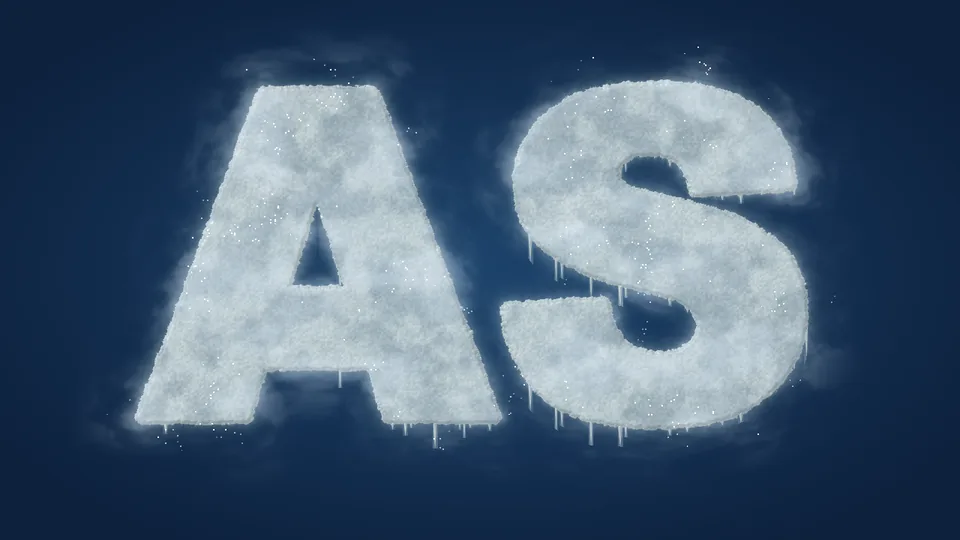
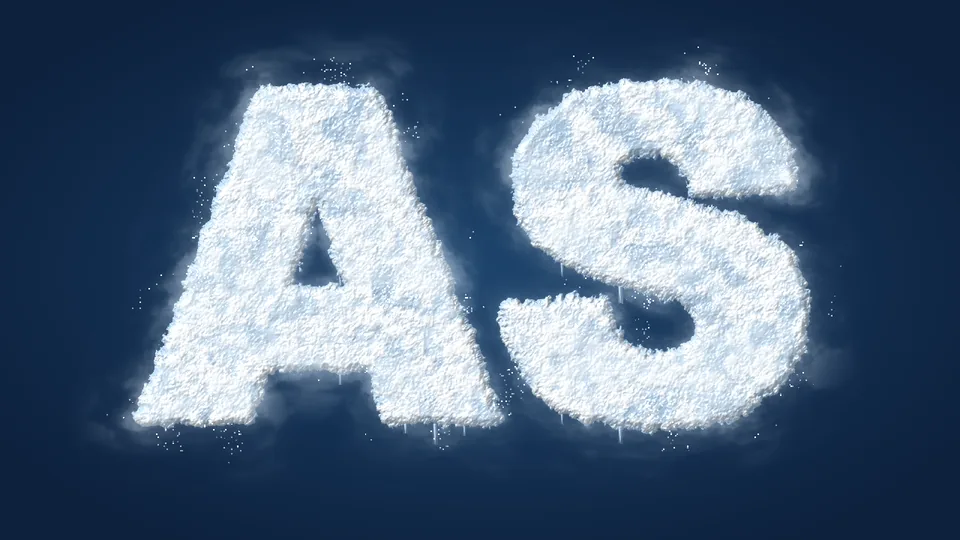
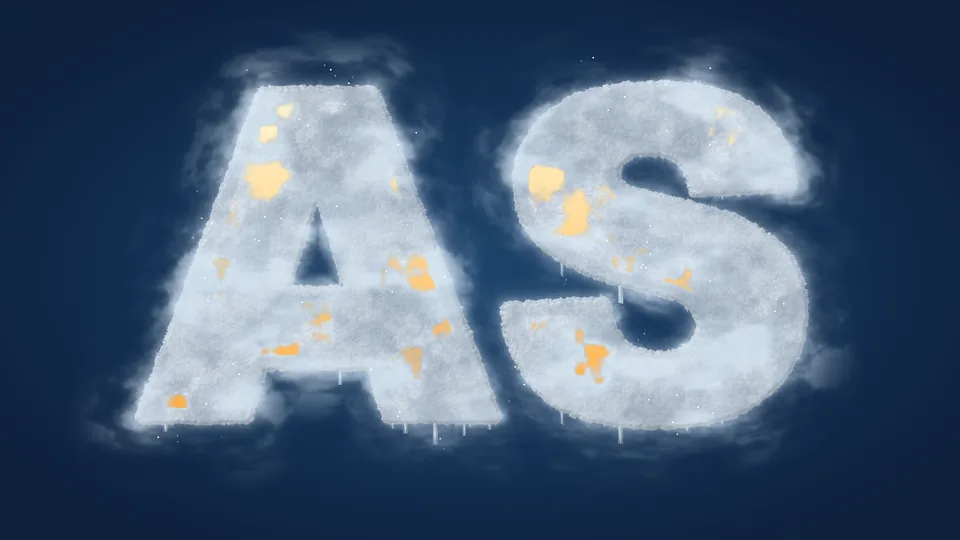
Frost ice is coarse-grained and covers most fully; matte ice is translucent frosted glass, with “Matte Opacity” deciding how much shows through; clear ice is the clearest, refracting and slightly warping what lies beneath. “Ice Color”, “Rough Edge”, “Surface Texture”, “Thickness Shading” and “Light Direction” all multiply onto each ice type’s native look, so switching styles never scrambles your settings.
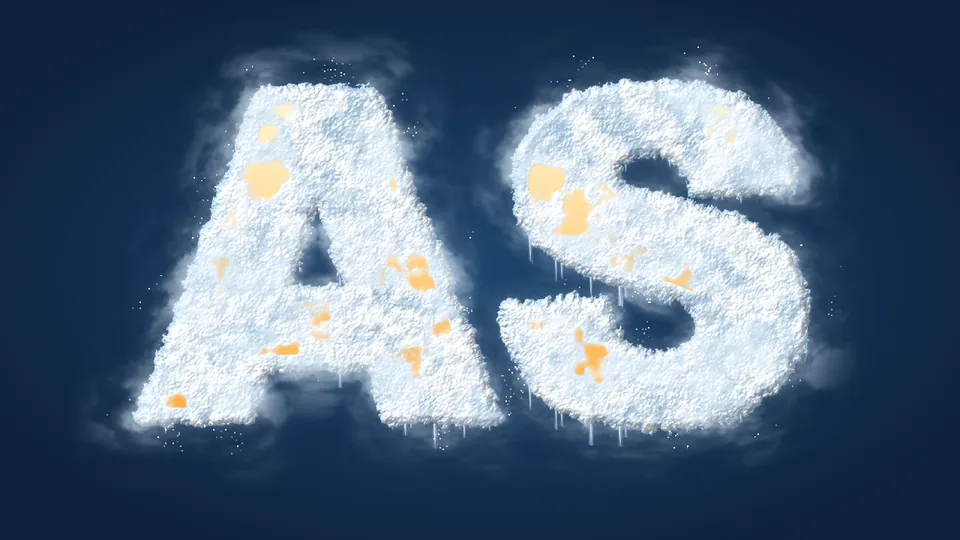
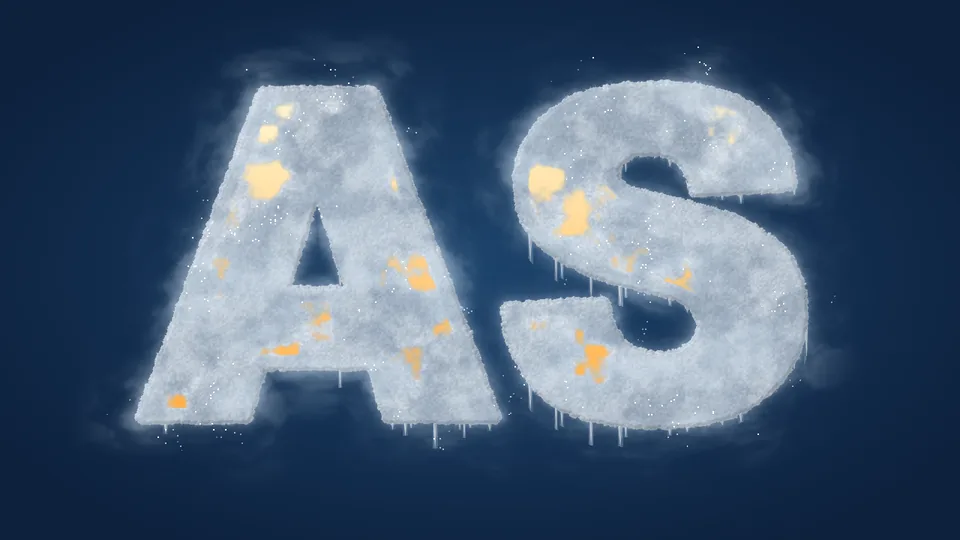
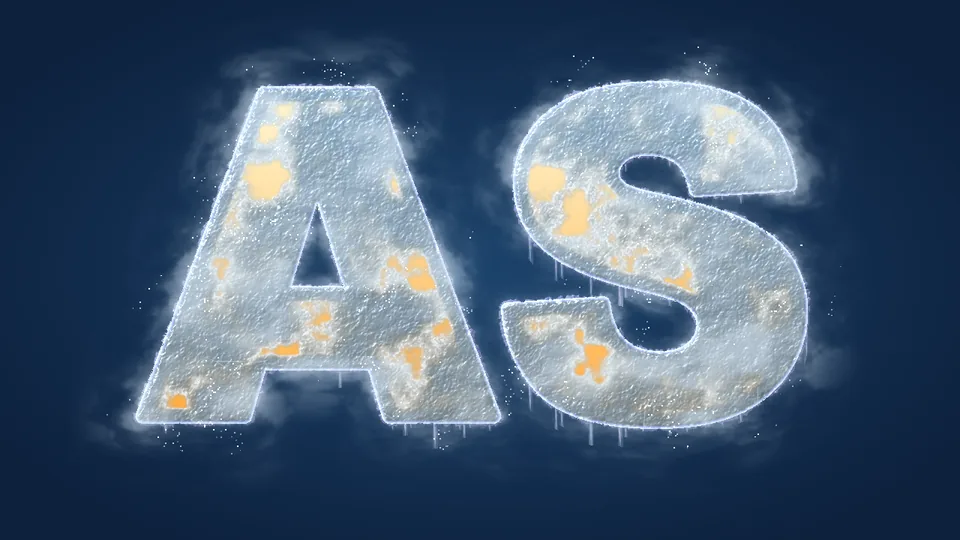
Ice color: anywhere on the color wheel
Ice details
Icicles, cracks, sparkle, cold mist —
each has its own slider.
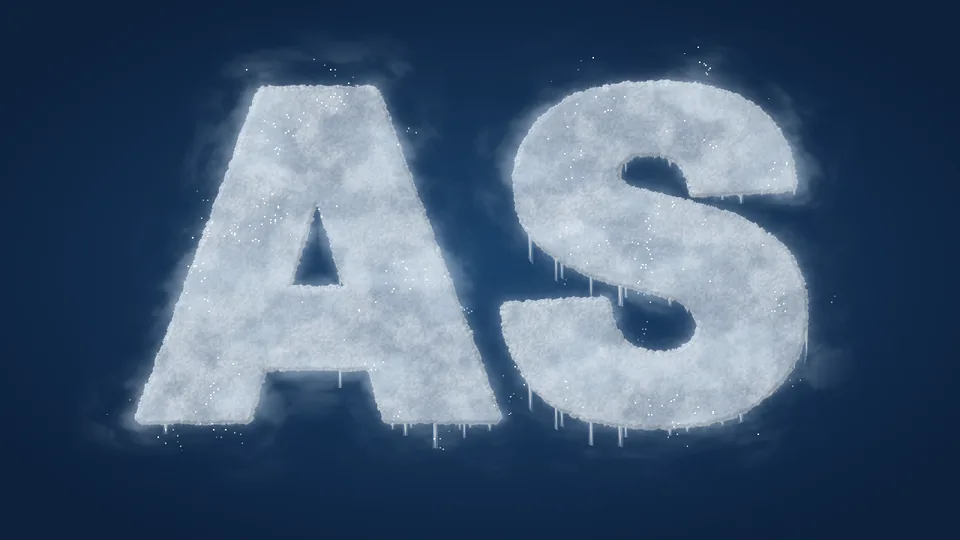
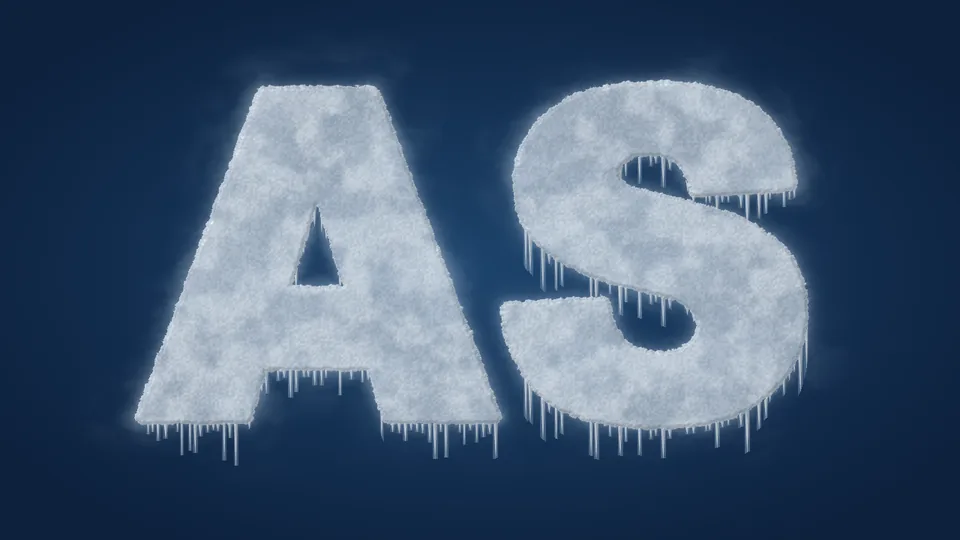
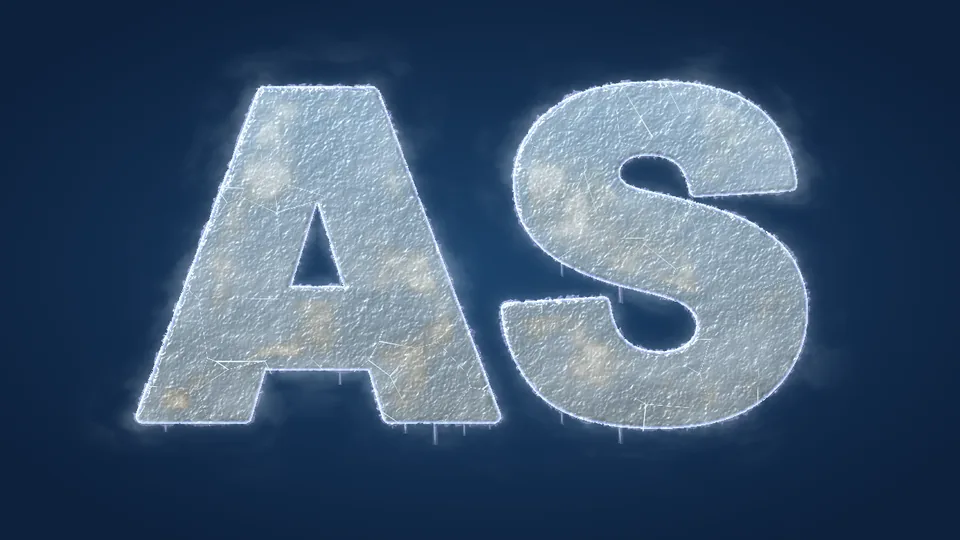
“Icicles” hangs icicles of varying length from the bottom edge; “Cracks” scores fine fissures across the ice; “Ice Sparkle” adds glints on and around the surface; “Cold Mist” is a pale white mist that grows from the layer’s edges, drifts outward and slowly sinks; “Frost Edge” is the ring of white frost at the freezing edge; “Outer Glow” is the cold white light around the ice. Turn them down for clean ice, up for a biting chill.
⏩ Auto freeze
No keyframes —
the ice grows and melts on its own.
Set “Freeze Mode” to “Freeze at In Point” and the layer freezes from its in point, fully covered after “Freeze Duration”; “Thaw at Out Point” thaws it back at the end; “Both” does both. For manual control choose “Manual Progress” and keyframe 0 to 100%.

Note: Frost freezes the layer; the layer itself does not disappear and nothing beneath is revealed. To use a freeze as a scene change, bring in the next picture during the frozen stretch however you usually would (overlay, fade, etc.).
More
Ice reaches past the layer,
and the output bounds grow automatically.
Icicles, cold mist, sparkle and outer glow extend beyond the layer bounds and the plugin enlarges the output area so nothing is clipped; text frozen outside the frame still sends its glow and mist into it. Text, shapes, video and images all work. “GPU Acceleration” is on by default, with freeze ordering and shading on the Apple Silicon GPU (Metal); it falls back to the CPU with identical results when the GPU is unavailable. 8-, 16- and 32-bit color are supported, and settings can be saved as presets.
What’s different
Making a freeze effect —
Frost wants to cost you less time.
| What you want | The usual way | ASheng Frost |
|---|---|---|
| The picture freezing | Overlay ice footage, align it by hand and mask it | Ice grows along the layer’s shape — text, shapes, people alike |
| Choosing where it freezes | Footage has a fixed direction; moving it means redoing it | Edges, top, bottom, left, right, random, or up to 3 freeze points with radius |
| Changing the ice | Swap in different footage and regrade | Three ice types in one dropdown, ice color from the whole wheel |
| Icicles, cracks, sparkle | Find footage for each and stack it | One slider each, with count and size adjustable |
| Freeze, then thaw | Adjust opacity and position by hand, frame by frame | Freeze at the in point, thaw at the out point, seconds of your choosing |
Getting started
Three steps to get going.
Requires an Apple Silicon (M-series) Mac, macOS 14 or later and After Effects 2026. No Intel Mac or Windows version yet.
- Download the installer
Click “Download for Mac” on this page and unzip. The installer is notarized by Apple.
- Quit AE, then install
Save your project, quit After Effects completely with Cmd+Q, then open the installer.
- Add it to the layer that should freeze
Reopen AE, find ASheng_Frost under “ASheng - Elements” and add it to the layer; set “Freeze Mode” to auto and it freezes or thaws at the layer’s in or out point.
Good to know
Where is it in AE?
Under “ASheng - Elements” in the Effect menu; the name is ASheng_Frost.
Does the Golden Pass cover it?
Yes. The Golden Pass covers every ASheng AE plugin, including future releases, so Frost activates directly.
Can I use it as a transition?
Frost freezes and thaws the layer; the layer itself never disappears, so it is not a transition plugin and reveals nothing beneath. For a scene change, freeze the picture and cut to the next shot in your edit.
Does the ice get clipped at the layer bounds?
No. Icicles, cold mist, sparkle and outer glow extend past the layer and the plugin enlarges the output area automatically.
Which bit depths are supported?
8-, 16- and 32-bit are all supported.
Does it use the GPU?
Yes. “GPU Acceleration” under “Output” is on by default and renders on the Apple Silicon GPU (Metal); when the GPU is unavailable it falls back to the CPU with the same picture, only slower. This option is a per-machine preference and is not saved into presets.
Can I use it without a license?
Yes, you can try it with a watermark on the output. With a valid Frost license NFT or Golden Pass, click “Activate / Manage License” in the “License” group of the effect panel to activate.