AFTER EFFECTS PANEL · ASHENG TOOLBOX

ASheng Toolbox

The little things you do every edit,
one click away.

Free · Email sign-up · Yours forever

ASheng Toolbox is an After Effects panel. It turns the small jobs I do every day while editing into buttons: text intros, holds and outros; position, scale and rotation bounces; subtitle styles and SRT to text layers; speed curves and a nine-point anchor grid; resizing comps and duplicating a comp with new text — 24 tools in all. Select a layer, click once, then fine-tune with sliders. If something goes wrong, press Cmd+Z in AE to undo.

Apple Silicon · M-seriesmacOS 14 or laterAfter Effects 2023 or laterPanel (Window › Extensions)

Free · Any number of Macs

Install it with ASheng Manager. The first time you open the panel, it asks for your email and sends a verification code; once that is done, every tool is yours to keep. When you sign up you can choose whether to get news about new plugins and updates. Golden Pass holders skip the sign-up and can use it right away. How we use your email is described in the Privacy Policy.
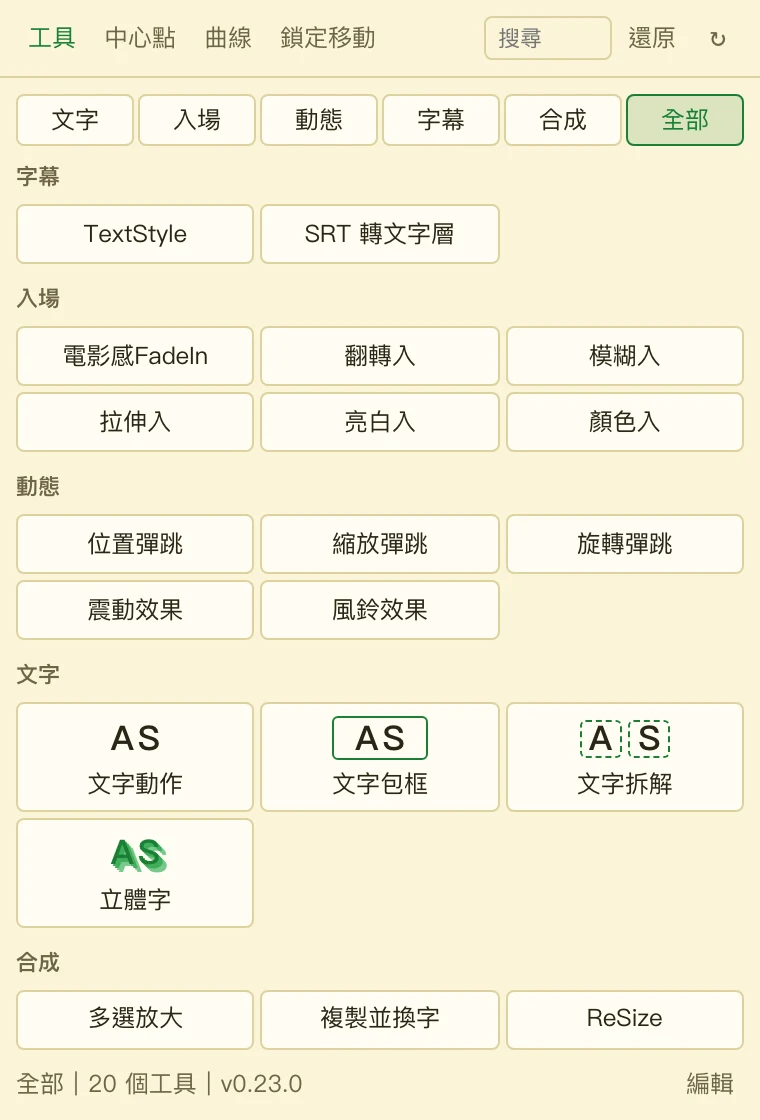
The ASheng Toolbox panel: tools grouped into Subtitles, Intros, Motion, Text and Composition
The Tools page: grouped by category, searchable, and you can reorder it yourself. This is the actual panel.

24 tools

Six groups,
all things you reach for every edit.

Each tool is a button or a small page. Select a layer (or a comp) and click in the panel to apply it; where there is something to adjust, use the sliders. The result is written straight into AE as keyframes, expressions or effects, so it stays even after you close the panel.

Text5

Text animation
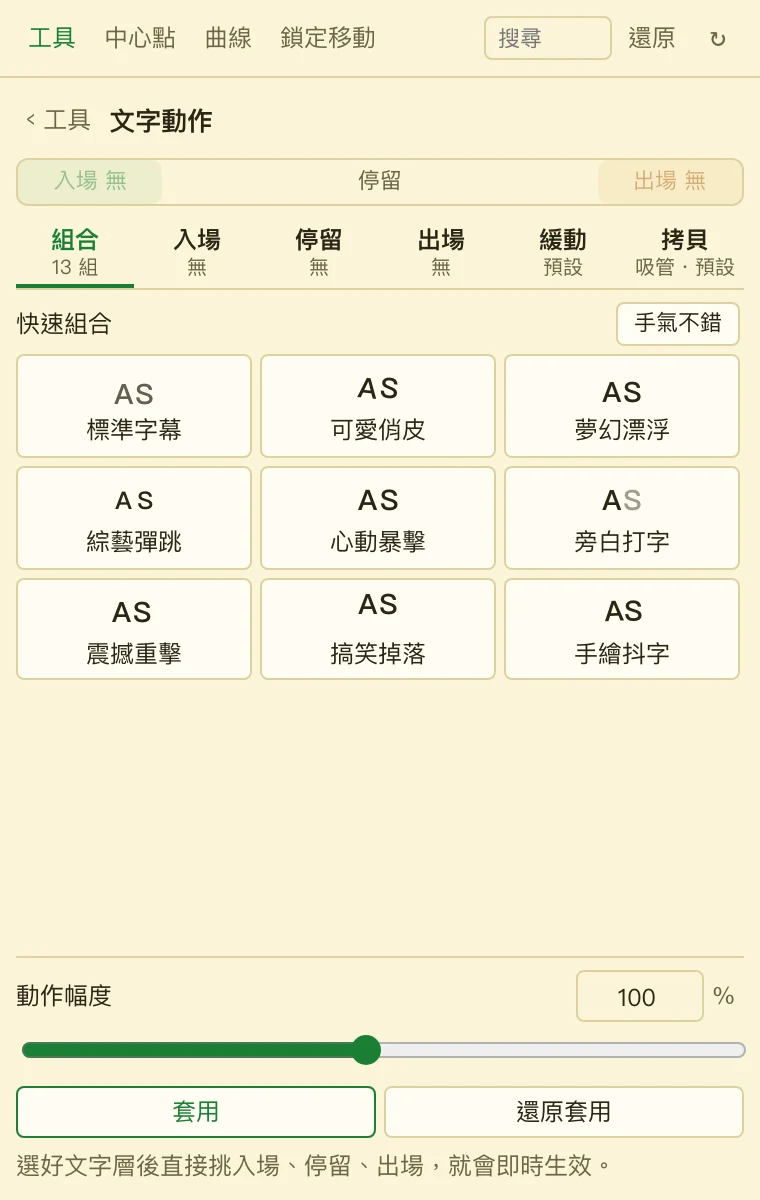
Pick the intro, hold and outro separately, with 13 quick combos (Standard subtitle, Variety bounce, Narration typing…). You can also stack a “scramble” on top of the intro.
Stop-motion jitter
Inside the Hold step of Text animation: every letter jitters like hand-drawn stop motion.
Text box
Adds a box around your text, with adjustable stroke width and corner radius.
Text split
Splits text into one layer per character, each staying exactly where it was.
3D text
Gives text a 3D depth, with a one-click undo.

Intros6

Cinematic Fade In · Flip in · Blur in
Select a layer and click: the intro keyframes are set for you.
Stretch in · Flash in · Color in
Same one-click apply; timing and strength can be adjusted in the panel.

Motion5

Position bounce · Scale bounce · Rotation bounce
Sets the keyframes and adds a bounce, with a slider for springiness. It settles smoothly at the end — no sudden jump.
Shake
Adds a controller that shakes the layer, with a slider for strength.
Wind chime
Makes a layer sway softly, like a hanging wind chime.

Subtitles2

TextStyle
Subtitle styles: stack strokes, shadows and background boxes layer by layer. Edits to the text stay in sync, and the whole set follows when you move the main text.
SRT to text layers
Paste an SRT file’s contents and get one text layer per line, timed automatically.

Composition3

Scale comps
Resize several comps at once: proportionally, width only, or height only.
Duplicate with new text
Type one word or phrase per line to duplicate a comp for each, with the text swapped and numbered.
ReSize
Changes a comp to a common size, such as vertical 1080×1920 or square 1080×1080.

Keyframes3

Anchor point
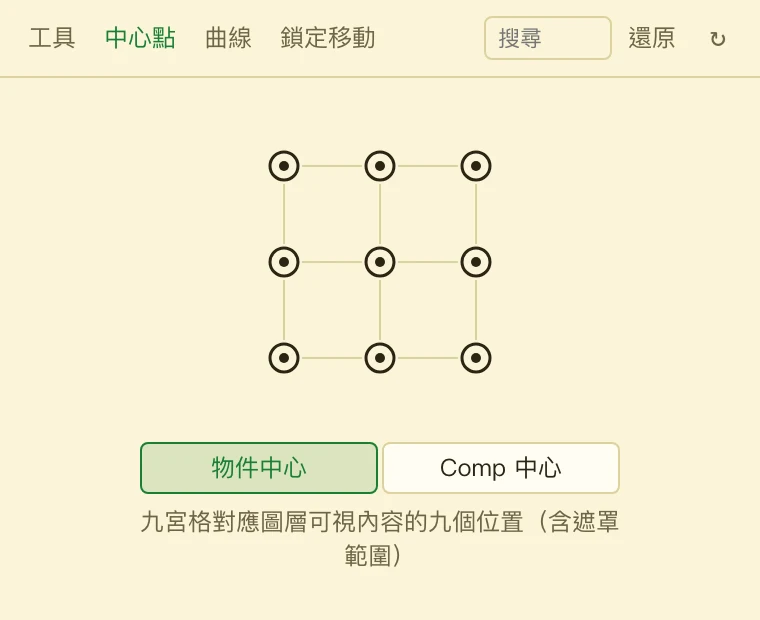
Click a point on the nine-point grid to move the anchor to that spot on the layer’s visible content — the picture does not shift.
Speed curve
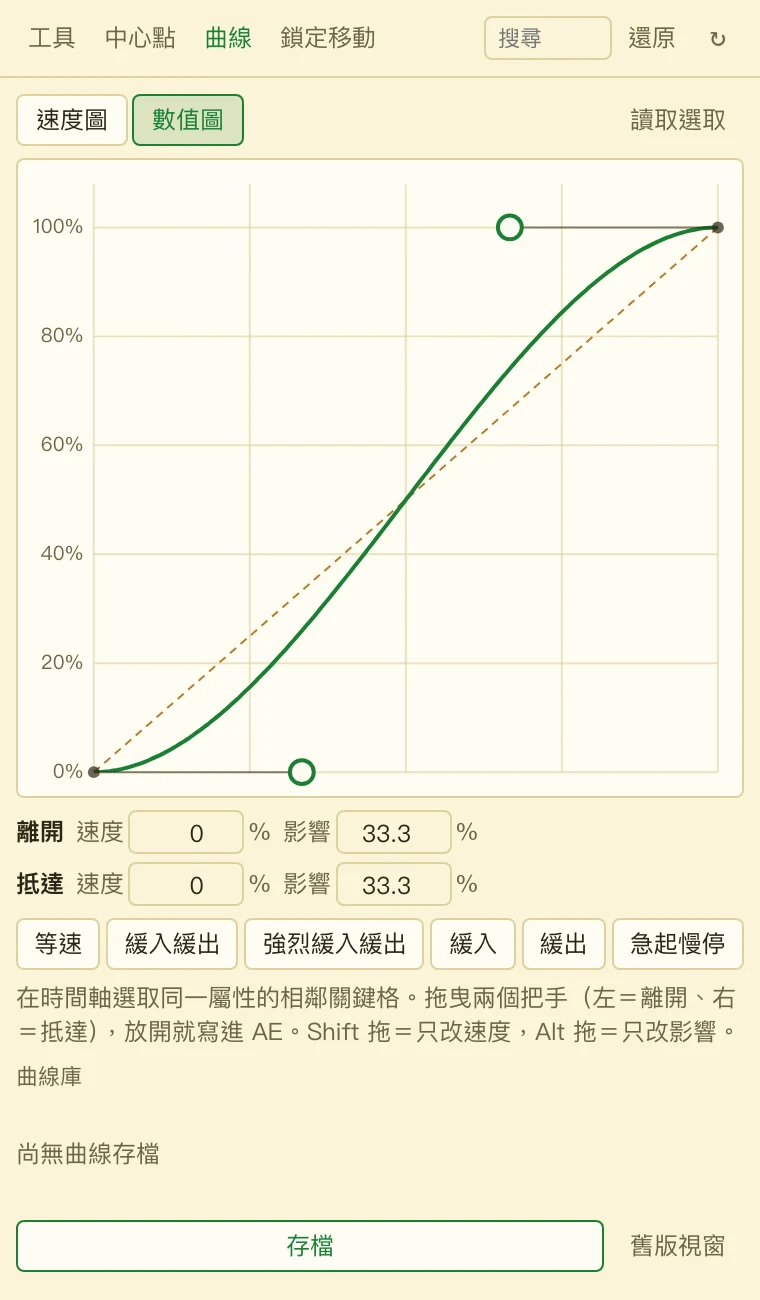
Drag two handles to shape the easing. Six presets (Linear, Ease in/out and more), and you can save your own curve library.
Shift keyframes
Shifts every position, scale and rotation keyframe on a layer at once, keeping the animation’s shape.

Text animation

Select a text layer,
then pick the intro, hold and outro.

Text animation splits a subtitle’s animation into three steps: how it comes in, what it does while it stays, and how it leaves. Pick each one separately; it applies to the selected text layer as soon as you click, and picking another replaces it.

  • 13 quick combos, such as Standard subtitle, Variety bounce, Heavy impact, Narration typing and Hand-drawn jitter.
  • Stack a second intro: choose “Typing”, then click “Scramble”, and the text decodes as it types.
  • One “Motion amount” slider scales the whole animation; the easing can be changed.
  • “Copy” uses an eyedropper to pick up another text layer’s settings and apply them to this one.
The Text animation page: intro, hold and outro tabs with quick combos
Text animation: intro, hold and outro across the top, quick combos below.
The Speed curve page: drag two handles to set a keyframe’s easing
Speed curve: drag the two handles and release to write it into AE.

Curves and anchor point

Get your easing right
without opening the Graph Editor.

Select two neighboring keyframes on the timeline and drag the curve in the panel: the left handle is the outgoing side, the right handle the incoming side, and releasing writes it into AE. Switch between the speed graph and value graph, or type in speed and influence percentages directly. Save the curves you use most and apply them with one click next time.

The Anchor point page is a nine-point grid: click a square and the layer’s anchor moves to that spot on its visible content (or on the whole comp). Position is compensated automatically, so the picture does not shift.

The Anchor point page: choose the anchor position on a nine-point grid
Anchor point: pick a position on the grid.

Getting started

Three steps to get going.

Requires an Apple Silicon (M-series) Mac, macOS 14 or later, and After Effects 2023 or later. There are no Intel Mac or Windows versions at this time.

  1. Download ASheng Manager

    A free Mac app, notarized by Apple. Open the downloaded file and drag it into Applications.

  2. Install ASheng Toolbox

    Open the manager, find the “ASheng Toolbox” card and click “Get it free”.

  3. Open the panel and sign up with your email

    Start After Effects and open the panel from Window › Extensions › 阿生工具箱. The first time, it asks for your email and sends a 6-digit code; enter it and the toolbox is yours to keep. Golden Pass holders can skip this step.

Good to know

Is it really free? Do I need a credit card?

It is free, and no credit card is needed. Sign up once with your email and every tool is yours to keep.

What do I need to give when I sign up?

Just your email, which we use to send the verification code and issue your free license key. Whether to receive news about new plugins and updates is up to you — the tools work either way, and you can unsubscribe from any email later. Details are in the Privacy Policy.

How many Macs can I use it on?

As many as you like. On each Mac, the first time you open the panel, get a code with the same email.

I have a Golden Pass. Do I still need to sign up?

No. The Golden Pass includes ASheng Toolbox, so the panel works as soon as you open it.

Where do I open it in AE?

Window › Extensions › 阿生工具箱. You can dock the panel wherever you like, alongside your other panels.

What if I apply something by mistake?

Press Cmd+Z in AE to undo. Some tools, such as 3D text and TextStyle, also have their own Undo button in the panel.

Will it be updated?

Yes. When there is a new version, ASheng Manager lets you know; one click updates it, without quitting After Effects.

Does it work on Windows or in Premiere Pro?

For now it only works in After Effects on Apple Silicon Macs. The panel’s interface is in Traditional Chinese.

How do I report a problem?

The fastest way is ASheng Manager: click “Report a Problem” in the top right — it attaches your plugin, After Effects and macOS versions automatically, and you can add screenshots. Without the manager, use the report page or email support@asheng.fyi. We’ll look into it as soon as possible.

Download ASheng Manager (free) ↗See all plugins