AFTER EFFECTS PLUGIN · WAVE WARP
ASheng
Wave Warp
Make pictures and text
ripple like water.
Wave Warp treats your picture as a sheet of water and pushes waves, ripples, raindrops, a whirlpool or a shockwave through it. Each of the seven wave types looks different, and all of them take height, wavelength and speed. Add light for shading and bright edges on the surface, or dispersion for colored fringes. You can limit the effect to one area, for example only the lower half of the picture. It works on text, photos and video, and it moves by default, so you do not have to set keyframes. 23 built-in styles are included; apply one and fine-tune with the sliders.
10 USDC · 365-day license · 1 MacUSD card US$12 (excl. tax, not yet available)
Output carries a watermark until a license is activated. The license starts when the purchase completes and does not renew automatically; buy another when it expires. The Golden Pass already includes Wave Warp. The price on the purchase page is the live one.
Seven wave types
Pick a wave type first —
each one has its own look.
The “Wave Type” menu has seven choices: Waves, Ripples, Wobble, Mesh Ripples, Raindrops, Whirlpool and Shockwave. The shared Height, Wavelength and Speed set how big, how dense and how fast the waves are; each type adds its own controls, such as the radius for ripples, drops per second for rain, or radius and twist for the whirlpool. All seven below use the same photo; only the wave type changes.
Light and dispersion
Turn the light on
and the water gets shading and highlights.
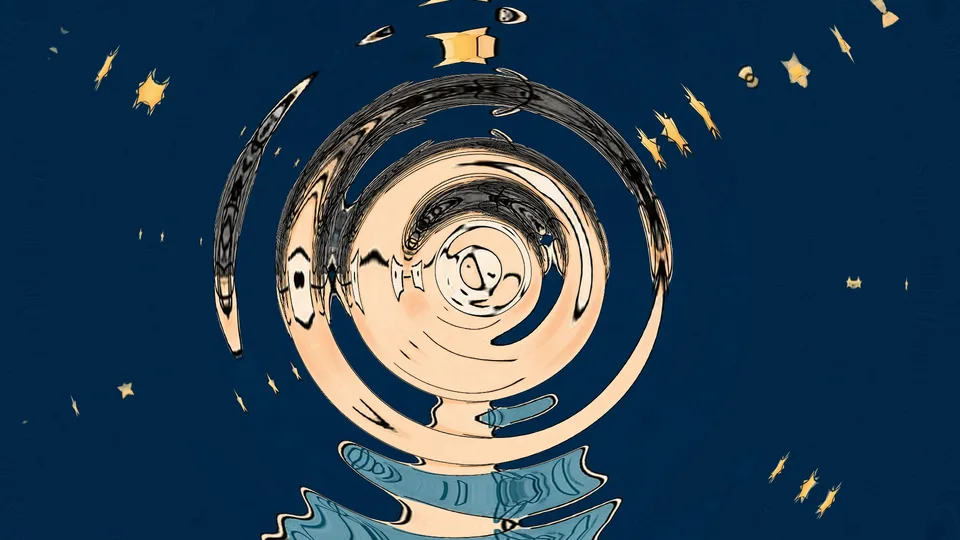
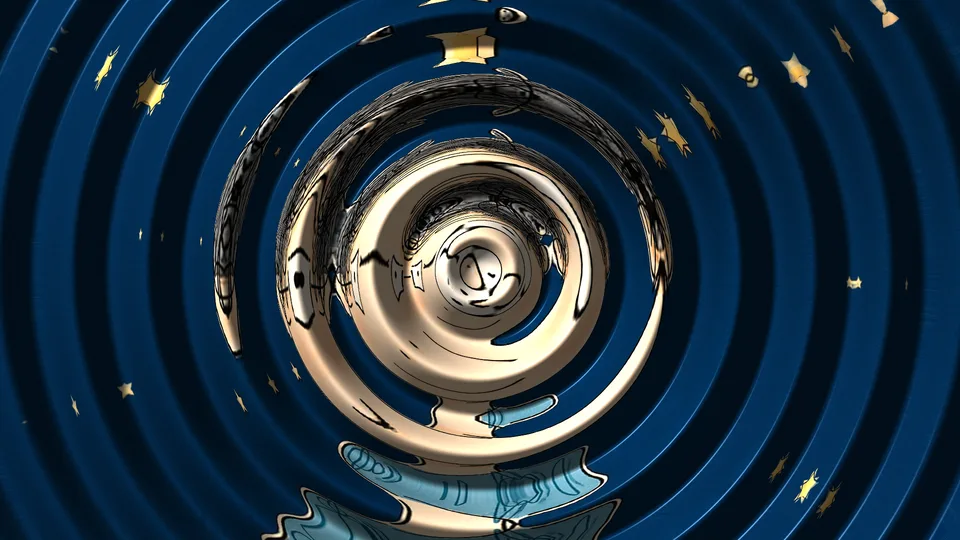
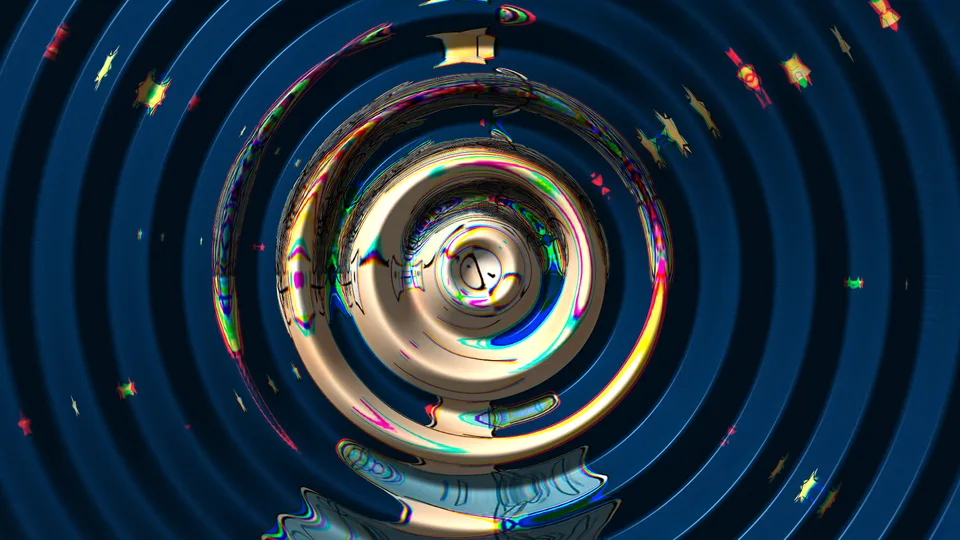
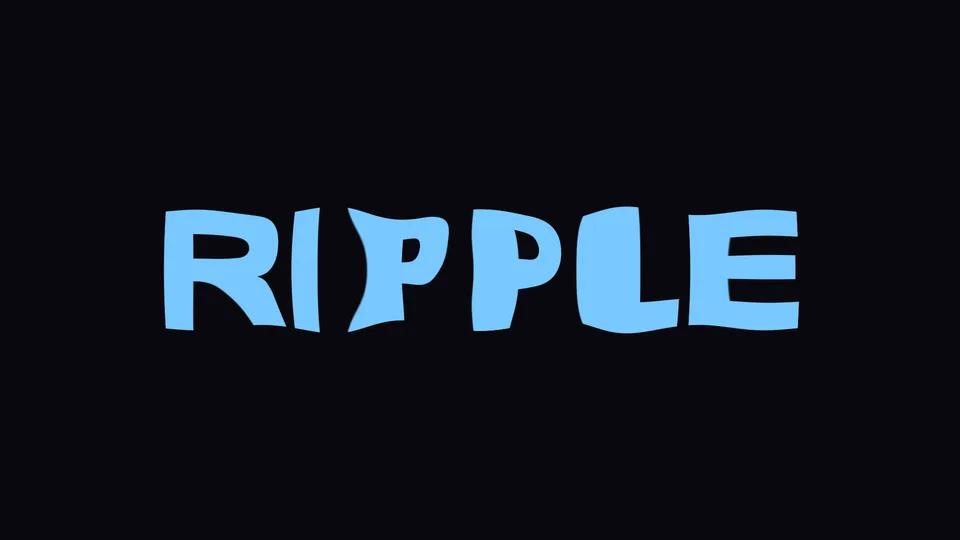
Light makes the waves look three-dimensional: Light Angle and Light Height set where the light comes from, Shading and Depth set how deep the swells look, and Highlight and Sharpness control the reflection on the wave edges, in a color of your choice. Dispersion pushes red, green and blue apart by different distances, giving colored fringes. The three below are the same ripples with each option switched on in turn.
Limited area
Make just one part watery
and leave the rest alone.
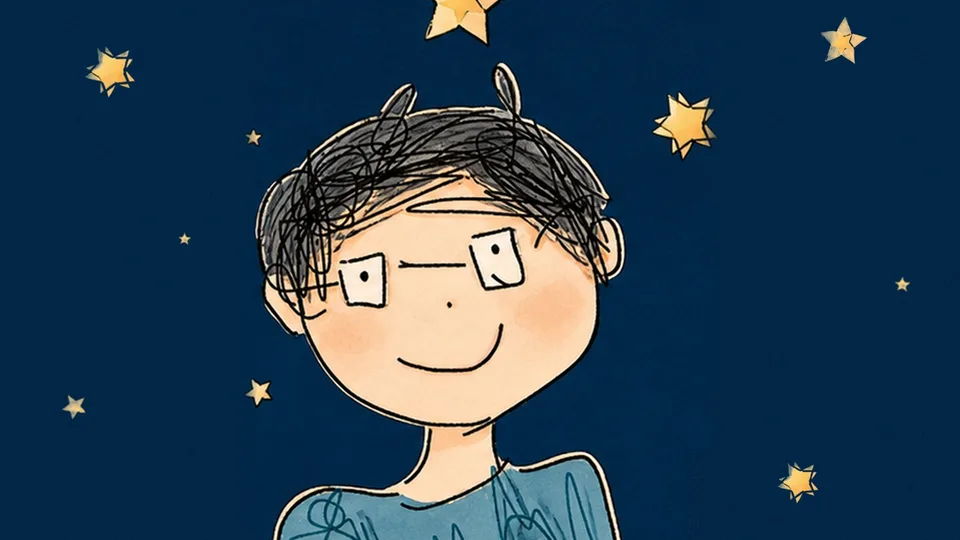
There are three ways to limit the effect: Everywhere, Gradient, or a Matte Layer. Gradients come in five shapes — linear, radial, reflected, angle and diamond — with an adjustable transition; a matte layer uses another layer’s luma or alpha to decide where to warp (white warps, black stays). Below is a gradient: the lower half of the picture becomes a water surface and the upper half is untouched.
Motion
It moves as soon as you apply it,
and you can take control.
Speed is measured in wavelengths per second. The default is 1, so the waves travel as soon as you apply the effect; a negative number reverses the direction and 0 stops them. To control the look at a specific moment, keyframe Phase. Shockwave also has a Start Time, which fires a ring at the moment you choose. The waves are computed straight from time, so playing backwards or jumping around the timeline gives the same result.
23 built-in styles
Flags, water drops, reflections, metal, rain —
one click to apply.
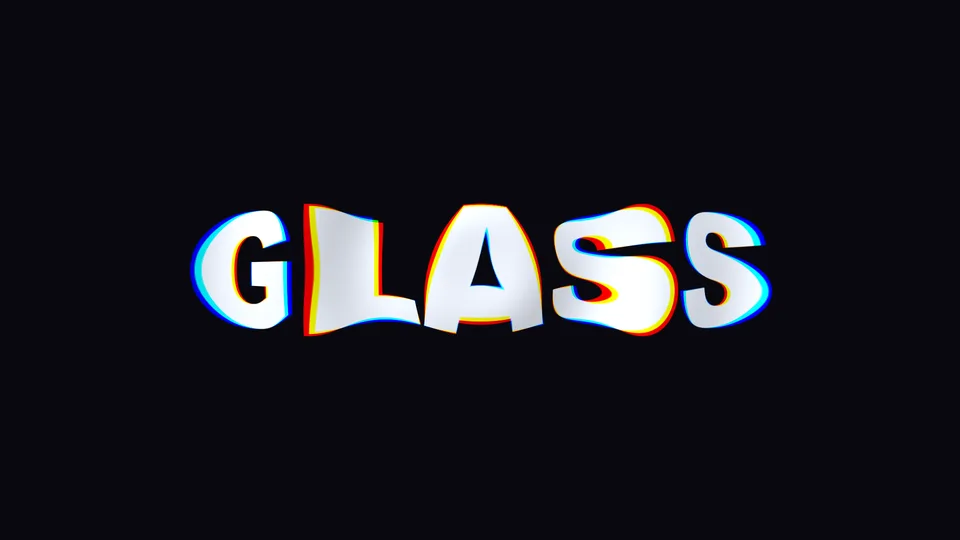
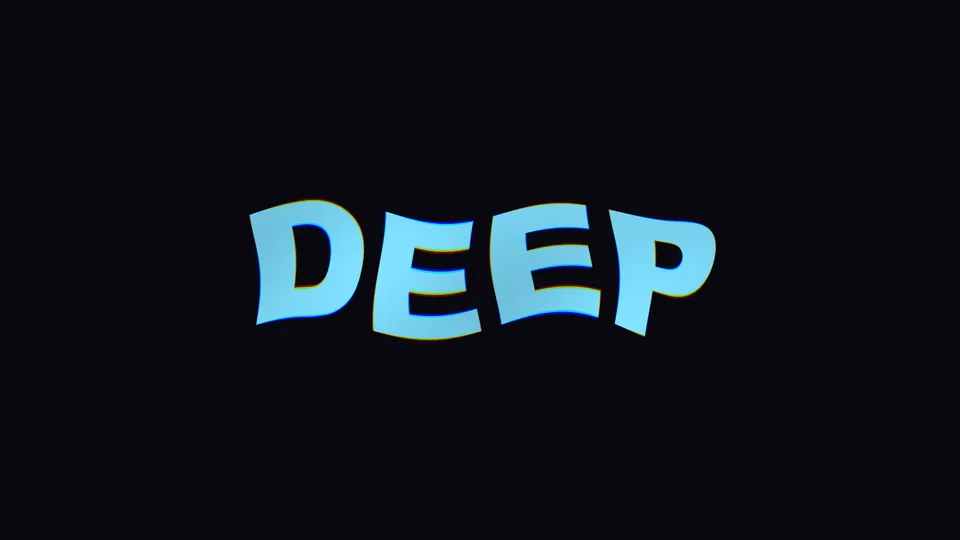
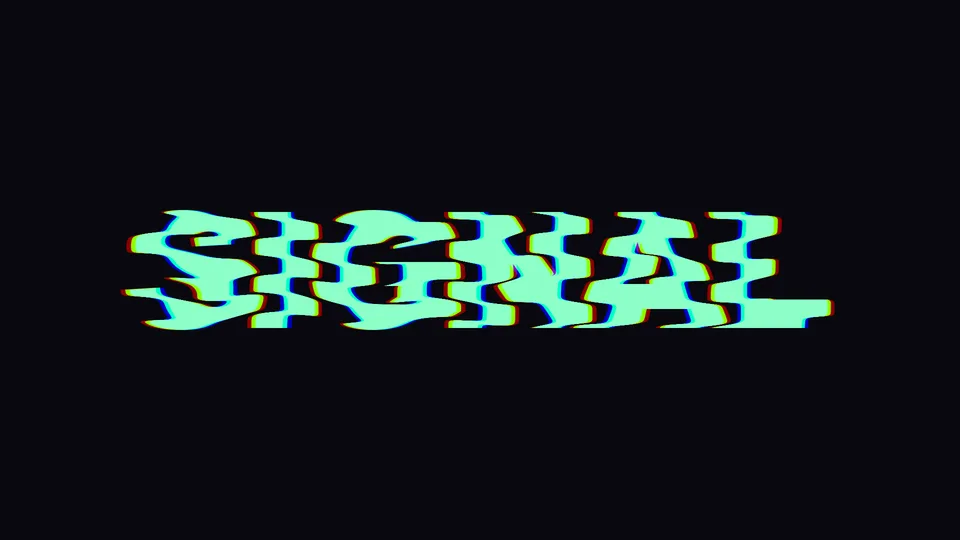
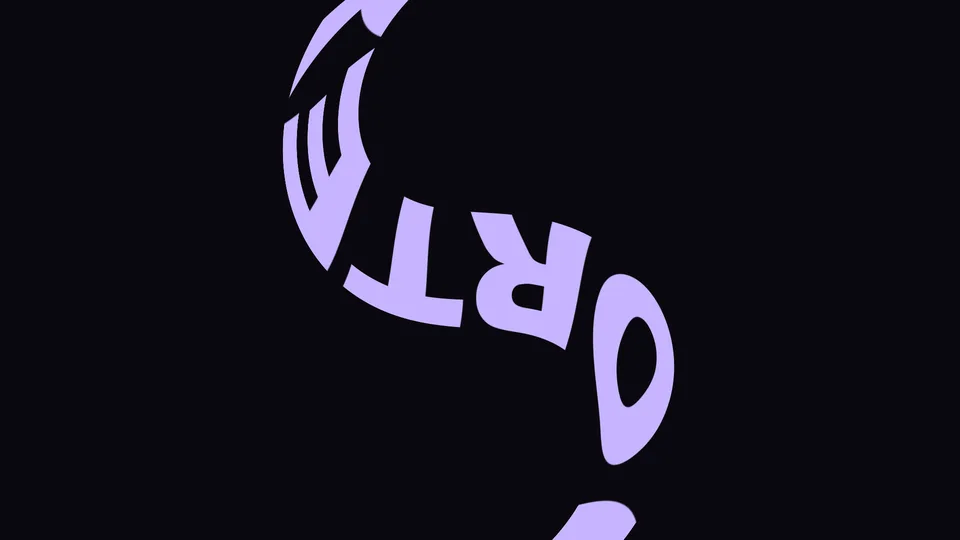
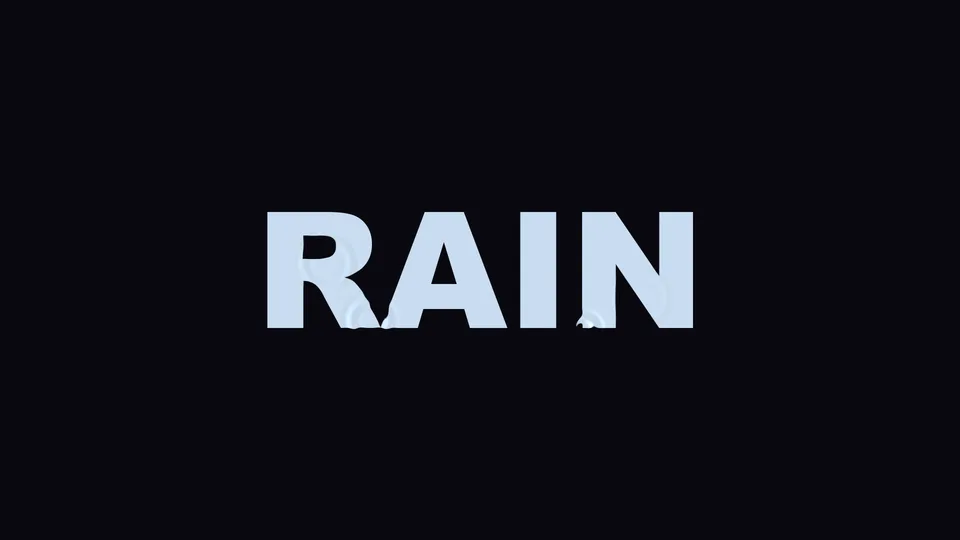
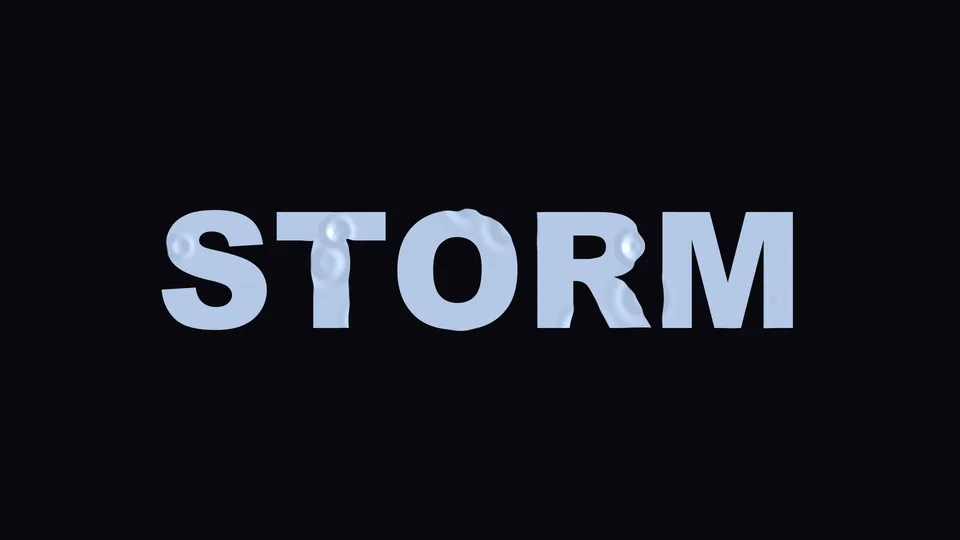
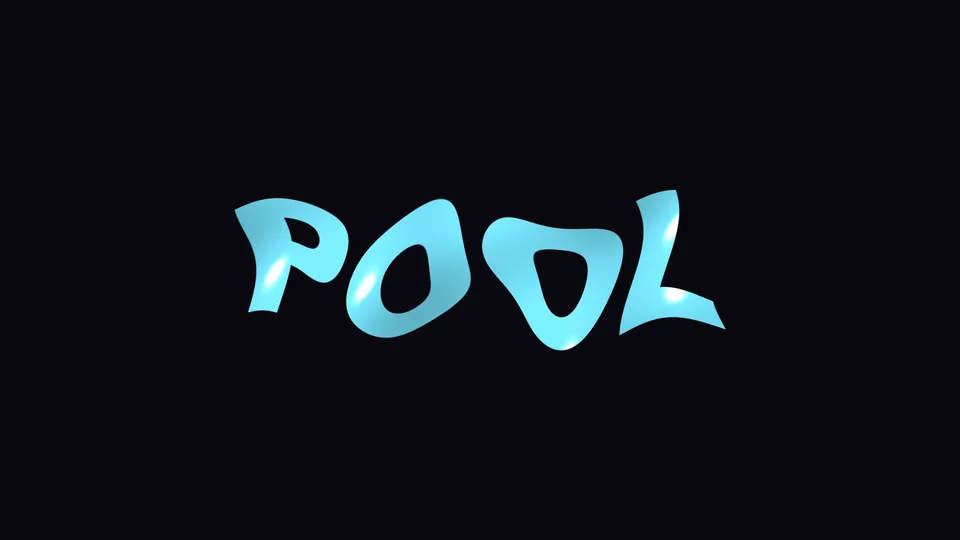
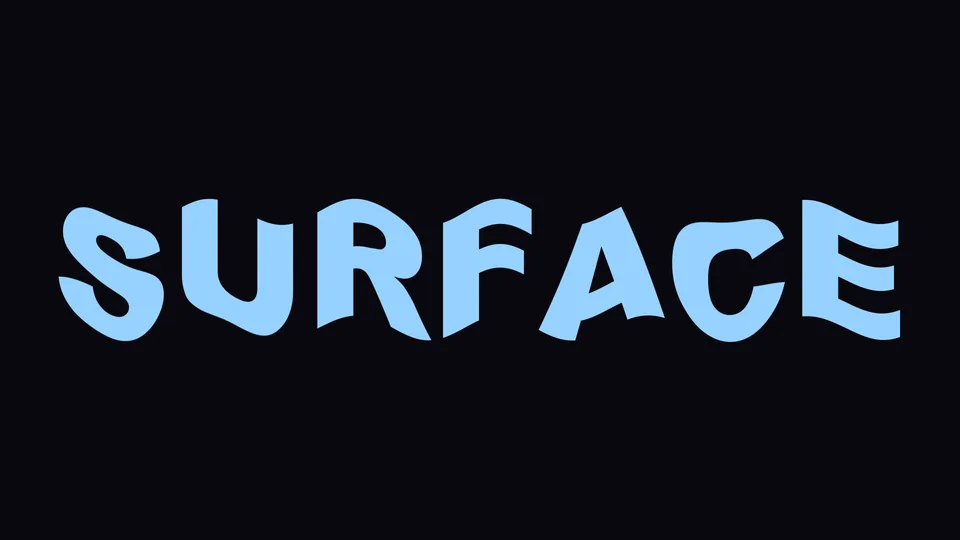
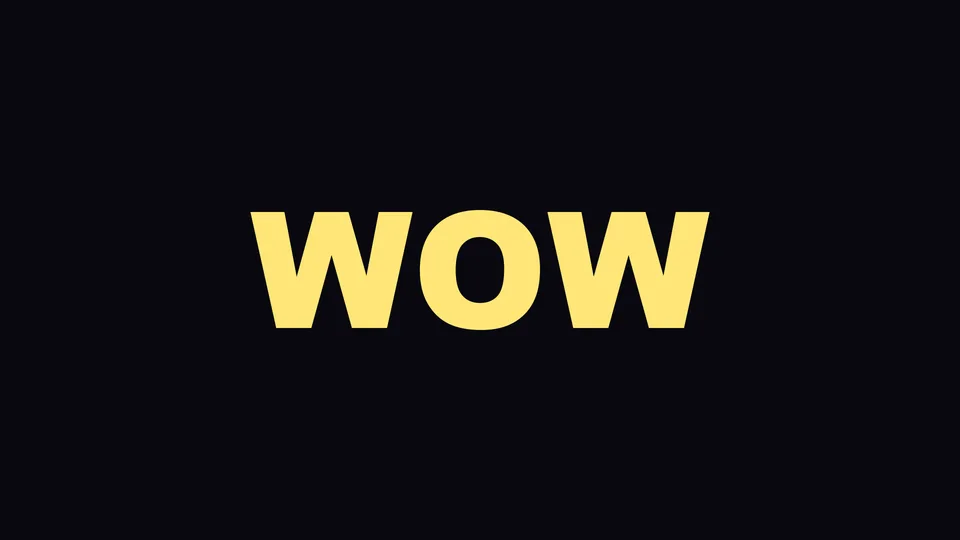
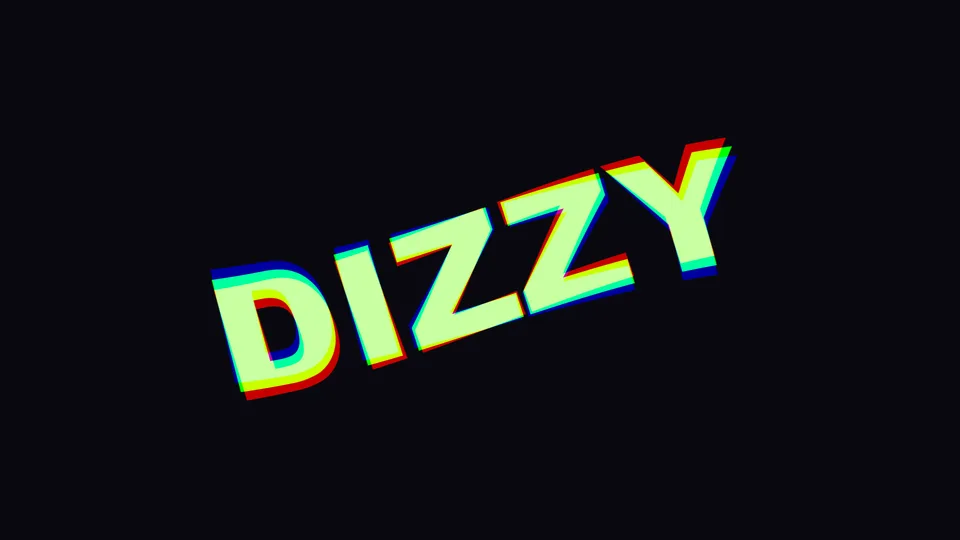
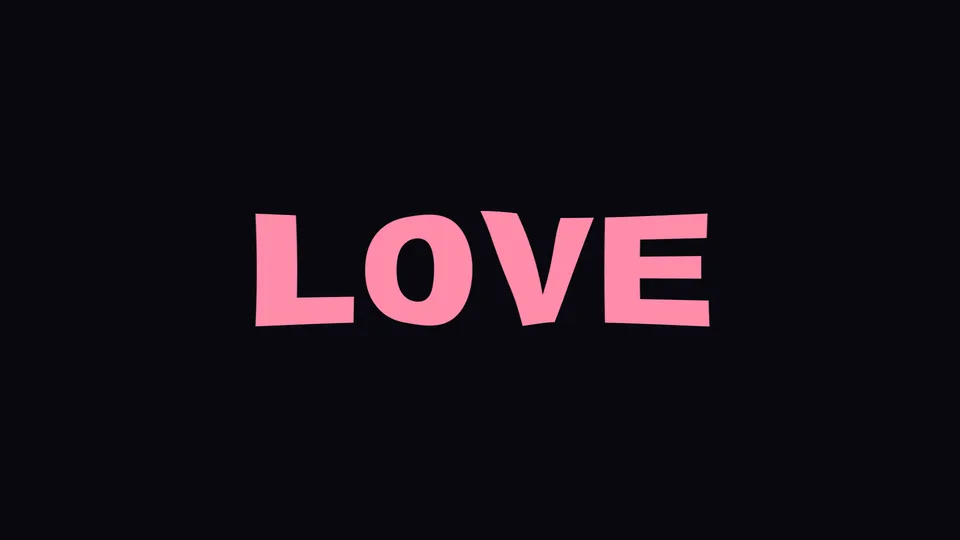
The style library comes with 23: Flag Wave, Water Drop, Reflection, Liquid Gold, Glass Ripple, Title Breathe, Heat Haze, Underwater Text, Signal Warp, Shockwave Hit, Energy Burst, Tap Ripple, Whirlpool Pull, Light Rain, Heavy Rain, Pool Caustics, Dream Sequence, Water Surface, plus the mood styles Startled Jolt, Nervous Jitter, Surprise Pop, Dizzy and Heartbeat. Each is a full parameter snapshot; after applying one you can still fine-tune it and save it as your own style. All thumbnails are rendered by the plugin.




Get started
Start in three steps.
Requires an Apple Silicon (M series) Mac, macOS 14 or later and After Effects 2026. There are no Intel Mac or Windows versions for now.
- Download the installer
Click “Download for Mac” on this page and unzip. The installer is notarized by Apple.
- Quit AE, then install
Save your project, quit After Effects completely with Cmd+Q, then open the installer; the 23 built-in styles are added to the style library too.
- Add it to a layer
Reopen AE, find ASheng_WaveWarp in the “ASheng - Distort” category, add it to a text, photo or video layer, choose a wave type or a style, then adjust with the sliders.
Good to know
Where do I find it in AE?
In the Effects menu under the “ASheng - Distort” category, named ASheng_WaveWarp.
Can I use it on text?
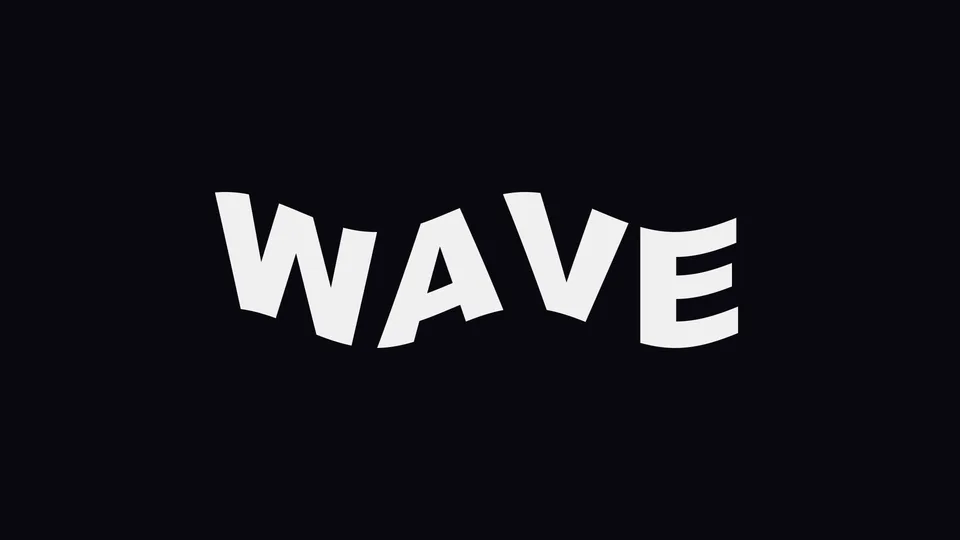
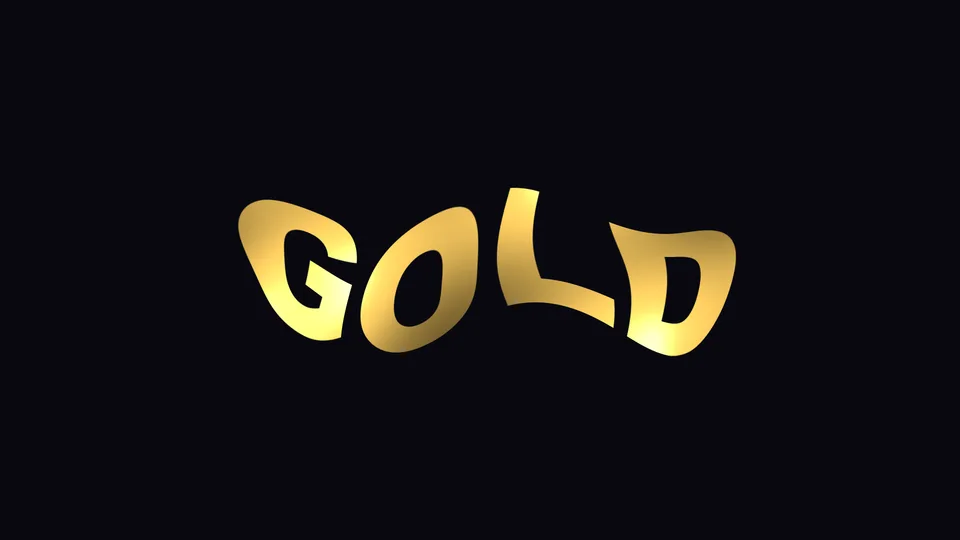
Yes. Text, photo and video layers all work; WAVE, DEEP and GOLD above are applied straight to text layers.
Do I need keyframes for it to move?
No. Speed defaults to 1, so the waves travel as soon as you apply it. Set Speed to 0 to freeze them, and keyframe Phase or any other parameter to control a specific moment.
Can I warp only part of the picture?
Yes. Set Region to Gradient, or pick another layer as a matte: white areas warp and black areas stay put.
Is the result the same if I jump around the timeline?
Yes. The waves are computed straight from time, not from the previous frame, so playing backwards or jumping gives the same result.
Does the Golden Pass work?
Yes. The Golden Pass includes all of ASheng’s AE plugins, including ones released later, so Wave Warp can be activated with it right away.
Which bit depths are supported?
8-bit and 16-bit.
Does it use the GPU?
Yes. GPU Acceleration is on by default and runs on the Apple Silicon GPU (Metal); turn it off to use the CPU, which gives the same picture, only slower.
Does it support Premiere Pro?
For now only After Effects is supported.
Can I use it without a license?
You can try it; the output carries a watermark. With a valid Wave Warp license (serial number or NFT) or the Golden Pass, press the status button at the top of the Effect Controls (it shows “Trial”) to open the license helper and activate.