AFTER EFFECTS PLUGIN · EXPLOSION
ASheng
Blast
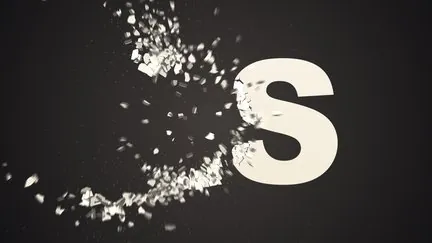
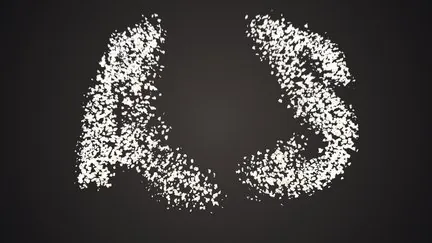
Blow up a title.
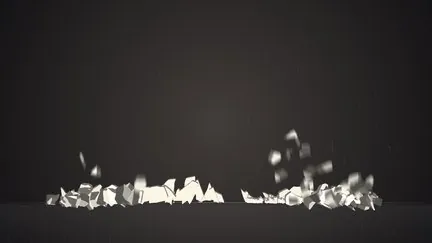
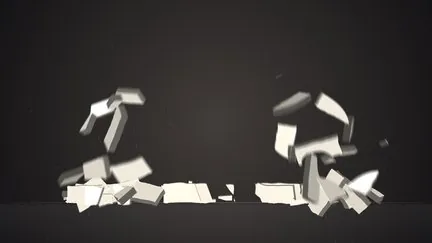
The pieces fly and land on their own.
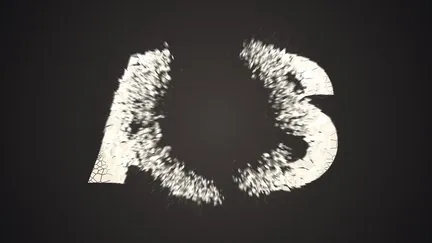
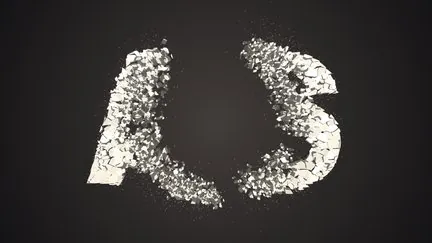
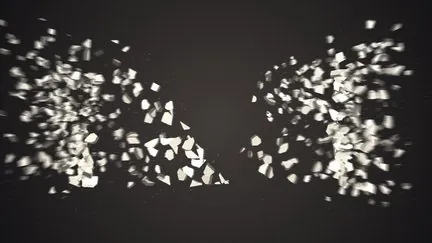
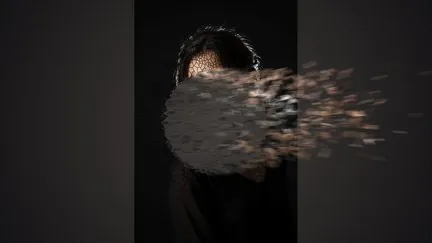
Blast at a chosen point and time: pieces scatter and tumble away from the blast point, with slow motion and floor bounce; four blast points each control a zone; the layer assembles itself when it appears and explodes when it ends, no keyframes. 25 built-in presets, ready to use.
10 USD · 365-day license · 1 Mac
Output is watermarked until a license is activated. A license starts when the purchase completes and does not auto-renew; buy another when it expires. The Golden Pass already includes Blast. The live plan on the purchase page sets the price.
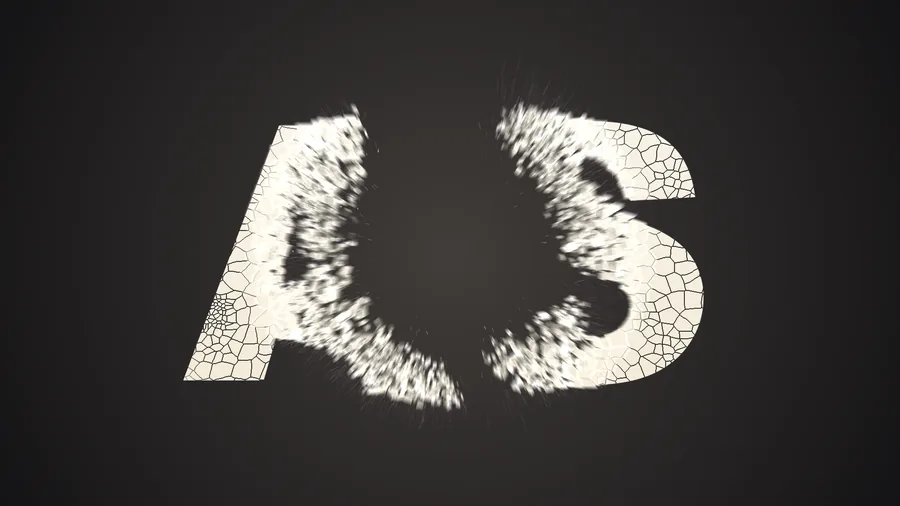
⏩ Auto animation
Assembles when the layer appears,
explodes when it ends.
Normally you work out the blast time and set keyframes yourself. In Blast you just pick an “Animation” mode: ⏩ Assemble In (pieces fly back from everywhere and form the full picture), ⏩ Explode Out (auto-blast before the layer ends), or both. Trim or extend the layer and the animation follows; “Tail Slow” slows the motion down toward the end.
Set how many seconds assembling and exploding take in “Duration”; for precise control switch to “Manual” and blast on each blast point’s own time.
Slow motion
The moment it explodes,
slow down.
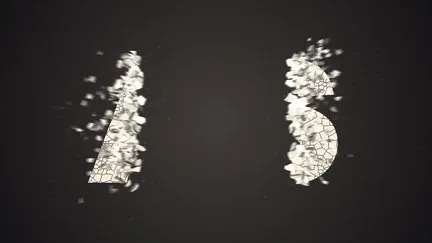
“Slow-Mo” slows down a stretch of time after the blast; both its start and length are adjustable. Every tumbling piece and flying chip is clearly visible.
Floor
Pieces land,
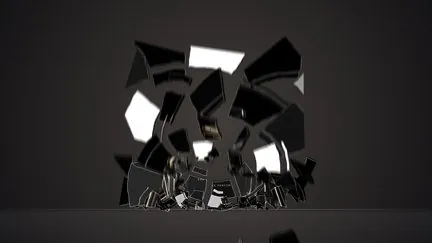
bounce, and pile up.
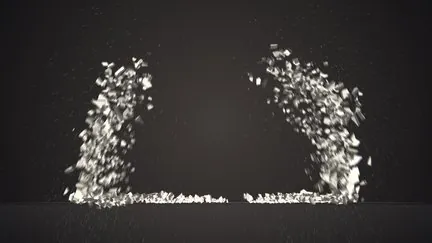
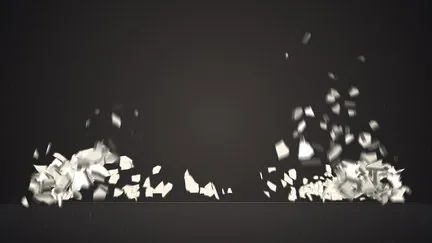
Tick “Floor” and set its height, and pieces bounce when they hit that line. “Bounce” and “Floor Friction” decide whether they are bouncy rubber or a heavy pile of rubble. (The floor line in the demo is only a guide; the plugin does not draw a floor.)
Zones
Four blast points,
each with its own zone.
Up to 4 blast points, each with its own position, blast time, strength, direction and zone shape (circle, square, diamond, horizontal band, vertical band). Blast them together, in sequence, or pull the picture apart from the middle sideways or vertically.
Five patterns
The same letters,
five ways to break.
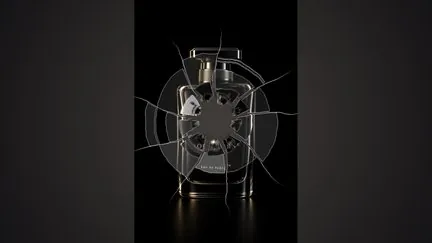
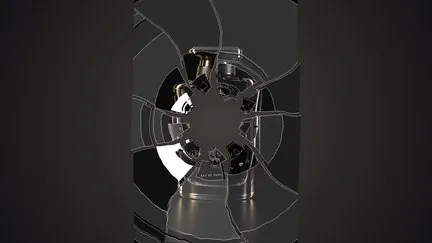
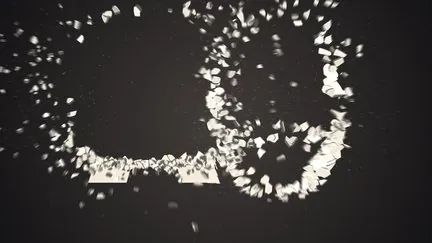
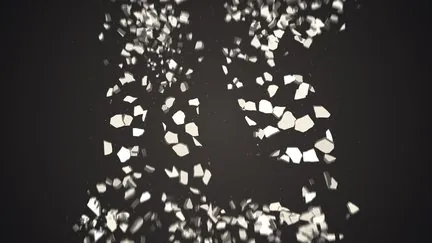
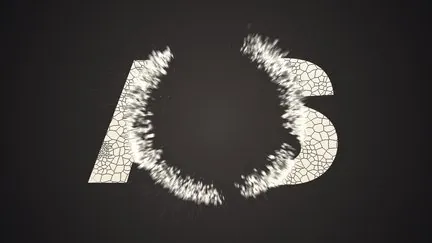
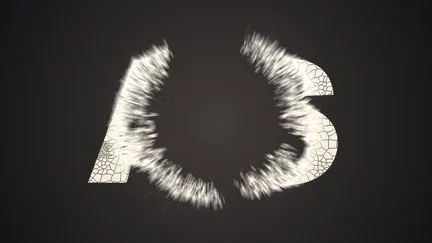
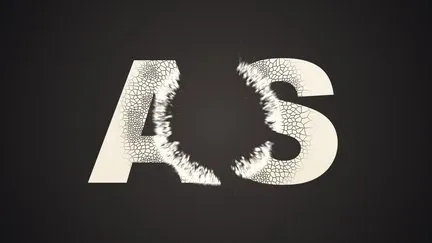
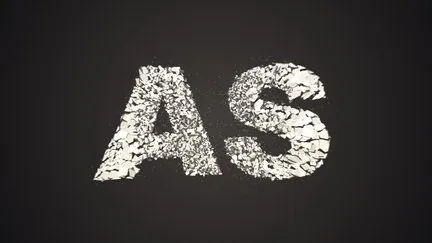
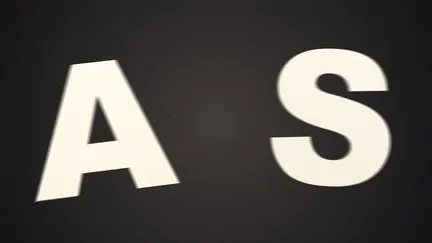
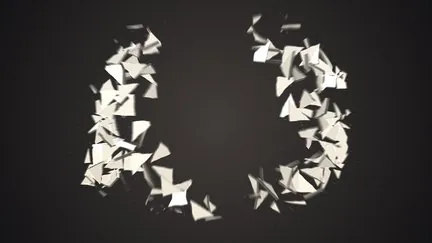
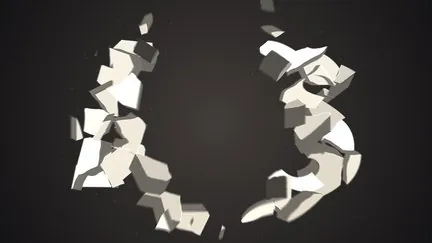
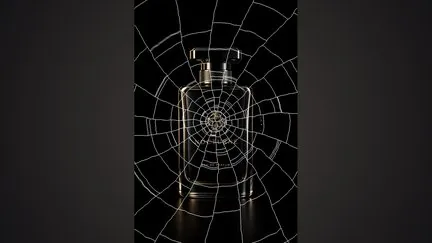
“Pattern” decides what the pieces look like: shards, glass, bricks, triangles, by glyph. Piece size, how much finer it breaks near the blast point, and crack roughness are all adjustable.
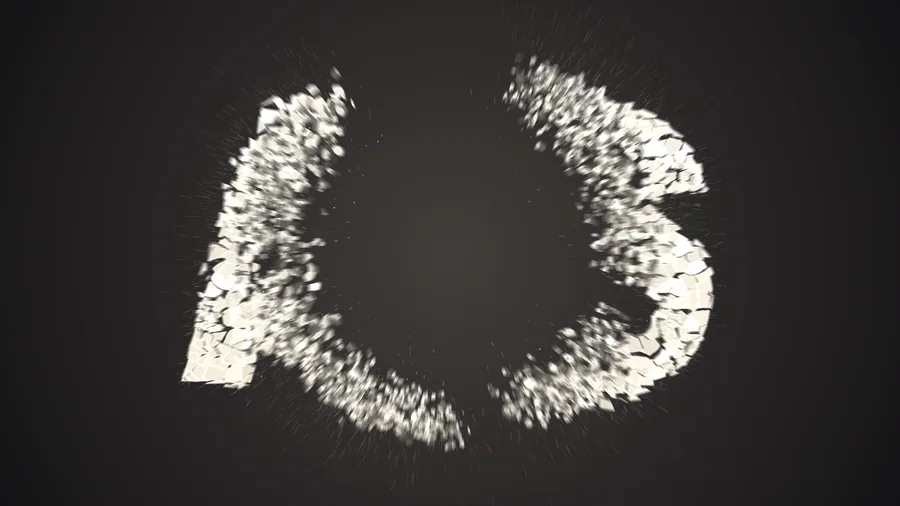
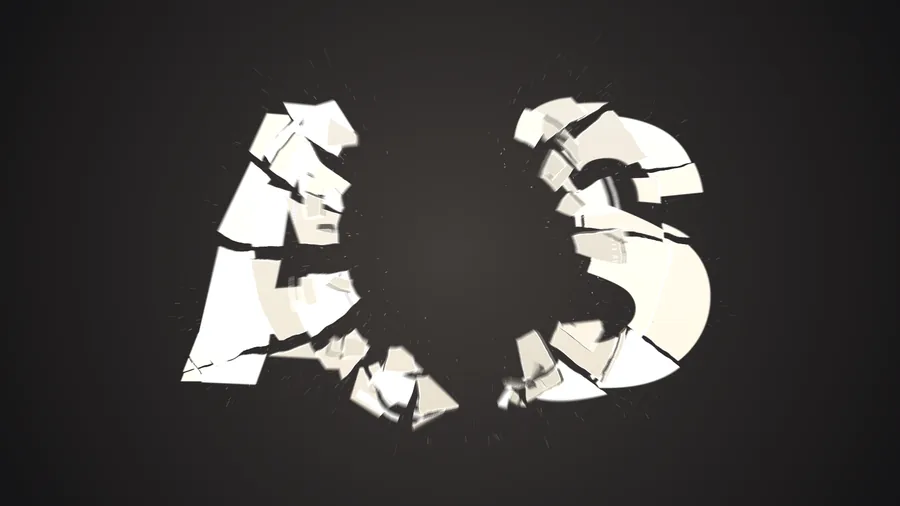
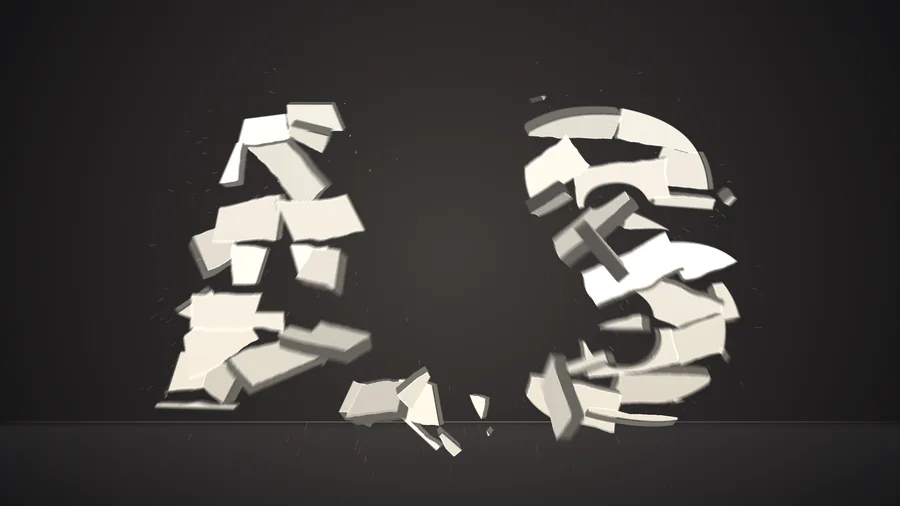
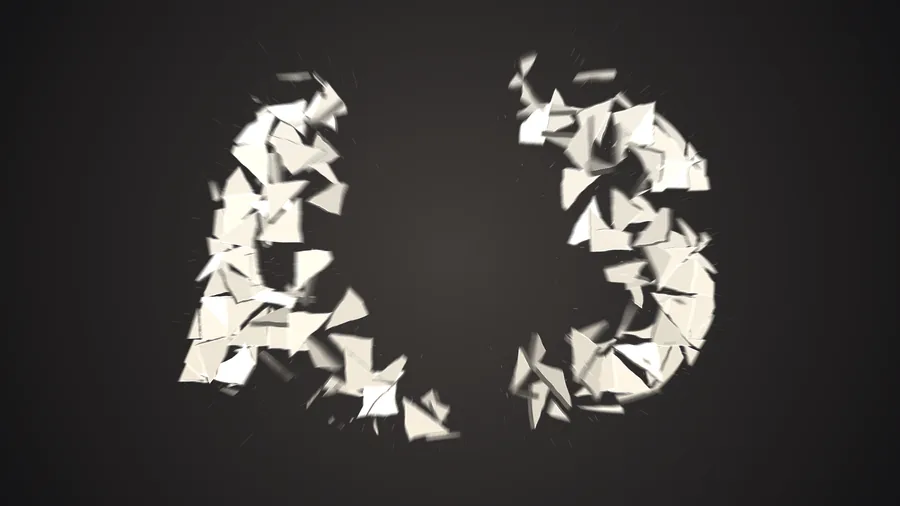
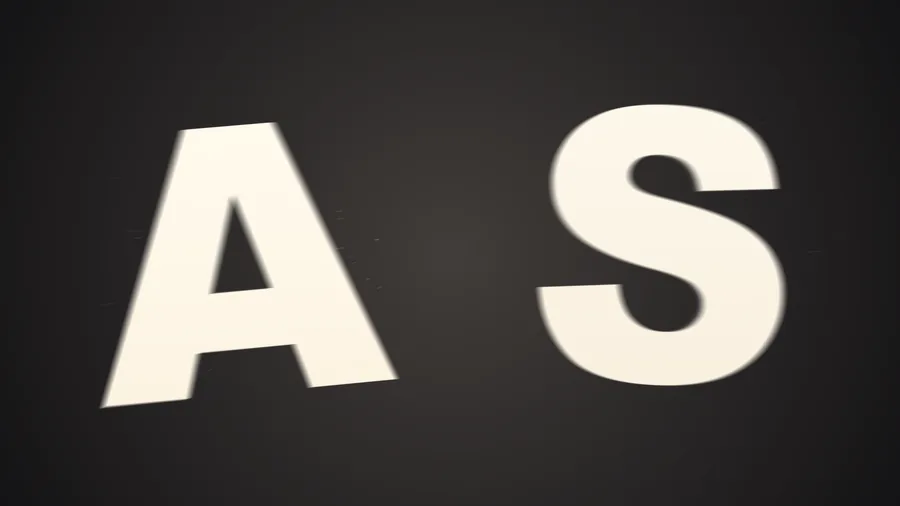
Piece size, size variation, elongation, crack gap, and “Seed”: change the number and the same settings break differently. When pieces flip over, another layer can serve as the back.
Thickness and glass
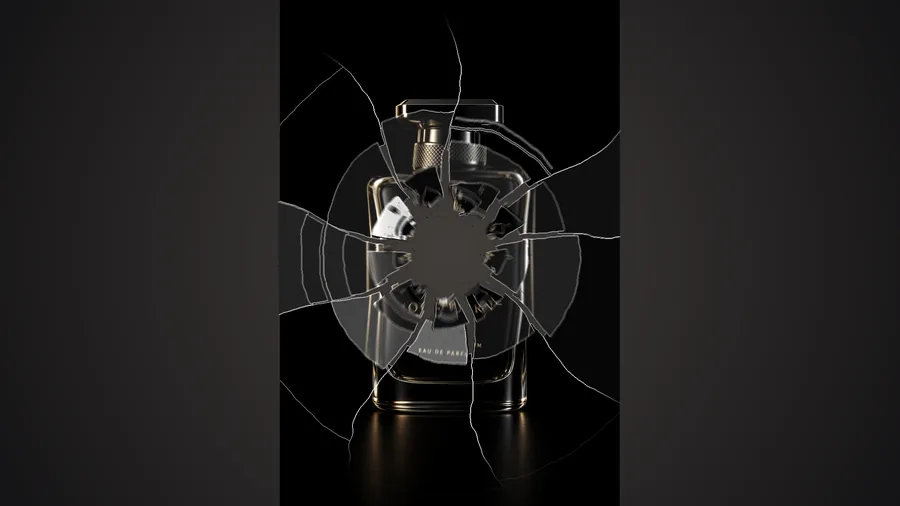
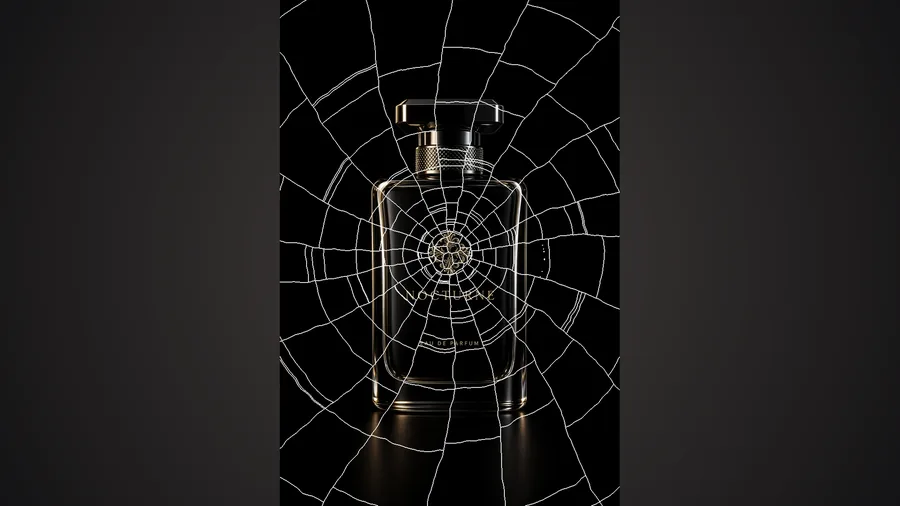
Not paper cut-outs:
pieces have thickness and lit edges.
“Thickness” gives the pieces a cross-section; “Edge Light” and “Highlights” make glass glint; “Debris” sprays an extra handful of fine chips. Raise “Toughness” and the object only cracks instead of falling apart.
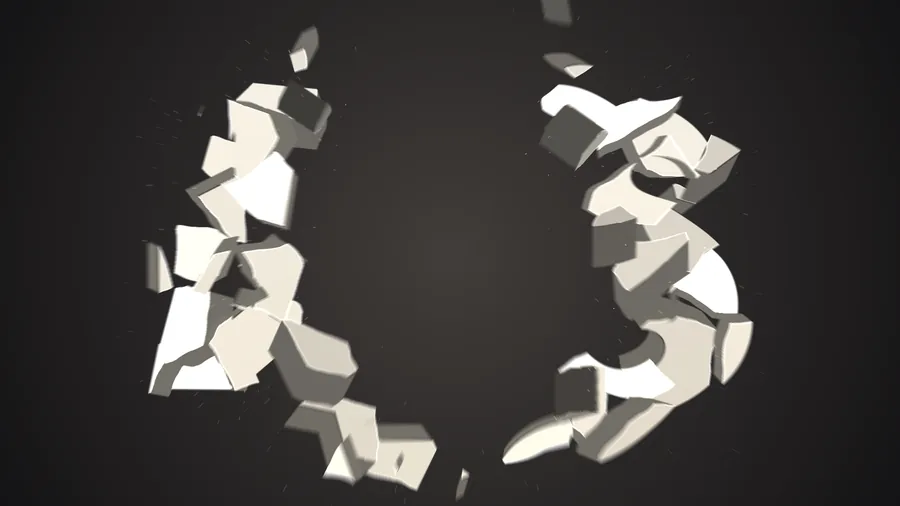
Ways to blast
More than just outward.
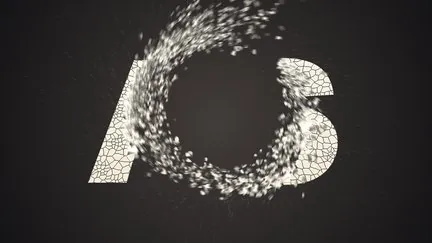
“Direction” can be radial, a set angle, implode or vortex; combine it with shockwave speed, lift, toward-camera, and gravity that can go negative (pieces drift upward).
Built-in styles
25 presets,
one click to apply.
Click a thumbnail in the “Presets” group of the effect panel to apply it, then fine-tune. Presets marked ⏩ animate by themselves.
What’s different
Blowing things up
should take less of your time.
| What you want | The usual way | ASheng Blast |
|---|---|---|
| Title assembles on entry, explodes on exit | Keyframe a blast at the in and out points | ⏩ Pick a mode; it follows the layer’s in and out points |
| Blast only part of the picture | Split the layer into pieces and do each one | 4 blast points, each with a zone: circle, square, diamond, horizontal or vertical band |
| Slow down after the blast | Time-remap the layer separately | Slow the post-blast stretch right in the panel |
| Pieces land, bounce and pile up | Set up a separate physics simulation | Tick “Floor”, set height, bounce and friction |
| Glass thickness, lit edges, debris | Stack bevels or extra layers | Thickness, edge light, highlights and debris built in |
| Blast point follows a moving, scaling object | Keyframe the blast position by hand | Tick “Follow Object” |
Getting started
Three steps to get going.
Requires an Apple Silicon (M-series) Mac, macOS 14 or later and After Effects 2026. No Intel Mac or Windows version yet.
- Download the installer
Click “Download for Mac” on this page and unzip. The installer is notarized by Apple.
- Quit AE, then install
Save your project, quit After Effects completely with Cmd+Q, then open the installer.
- Add it to a layer
Reopen AE, find ASheng_Blast under “Effect → ASheng - Particles”, add it to a text or image layer, and start from a preset.
Good to know
Does the Golden Pass cover it?
Yes. The Golden Pass includes every ASheng AE plugin, including future ones, so Blast activates right away.
Do I really not need keyframes?
Not with ⏩ Assemble In / Explode Out. To blast on your own timing, choose “Manual”: each blast point has its own blast time, and every parameter can still be keyframed.
Which layers can I use it on?
Text, shapes, images, video and precomps. 3D layers are not supported yet; use a normal (2D) layer and get depth from “3D Tumble” and “Perspective”.
Do far-flying pieces get clipped?
“Max Spread” sets how far the output can extend beyond the layer, 2000 px by default. Raise it if pieces fly further.
Does the blast point follow a moving object?
Tick “Follow Object” and the blast points and zones move with the object’s position and scale (based on its bounds at the moment of the blast). Off by default.
Does it use the GPU?
Yes. Blast renders on the Apple Silicon GPU (Metal); if the GPU is unavailable it falls back to the CPU with the same result, just slower.
Can I use it without a license?
You can try it with a watermark on the output. With a valid Blast license or a Golden Pass, click “Open License Helper” in the “License” group of the effect panel to activate.