AFTER EFFECTS PLUGIN · DISPLAY
ASheng
Display
One effect,
five kinds of board.
Display turns a number, a timer or the text in a text layer into a board with fixed-width cells: flip, dot matrix, 7-segment, roller or marquee. Every character stays in its own cell, so the board does not shake while numbers change. Set a start and an end value and the number counts there by itself. There are four looks (classic, modern, neon, metal) and 42 built-in styles you can apply with one click.
15 USDC · 365-day license · 1 MacUSD card US$17 (excl. tax, not yet available)
Output carries a watermark until a license is activated. The license starts when the purchase completes and does not renew automatically; buy another when it expires. The Golden Pass already includes Display. The price on the purchase page is the live one.
Three steps
Pick a style, pick the content,
and you are off.
Everything happens in the Effect Controls, and the panel only shows the parameters the current choice uses. To browse while you pick, press Open Designer and choose a built-in style from its style wall.
- 1Pick a board and a look
In Style, choose the board: Roller, 7-Segment, Flip, Dot Matrix or Marquee, then a look: Classic, Modern, Neon or Metal. Changing the look brings in a matching set of color, border, corner and glow values, and each one can still be tuned.
- 2Choose the content
Content has three options: Number (keyframe it, or set a start and an end and let it count), Timer (count up or down) and Text Layer (reads the text in the layer). Decimals, thousands separators and zero padding are set here.
- 3Set size, position and motion
Size & Position sets the size, position and alignment of the whole board; Motion tunes how each board moves: roll mode, flip direction, how characters change, marquee speed, and for text layers an intro, an outro and an idle motion.
Counting
Set a start and an end,
and the number counts itself.
With Content set to Number you can keyframe the value, or use From-To: set the start, the end, when it begins and how many seconds it takes, with linear, ease-out or ease-in-out timing. Turn on thousands separators for money and add decimals for distances. Timer is a clock that counts up or down, in the formats H:M:S, M:S, seconds, M:S.cs or D H:M:S.
Text layer
Every character
stays in its own cell.
With Content set to Text Layer the board reads the text in the layer, so editing the text, expressions and text animators all connect. Characters are placed into fixed cells; the column count can be automatic or set by hand, and text that is too long can be truncated or scrolled. For the intro you can pick Roll In or Decode, and the outro and the idle motion (periodic re-roll or random glitch) have their own options. Below is a dot matrix board with a Decode intro.
Four looks
The same board,
in a different look.
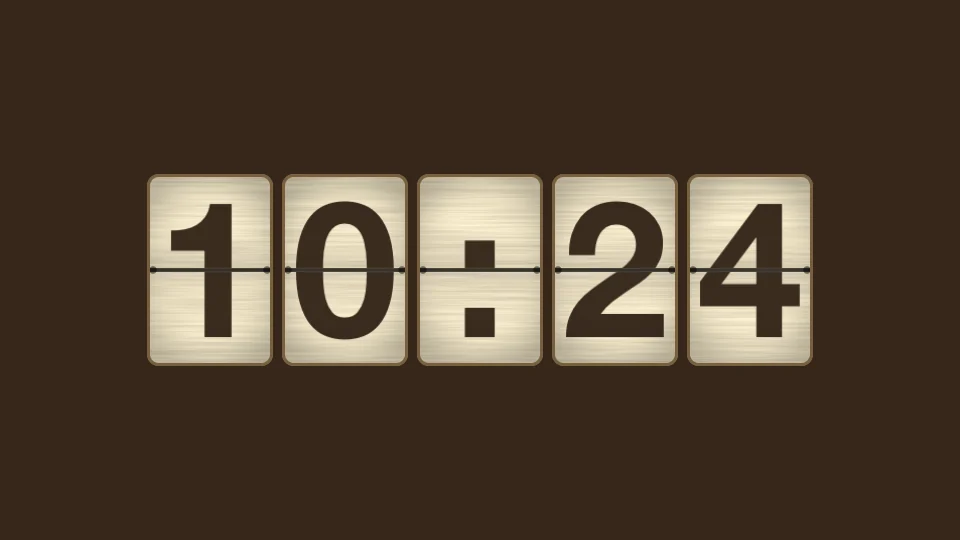
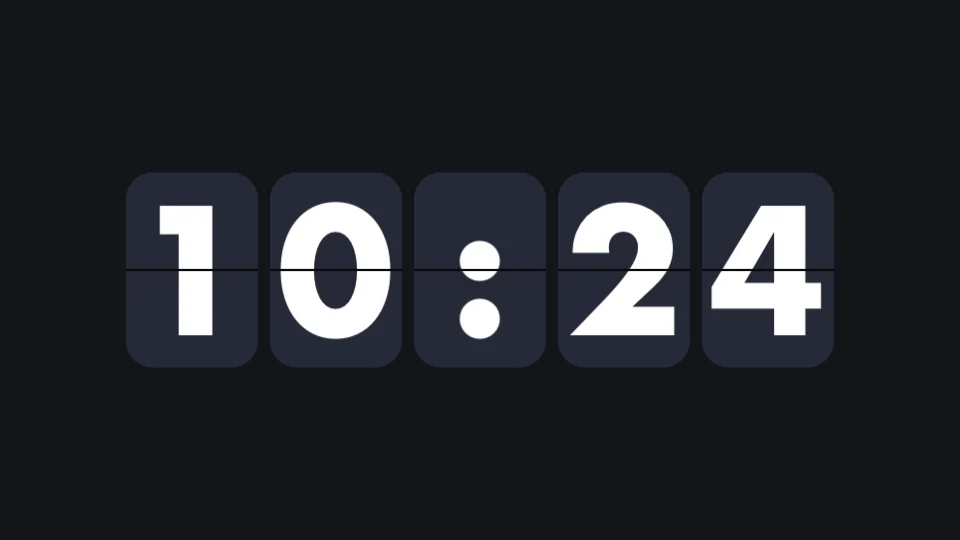
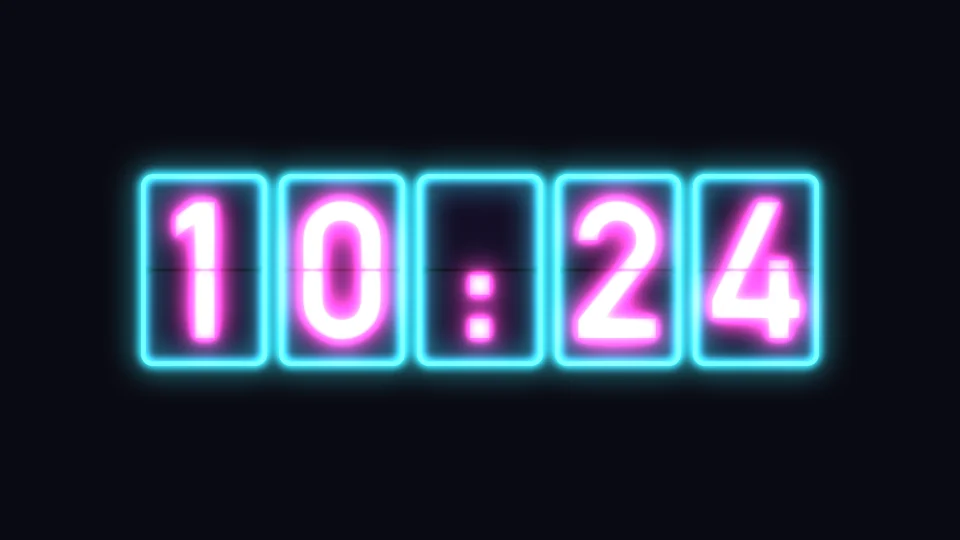
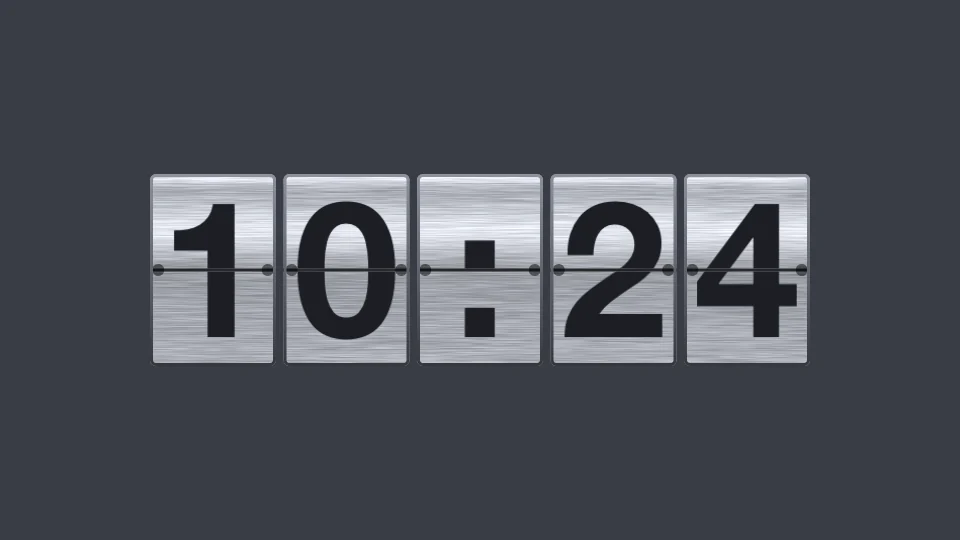
Classic has thin dividers and a vintage feel, Modern is flat with large rounded corners and no border, Neon is a dark plate with glowing characters and borders, and Metal is a brushed-metal plate with dark characters. The four below are the same flip board with only the look changed. Colors, borders, corner radius and glow can all be tuned further.
42 built-in styles
42 styles,
one click to apply.
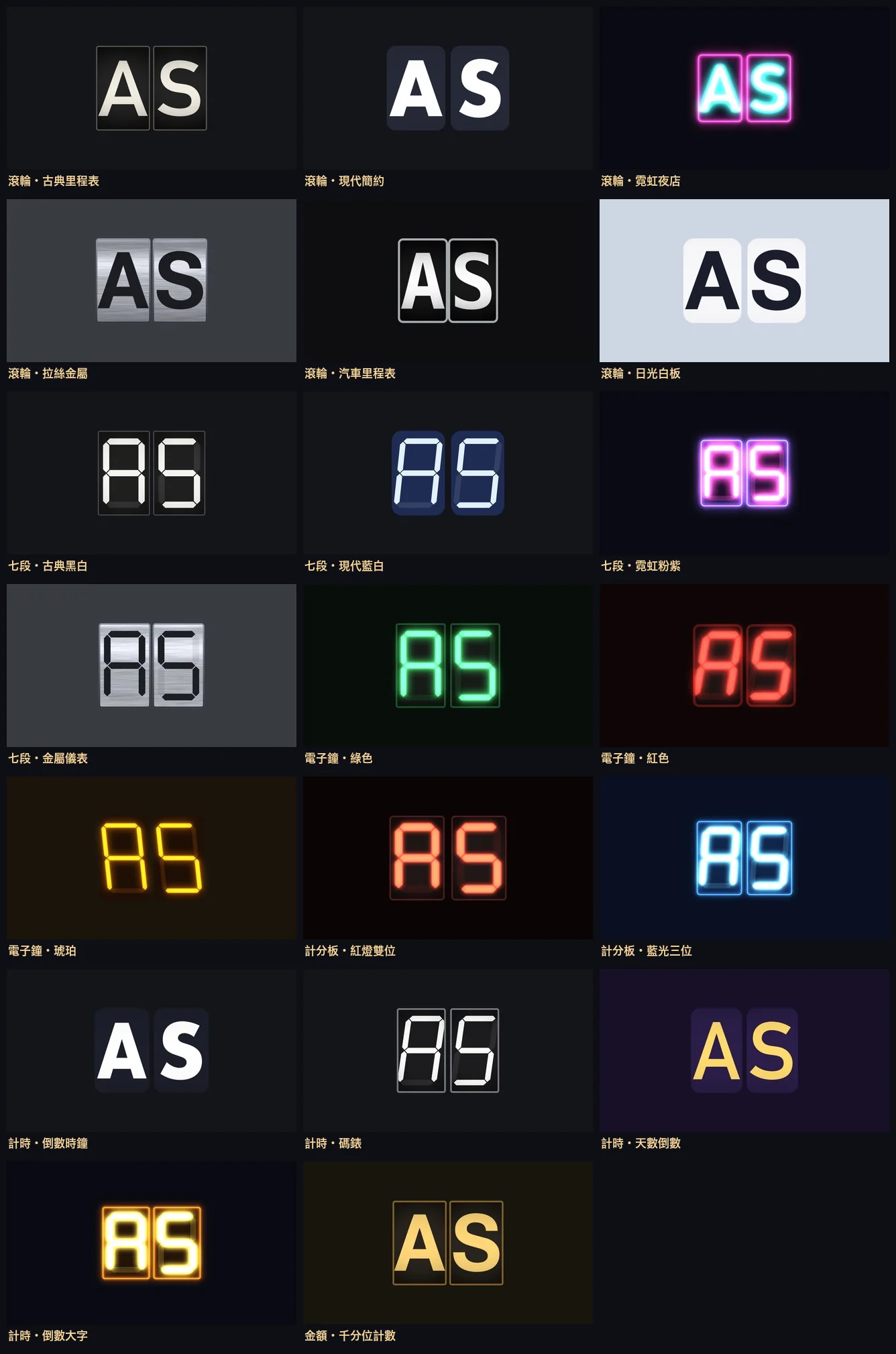
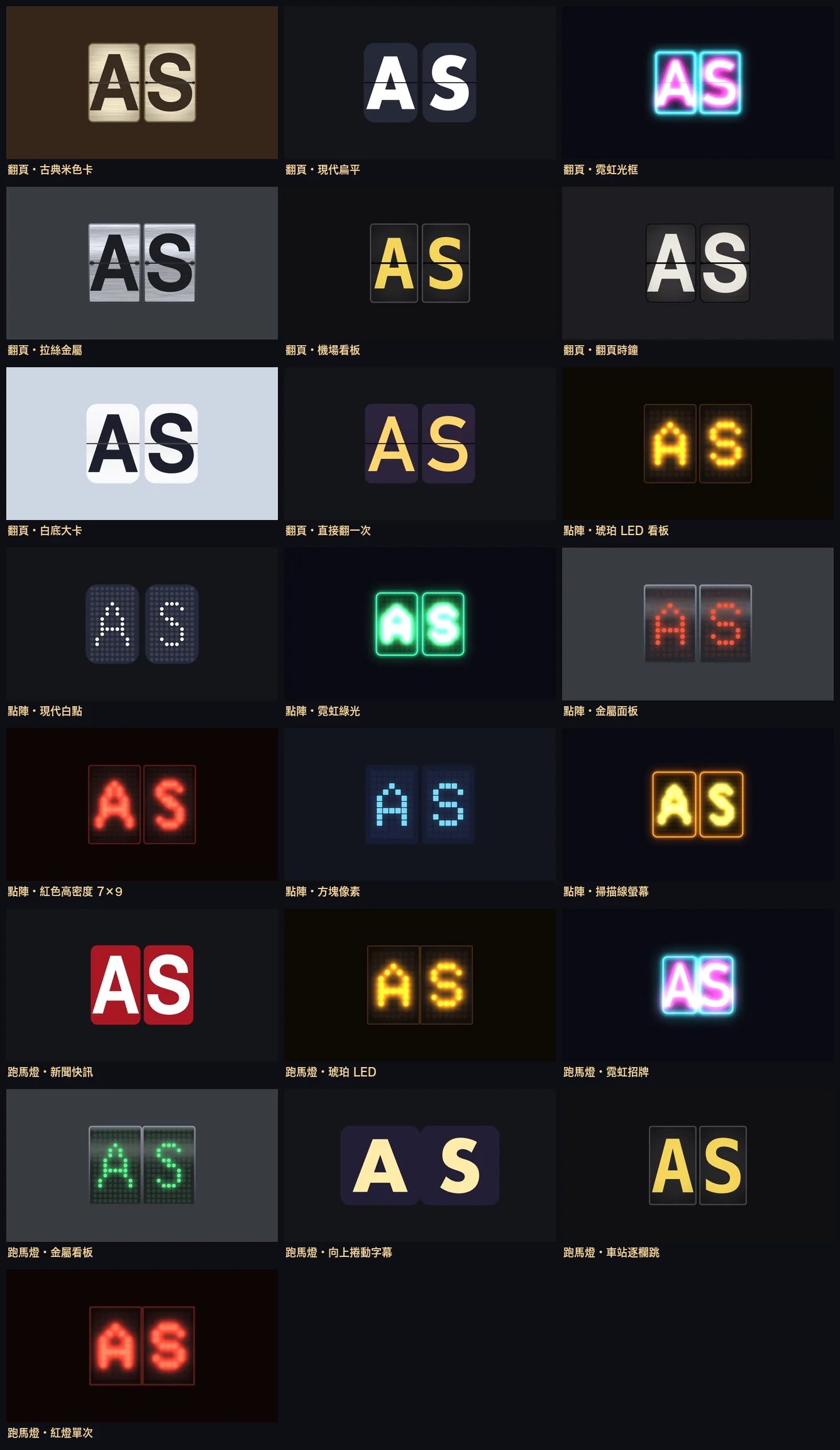
Roller, 7-segment, digital clock, scoreboard, timer, money, plus flip, dot matrix and marquee: 42 built-in styles in all. Each is a ready-made board setup to apply and then fine-tune. The thumbnails are the plugin’s own renders.
Get started
Start in three steps.
Requires an Apple Silicon (M series) Mac, macOS 14 or later and After Effects 2026. There are no Intel Mac or Windows versions for now.
- Download the installer
Press “Download for Mac” on this page and unzip it. The installer is notarized by Apple.
- Quit AE, then install
Save your project, quit After Effects completely with Cmd+Q, then open the installer.
- Add it to a layer
Reopen AE, find ASheng_Display in the “ASheng - Text” category and add it to a layer; to use a text layer, add it to that text layer.
Good to know
Where do I find it in AE?
In the Effects menu under the “ASheng - Text” category, named ASheng_Display.
Do I need a text layer?
No. With Content set to Number or Timer the board generates its own digits; it only reads the layer’s text when Content is set to Text Layer.
Can I render the board alone?
Yes. In Output, Stacking can be set to Display Only, which outputs just the board so you can composite it yourself, or to Over Source.
Does it support the GPU?
Not yet; for now it is CPU only. A very large board or many cells can make the preview slow, so lower the preview resolution while you work.
Does the Golden Pass work?
Yes. The Golden Pass includes all of ASheng’s AE plugins, including ones released later, so Display can be activated with it right away.
Can I use it without a license?
You can try it; the output carries a watermark. With a valid Display license NFT or the Golden Pass, press the status button at the top of the Effect Controls (it shows “Trial”) to open the license helper and activate.