AFTER EFFECTS PLUGIN · GLINT
ASheng
Glint
Turn highlights
into starbursts.
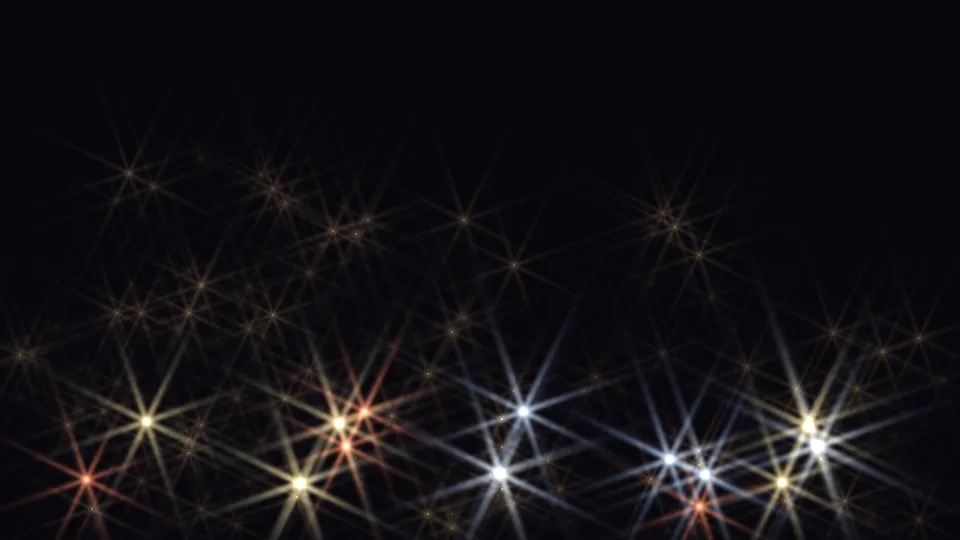
Glint does not create light of its own; it grows starbursts and anamorphic streaks from what is already bright in the frame: text brightened with turbulent noise, city lights, metal highlights — all can throw four-, six- or eight-point stars. Add highlight glow, overall mist, dispersion and gradient colors, sweep a bright band across the frame, or let text and images appear and vanish along the light’s leading edge. The library ships 9 presets; apply one and fine-tune with the sliders.
20 USD · 365-day license · 1 Mac
Output is watermarked until a license is activated. The license runs from the time of purchase and does not auto-renew; buy another to keep using it after it expires. The Golden Pass already includes Glint. Prices follow the live plan on the purchase page.
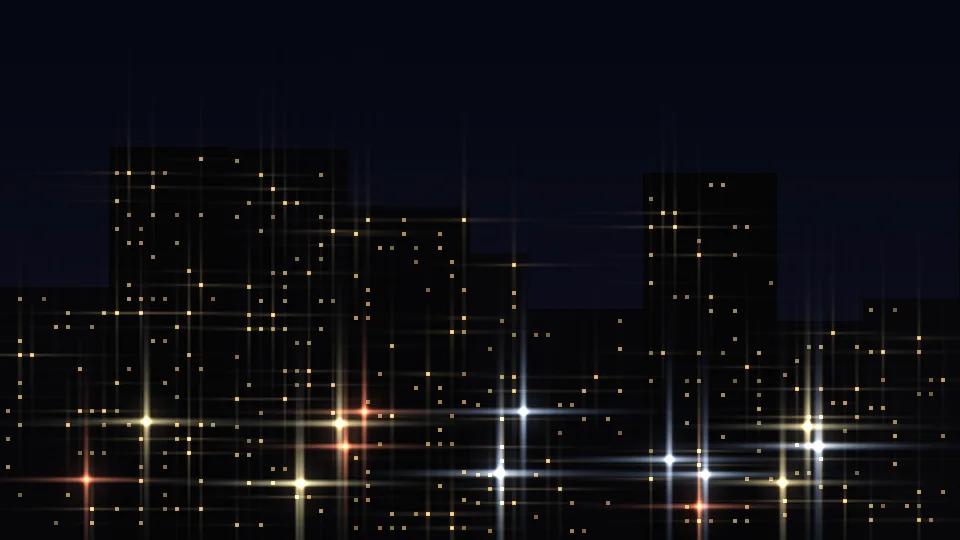
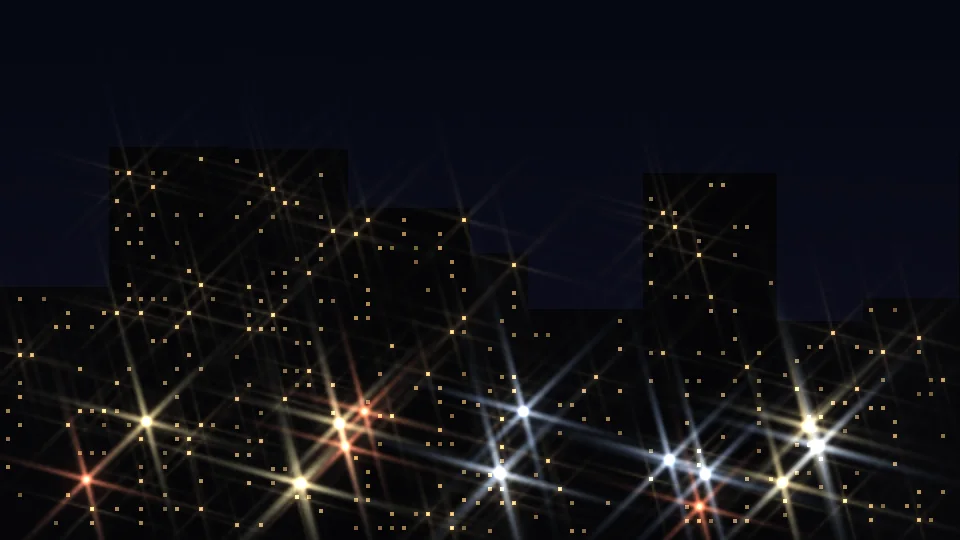
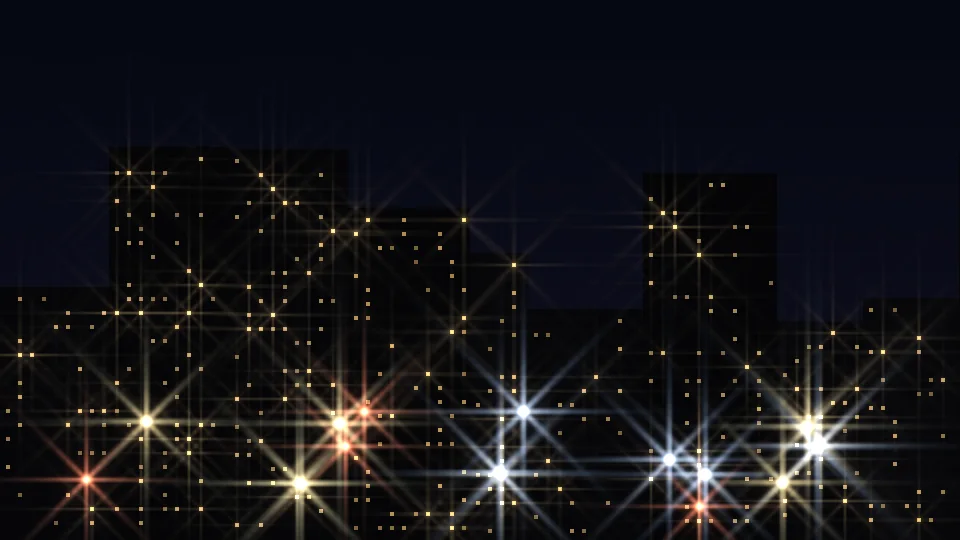
Starbursts
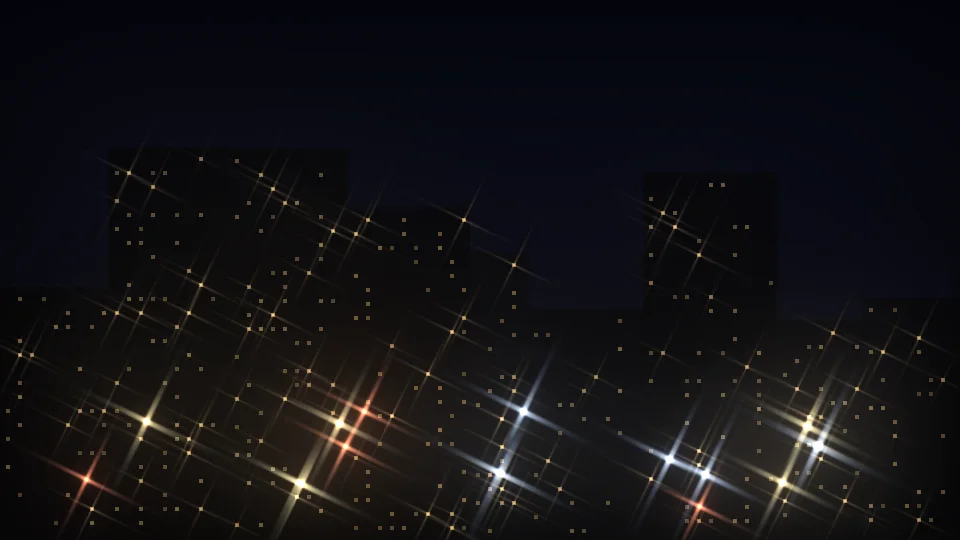
4, 6 or 8 points —
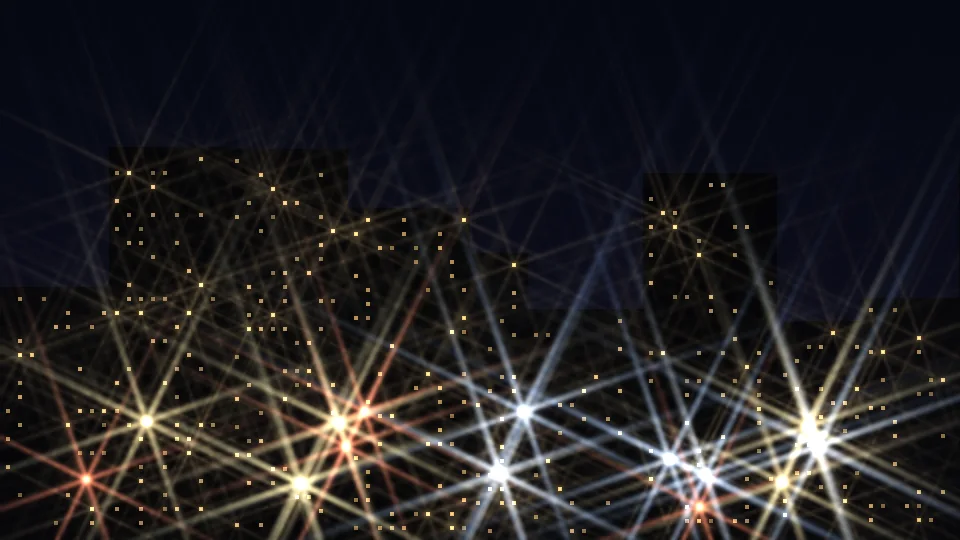
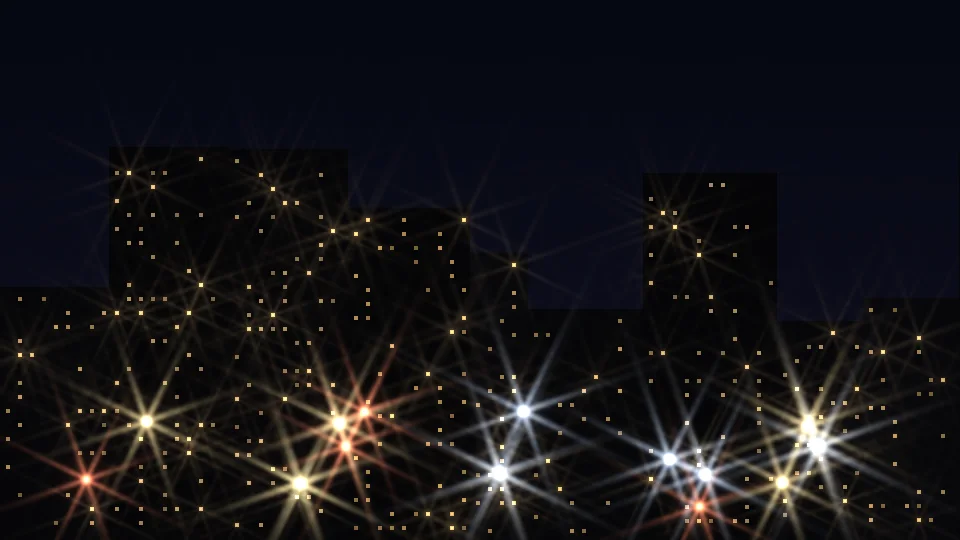
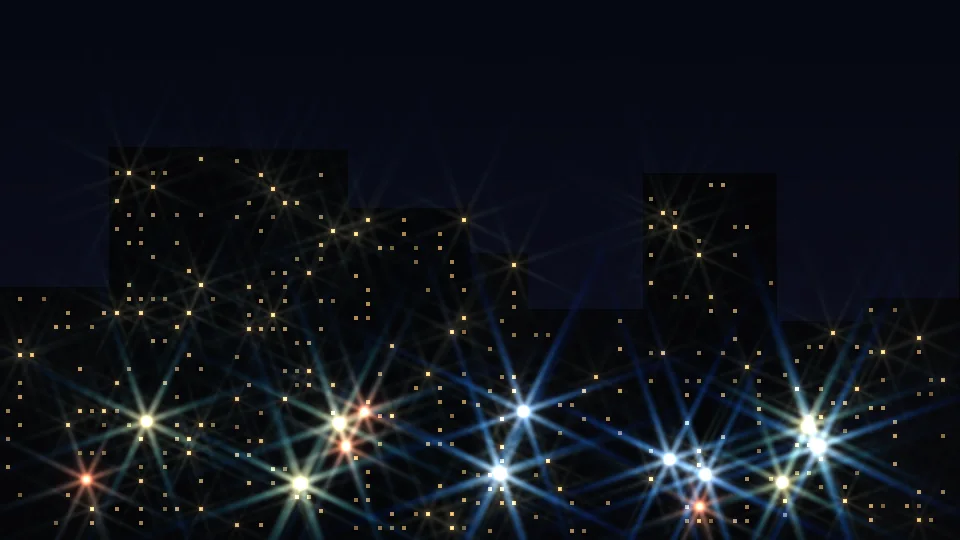
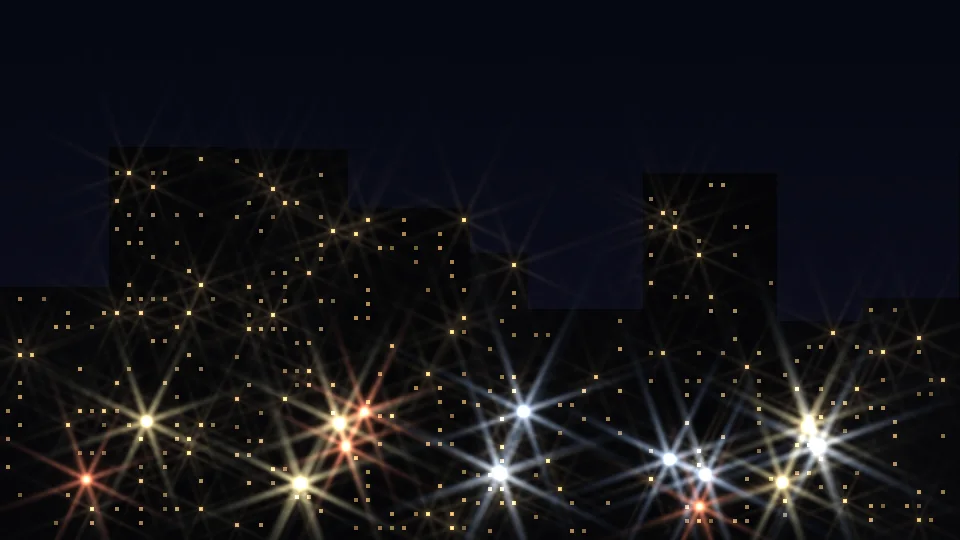
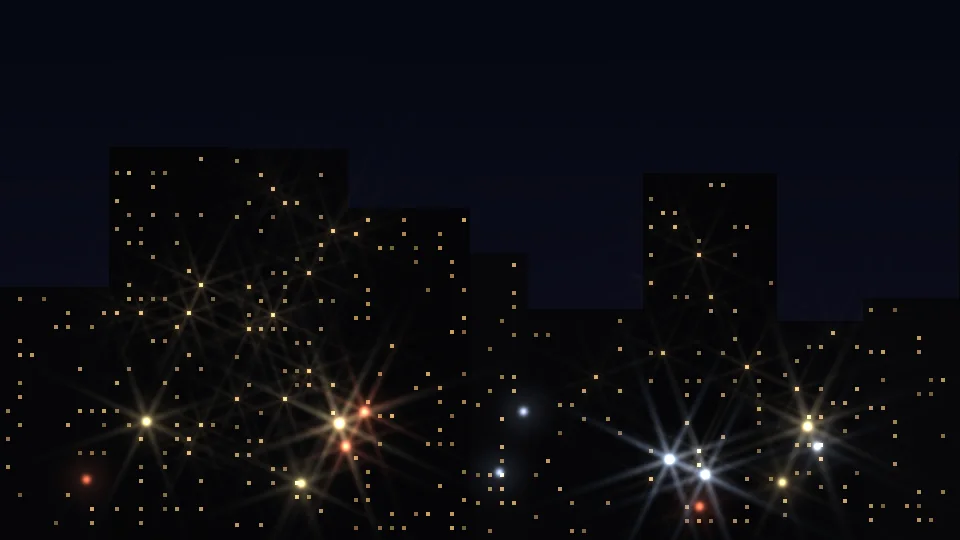
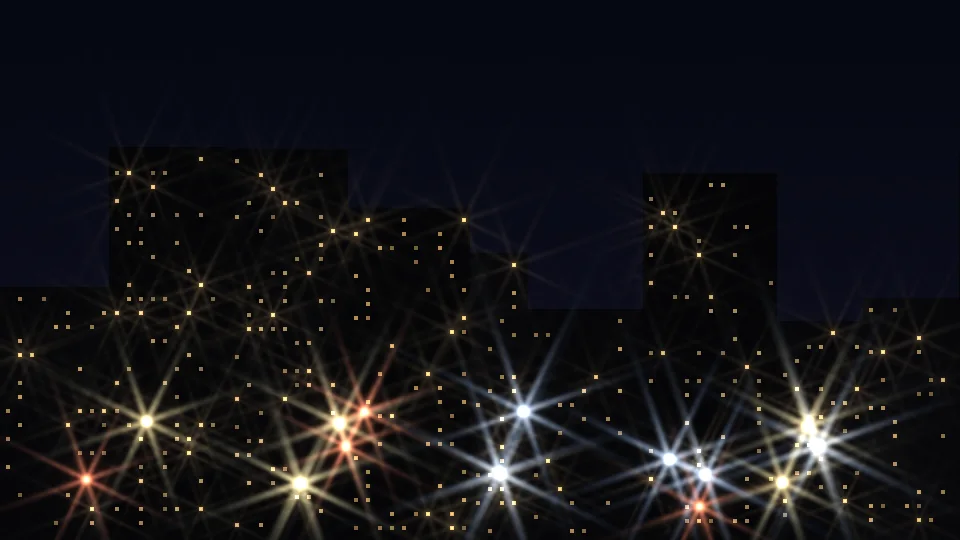
the same night scene with only the ray count changed.
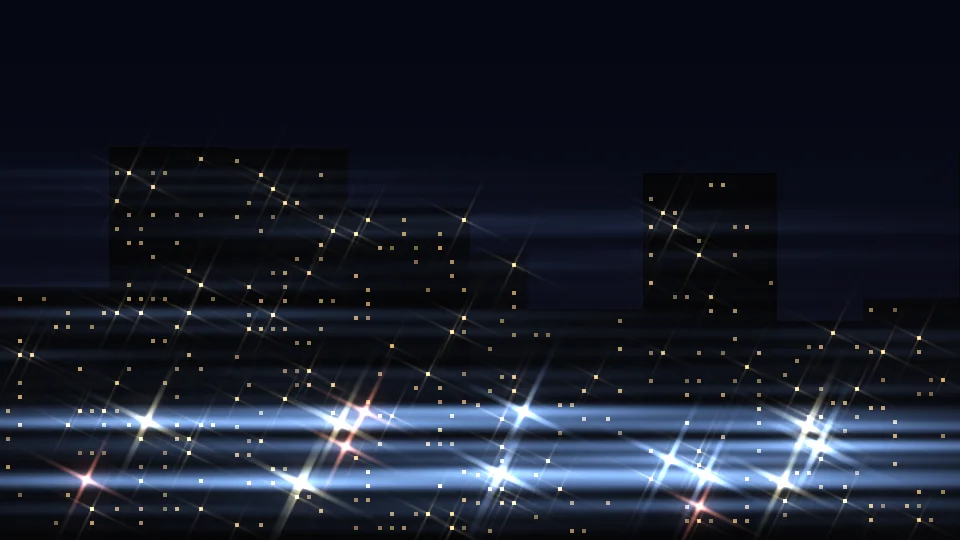
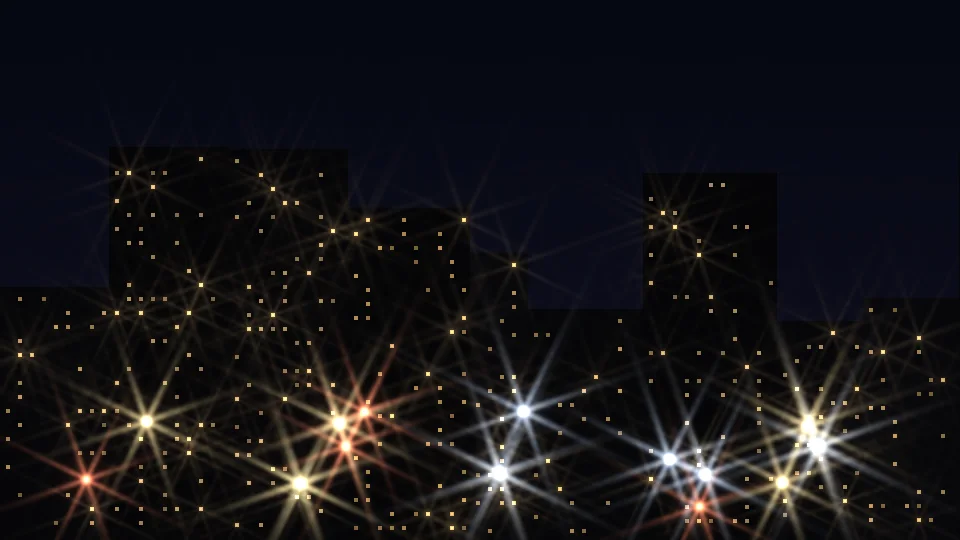
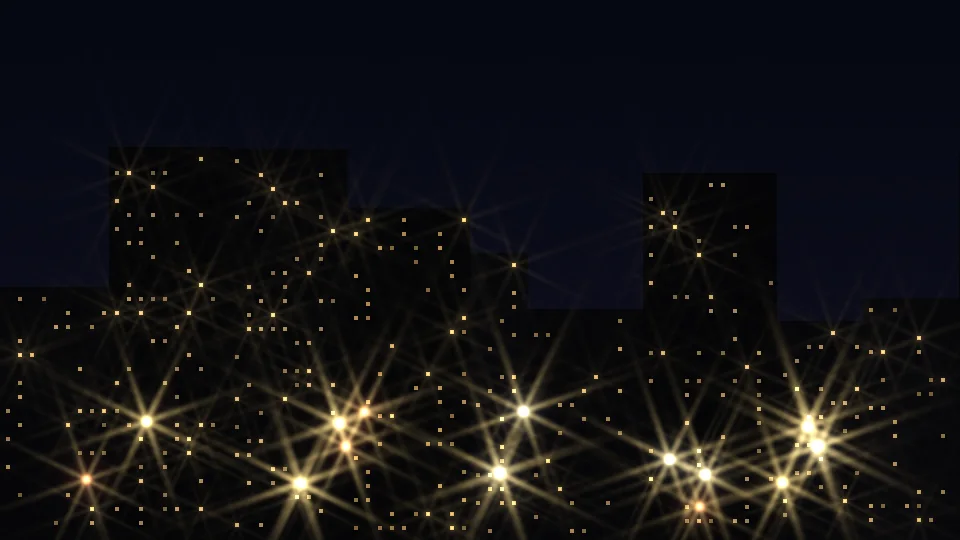
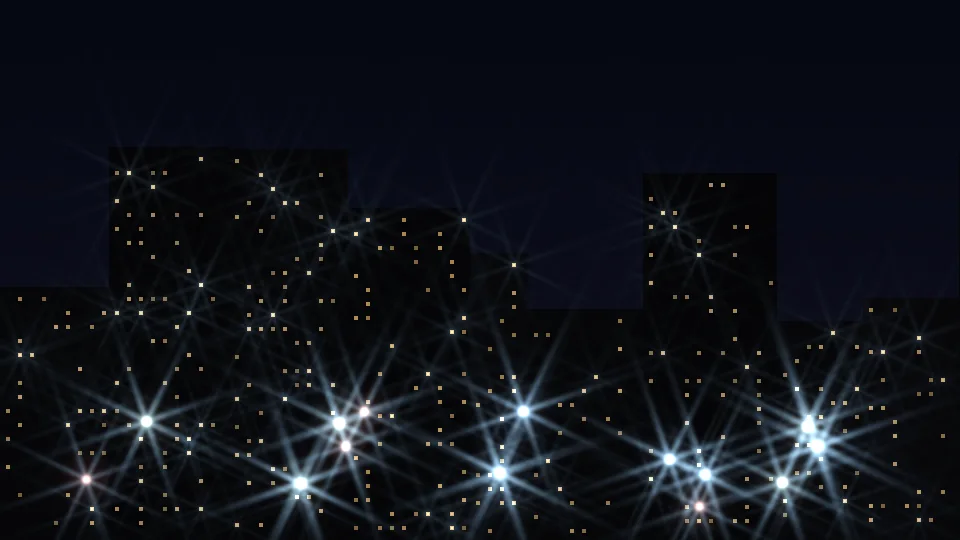
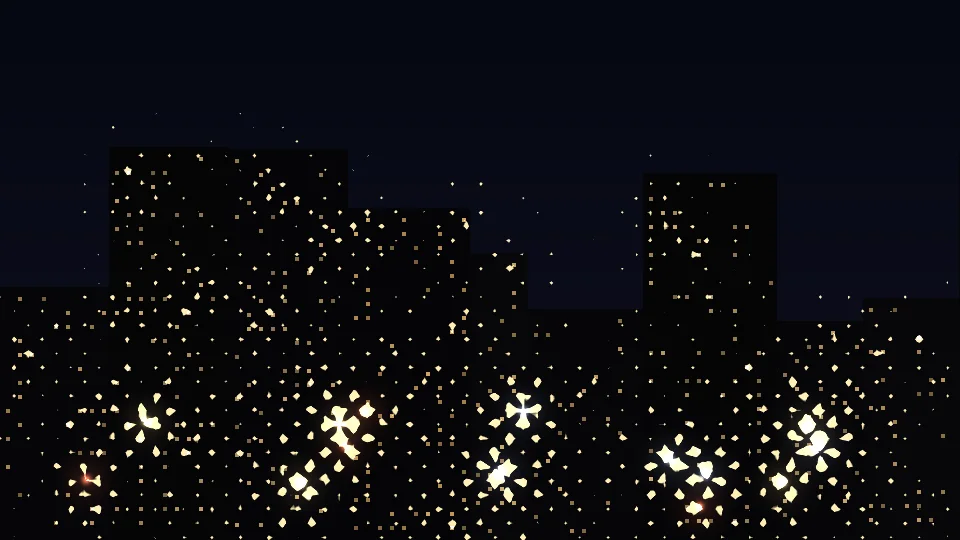
“Glow Source” first decides what counts as bright: based on luminance or alpha, with threshold, threshold softness and concentrate-highlights sliders choosing how bright a point must be. Those points then throw 4 (cross), 6 or 8 rays according to “Ray Count”; angle, length, brightness and rainbow are sliders. The three images below are the same night scene and settings with only the ray count changed.
Length and rainbow
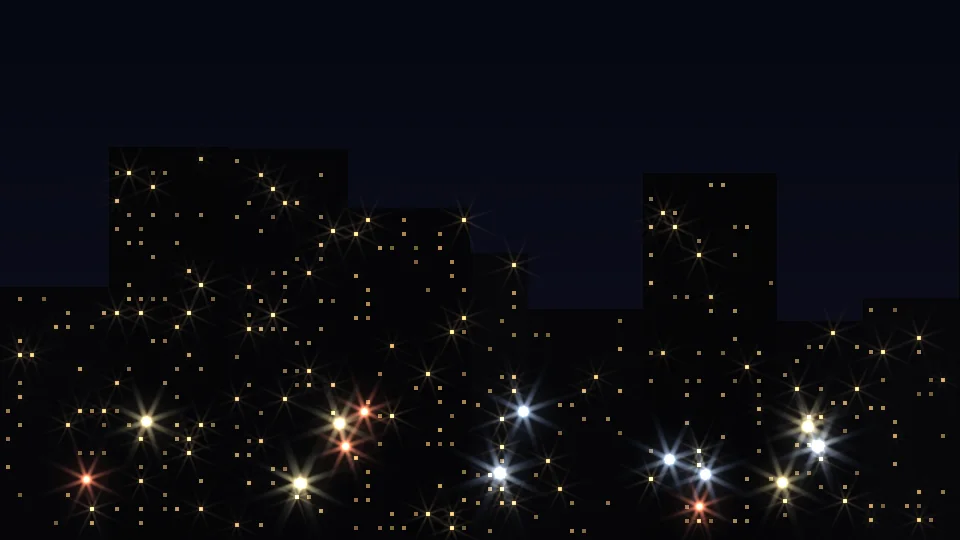
Long or short,
with or without a rainbow edge.
“Length” is in pixels — short gives tiny crosses on each highlight, long spans the whole frame; “Rainbow” spreads spectral colors along the ray, 0 for clean white light, 100 for a full rainbow.
Anamorphic streak
The cinema-lens kind:
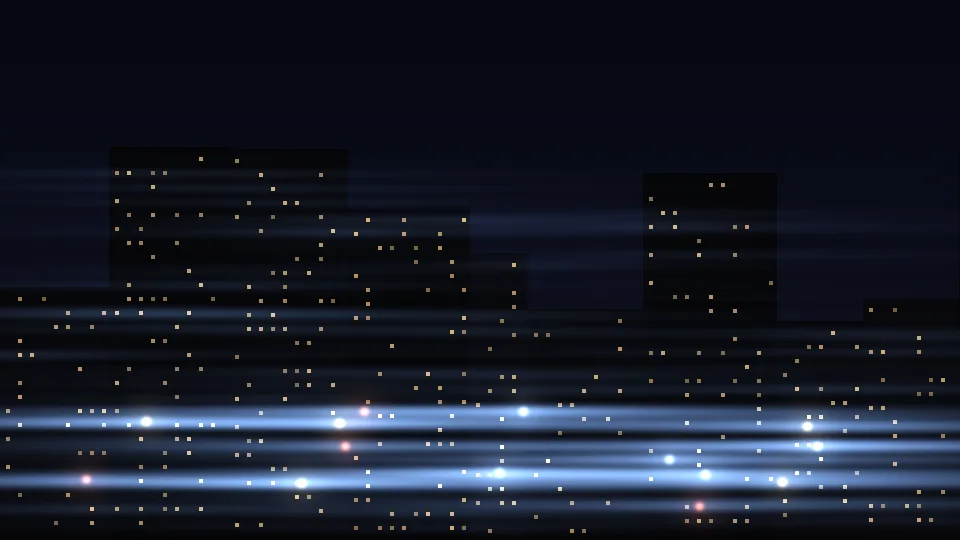
one streak of light across the frame.
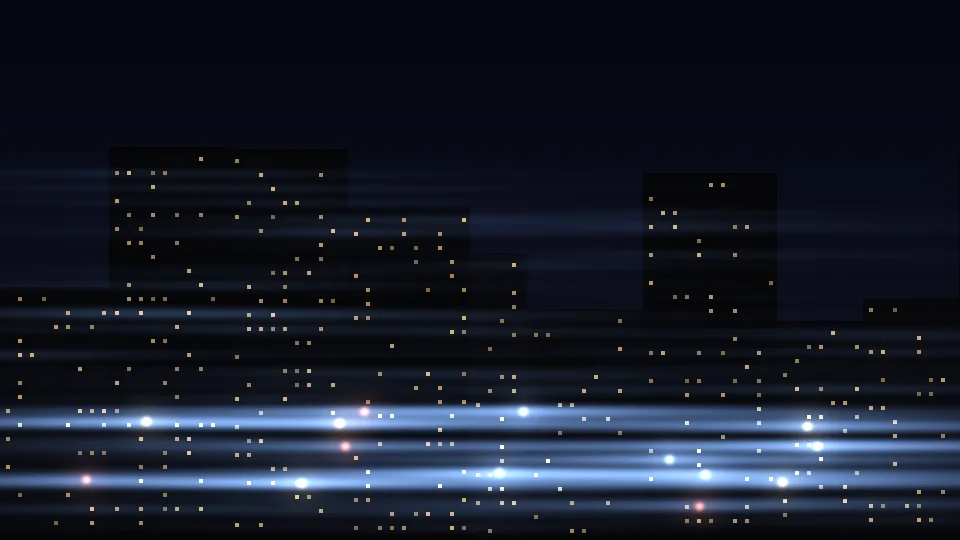
The anamorphic streak is a separate element (off by default): highlights throw one very long streak, with angle, length, thickness, brightness and color adjustable. Use it alone or together with starbursts; set the color to “Solid” or “Gradient” for the classic blue cinema streak.
Highlight glow and overall mist
Two kinds of haze
with different reach.
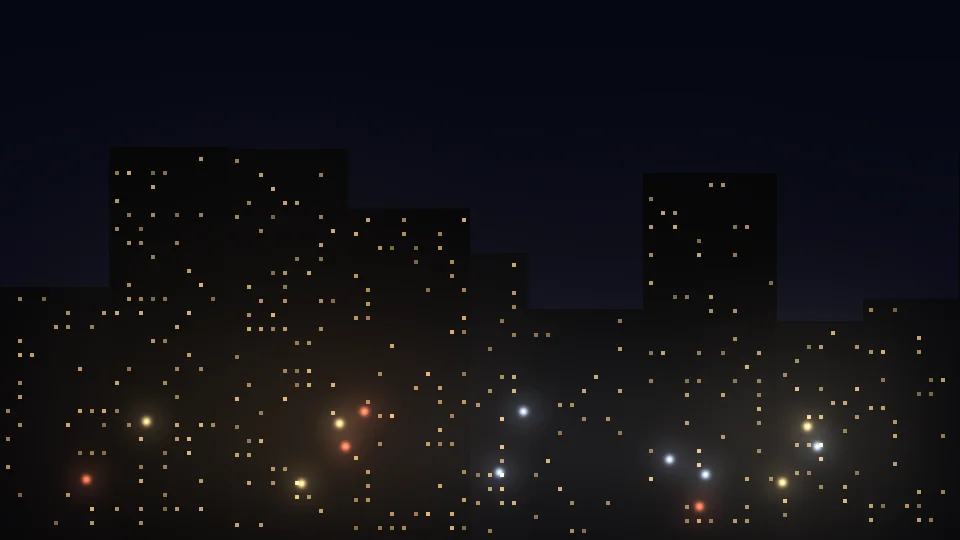
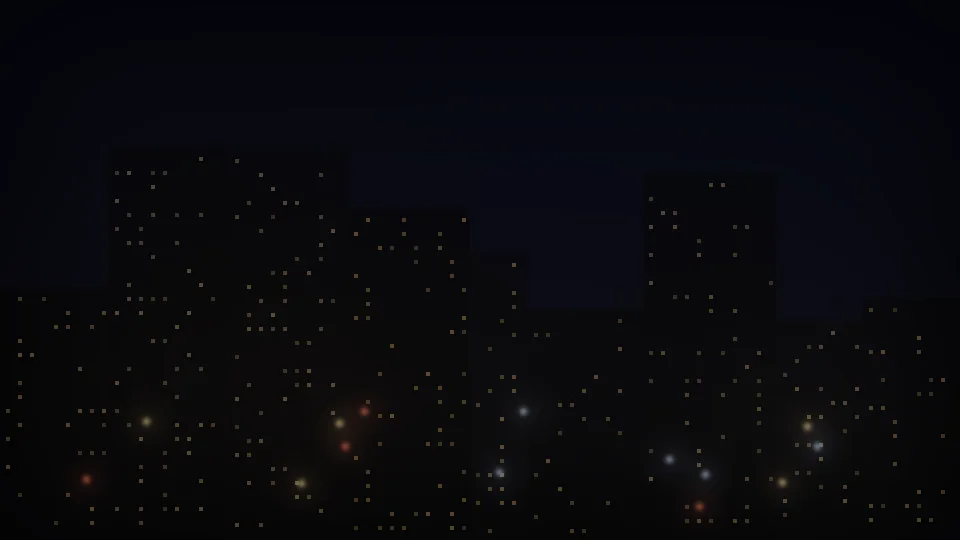
“Highlight Glow” puts a ball of light only on the selected highlights and leaves the shadows alone; “Overall Mist” blooms the highlights and also blends the whole frame toward a blurred copy, lifting shadows and lowering contrast like a soft-focus filter on the lens. Each has its own switch, radius and strength, usable alone or stacked with the starbursts.
Color, light fill and dispersion
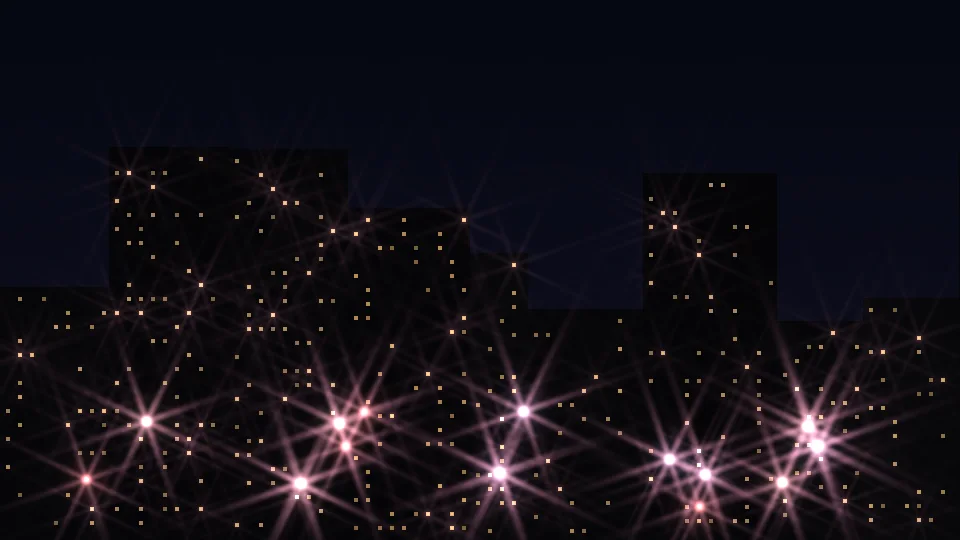
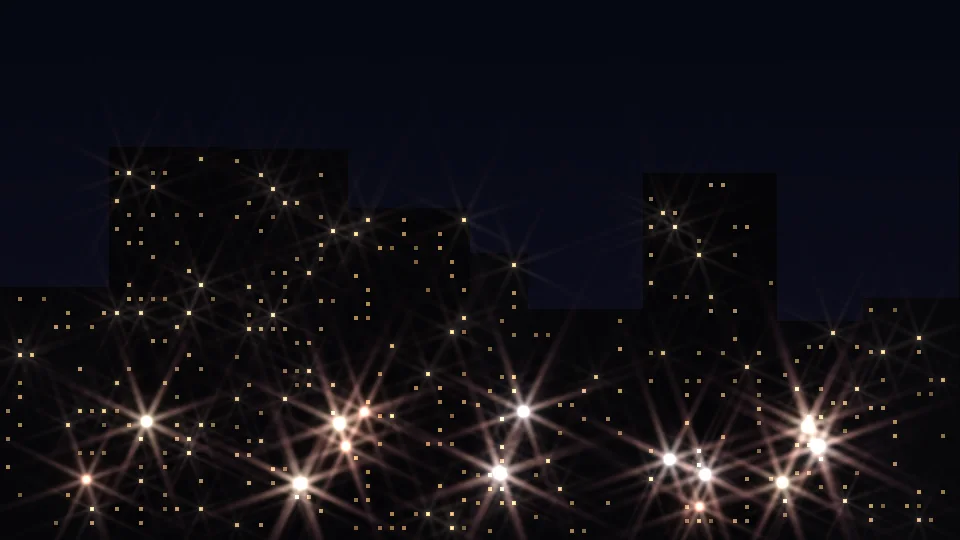
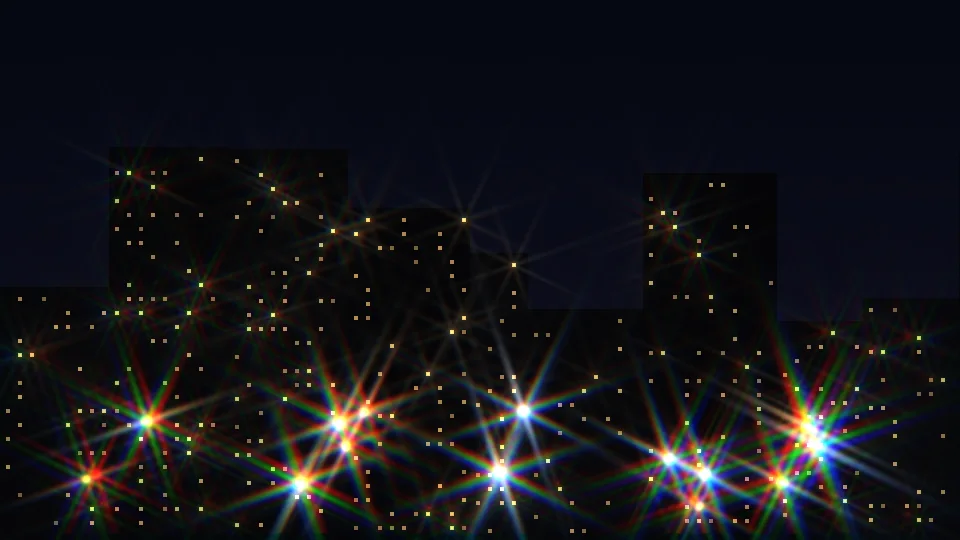
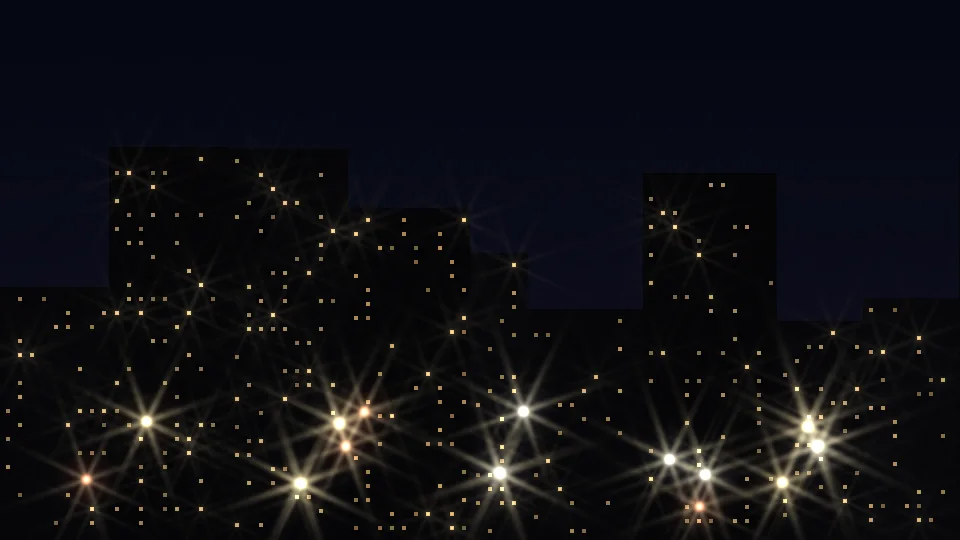
Change the color, change the texture,
then add a touch of dispersion.
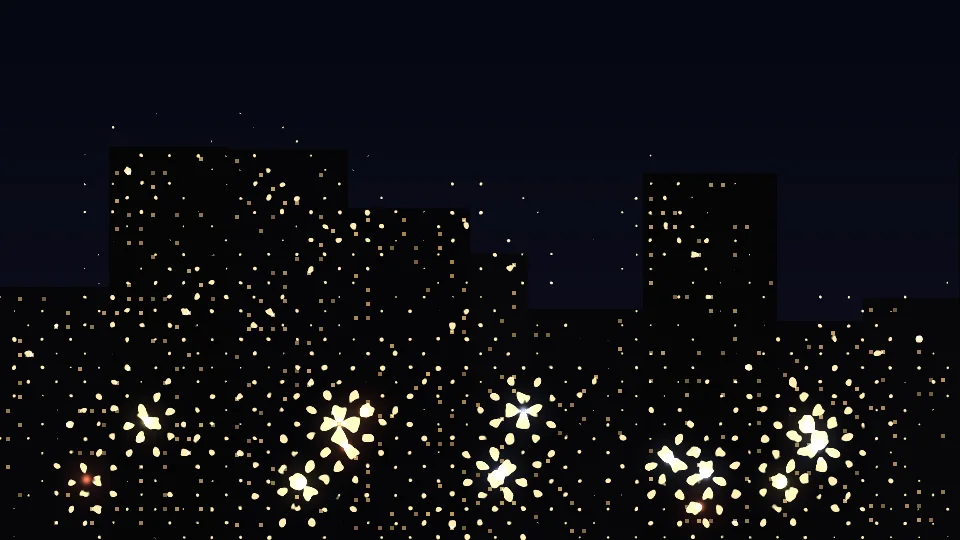
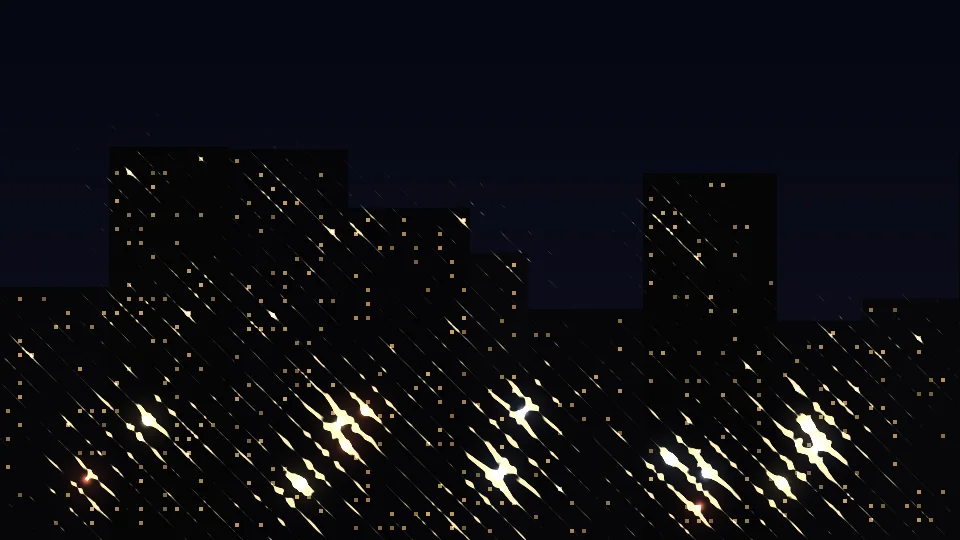
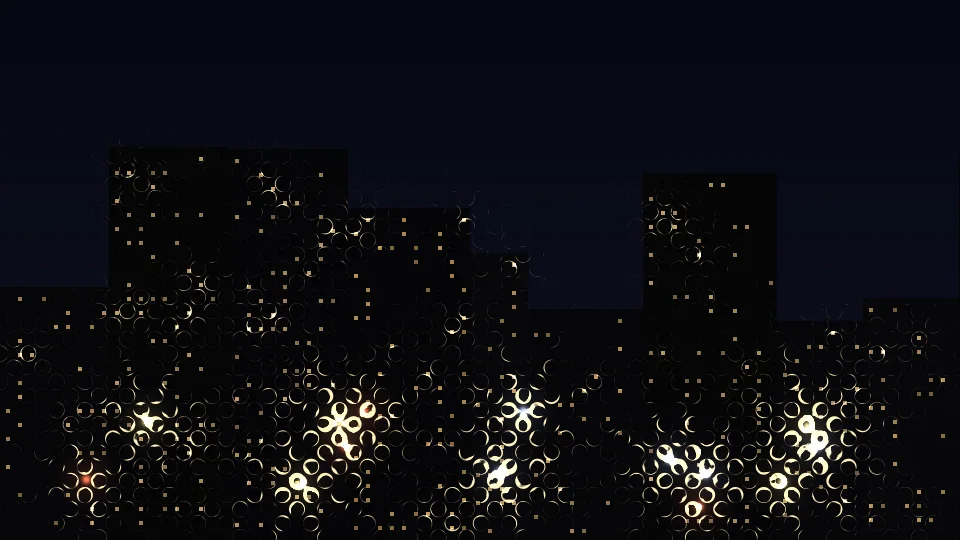
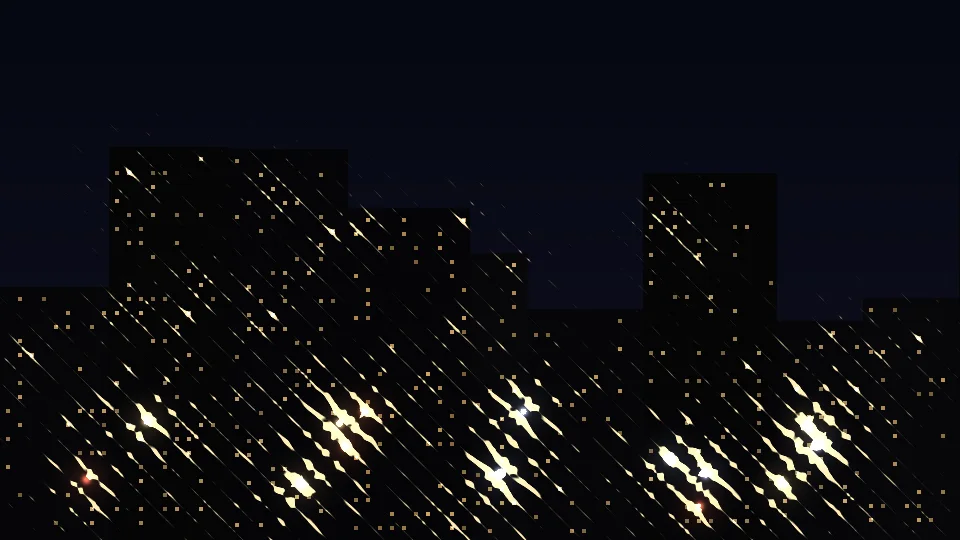
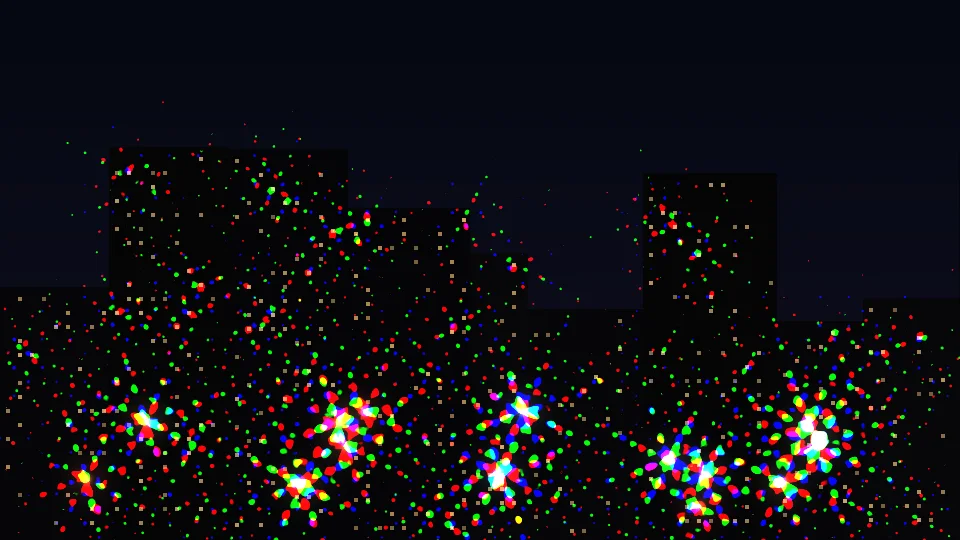
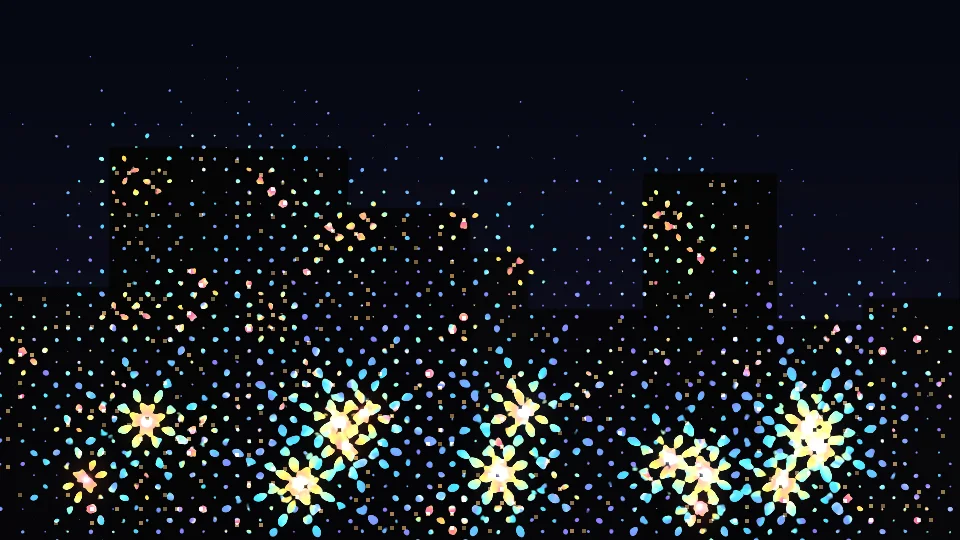
“Color” offers source (follows the picture), solid and gradient: solid takes any color and tint amount; gradient uses the same gradient editor, with every band getting an equal share of light so what you place on the ramp is what you see, applied to starbursts, streaks or glow. “Light Fill” swaps the solid light for halftone dots, diagonal lines, donuts, crosshatch, grid or tri-color dots, and the pattern can pulse, flow or rotate. “Dispersion” offsets red, green and blue. Gradient plus light fill is the liveliest: gradient colors in dots or lines give pop-art starbursts — the built-in “Neon Pop” and “Sunset Stripes” presets apply in one click.
⏩ Sweeps and transitions
No keyframes,
the light moves by itself.
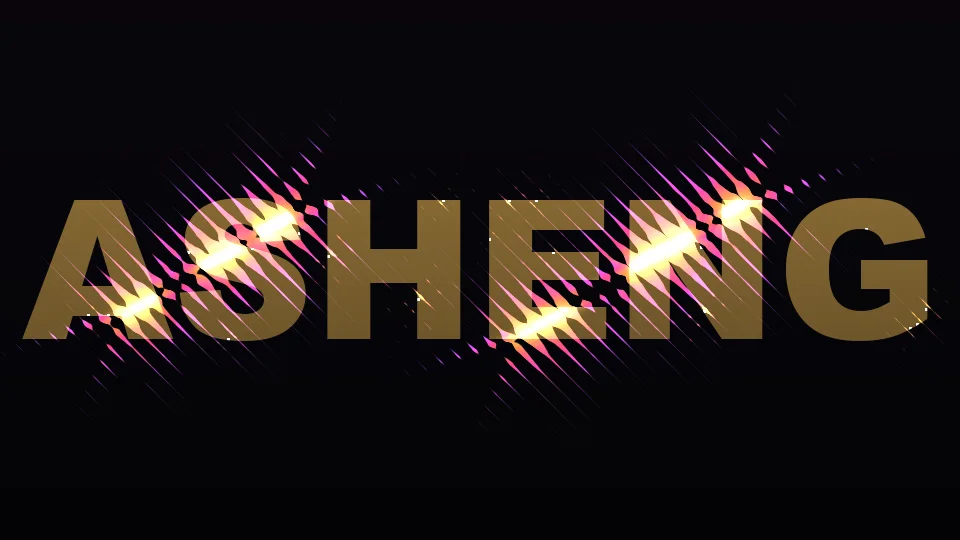
“⏩ Sweep” runs a bright band across the frame, looping or once, straight or circular, and starbursts can appear only where the band passes. “⏩ Transition Mode” makes an image or text appear, vanish, or appear then vanish along the light’s leading edge: timing, delay, soft edge and edge glow are adjustable, straight or circular (expanding or contracting). All four clips below are actual plugin renders.
9 built-in presets
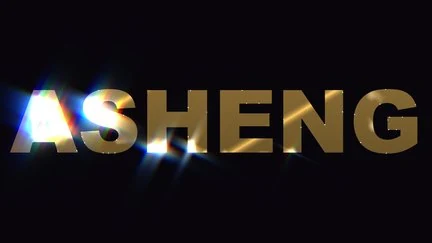
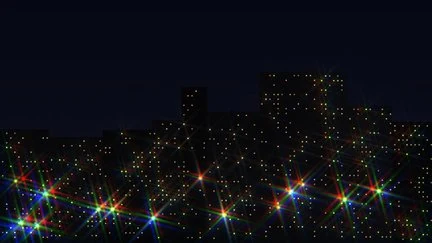
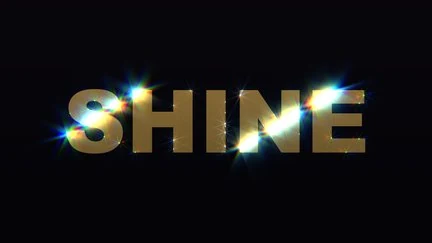
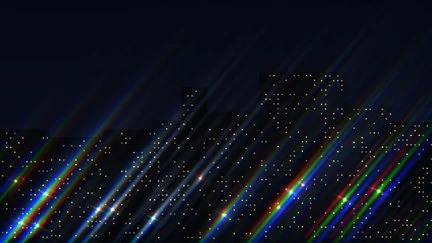
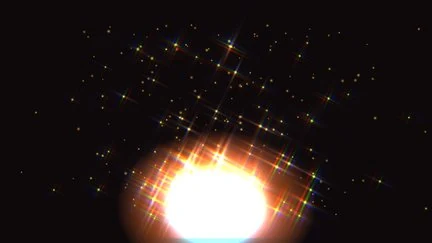
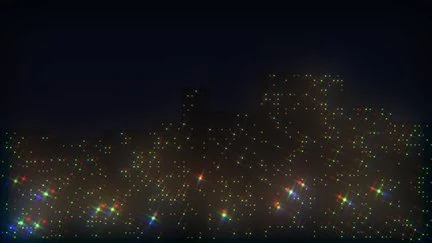
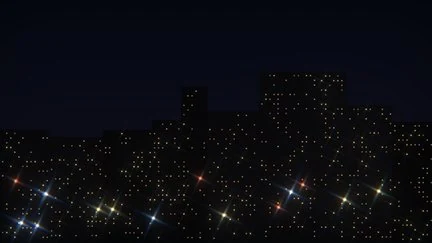
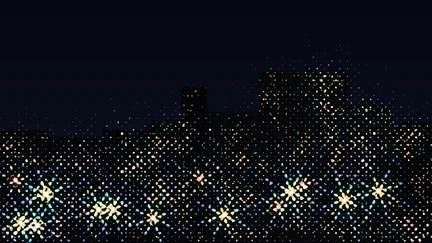
Turbulence, city night, diamond, cinema —
one click to apply.
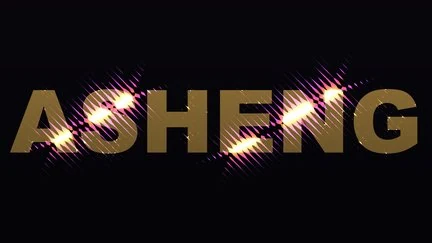
The library ships 9 presets: Turbulence Glints, City Night Glints, Diamond Sparkle, Cinematic Anamorphic, Warm Gold Rays, Dreamy Mist, Cinematic Lens, Neon Pop and Sunset Stripes. Each is a full parameter snapshot you can fine-tune after applying and save as your own; the library is shared, so your presets sit alongside. All thumbnails are actual plugin renders.
More
Zones, mix-and-match, stacking,
and GPU acceleration.
“Zones” limits starbursts to the area around 1 to 5 points you place, fading with distance. “Mix & Match” has a “Randomize” button that picks a combination and intensity of streak, highlight glow, mist and dispersion in one click; fine-tune the one you like and save it. “Stacking” offers light on top, source on top, or light only (for your own compositing). “GPU Acceleration” is on by default on the Apple Silicon GPU (Metal), falling back to the CPU with the same picture, only slower.
Getting started
Three steps to get going.
Requires an Apple Silicon (M-series) Mac, macOS 14 or later and After Effects 2026. No Intel Mac or Windows version yet.
- Download the installer
Click “Download for Mac” on this page and unzip. The installer is notarized by Apple.
- Quit AE, then install
Save your project, quit After Effects fully with Cmd+Q, then run the installer; the 9 built-in presets are added to the preset library at the same time.
- Add it to a layer with highlights
Reopen AE, find ASheng_Glint under “ASheng - Light”, add it to a text, photo or video layer with bright points, then pick a preset or set ray count, length and color yourself.
Good to know
Where is it in AE?
Under “ASheng - Light” in the Effect menu; the name is ASheng_Glint.
How is Glint different from Bling?
Bling creates its own sparkle — glints, rings, bokeh and light dust scattered over the frame. Glint creates no light; it pulls starbursts and streaks out of what is already bright, ideal after another effect (turbulent noise, say) has put light into text. The two can be stacked on the same layer.
What kind of footage suits it best?
It needs highlights: text brightened by turbulent noise or another glow effect, city lights, specular on metal and jewelry. If nothing is bright enough, lower the “Threshold” or switch the basis to “Alpha”.
Does the Golden Pass cover it?
Yes. The Golden Pass covers every ASheng AE plugin, including future releases, so Glint activates directly.
Can I output only the light and composite it myself?
Yes. Set “Stacking” to “Light Only” and the output contains only the light on transparency.
Which bit depths are supported?
8-, 16- and 32-bit are all supported.
Does it use the GPU?
Yes. “GPU Acceleration” is on by default and renders on the Apple Silicon GPU (Metal); if the GPU is unavailable it falls back to the CPU with the same picture, just slower.
Does it support Premiere Pro?
After Effects only for now.
Can I use it without a license?
Yes, you can try it with a watermark on the output. With a valid Glint license NFT or Golden Pass, click “Activate / Manage License” in the “License” group of the effect panel to activate.